Users
The Users view allows administrators to view and manage user accounts within the Issue Tracker. From this view, administrators can create new users, modify existing accounts, and control user activation status and privileges.
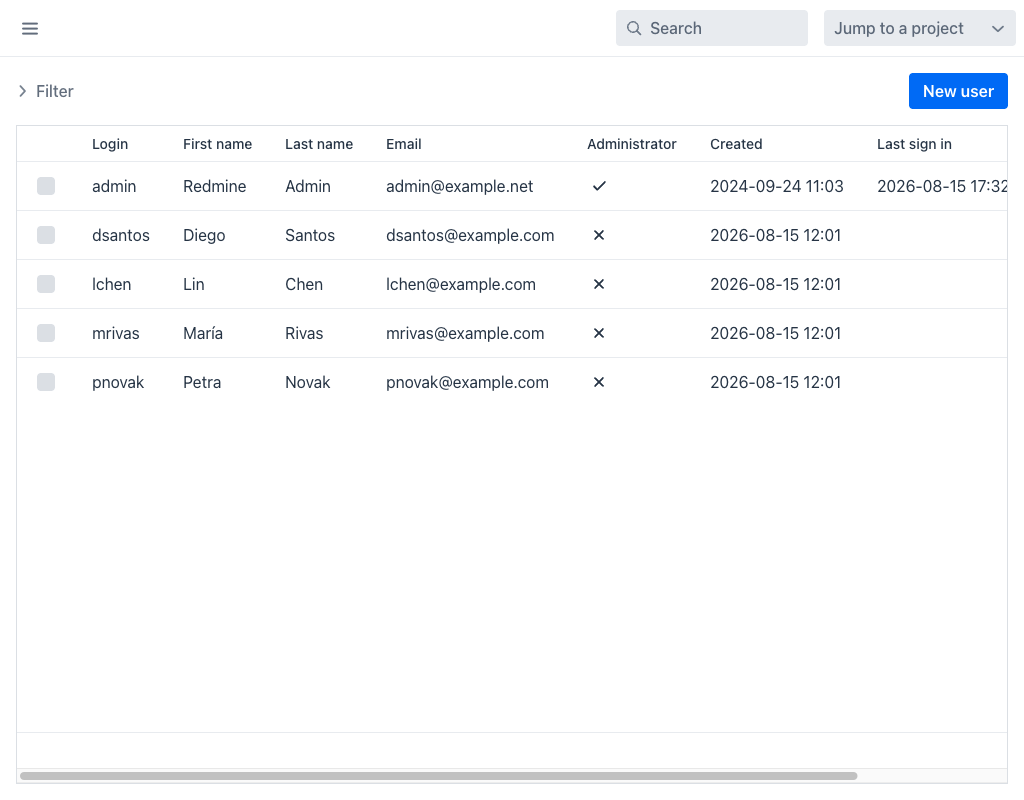
Users Grid
The grid displays the following columns:
- Login: The username used to sign in to the application.
- First name: The user's given name.
- Last name: The user's family name.
- Email: The user's email address.
- Administrator: Indicates whether the user has administrator privileges (✓ for yes, ✕ for no).
- Created: The date and time when the account was created.
- Last sign in: The date and time of the user's most recent login session.
- Updated: The date and time the account was last modified.
- Password last changed: The date and time of the last password change.
- Status: The account status — Active, Locked or Registered.
- Actions: A per-row actions menu (⋮) with Edit, Lock or Unlock, and Delete.
Filters
The filters sit inside a collapsible Filter panel above the grid. Expand it to reveal:
- Status: Filters users by their account status. By default, only Active users are shown.
Additional filters can be added using the Add filter dropdown. The Apply and Clear buttons control filter execution. The Save custom query button stores the current filter configuration for reuse.
Creating a User
Click the New user button at the top-right to create a new user account. The creation form includes fields for login, first name, last name, email, language, and administrator status, together with the authentication fields used to set the initial password.
Note
When the host application manages credentials itself, the authentication fields and the New user button are hidden. See Authentication ownership in the Developer Guide.
Managing Users
Through the row actions menu, administrators can edit user details, lock or unlock accounts, and change administrator privileges. The edit view is organised into General, Groups, Projects, Profile and Emails tabs, so that a user's group memberships and project roles can be managed in one place. User accounts can also be assigned to Groups and given specific Roles within projects.
Locked Users
Locking an account prevents the user from signing in while preserving all their data, including issues and time entries. A locked user is also removed from the pool of assignable users: selecting one in an issue form is rejected with Selected user is locked and cannot be assigned to issues. Issues already assigned to a user who is subsequently locked keep their assignee, so no history is lost.
Warning
Locking a user account is reversible through the Unlock action. Deleting a user account is a permanent action.