Views
The Views page provides a read-only overview of all application views and the access rules that affect them. This feature is complementary to the Access Rules page: while the Access Rules page shows rules and which views they govern, the Views page shows views and which rules apply to them.
Overview
The Views listing displays a grid of all registered application views in your system. Each view is listed with its display name, URL path, and the number of access rules that affect it. An administrator can filter views, expand individual rows to see detailed information, and review the rules, the governing roles, and the authorization criteria that decides access for each view.
Accessing the Views Page
The Views page is one of the administrator views provided by User Manager. The way it is reached from the navigation depends on how the host application organizes its menu.
Filtering Views
The Views listing includes filter options to help you find specific views.
Available filters:
- View name: Text field that filters views by display name using a contains match (case-insensitive)
- View URL: Text field that filters views by URL path using a contains match (case-insensitive)
Filter actions:
- Filter button: Click to apply the current filter criteria
- Clear button: Click to reset all filters and display all views
Views Listing
The Views listing is presented as a grid with the following columns:
- View name: The display name of the view as shown in the application interface
- View URL: The URL path of the view (for example, "um/users" or "um/roles")
- Applied rules: A count of the number of access rules that apply to this view
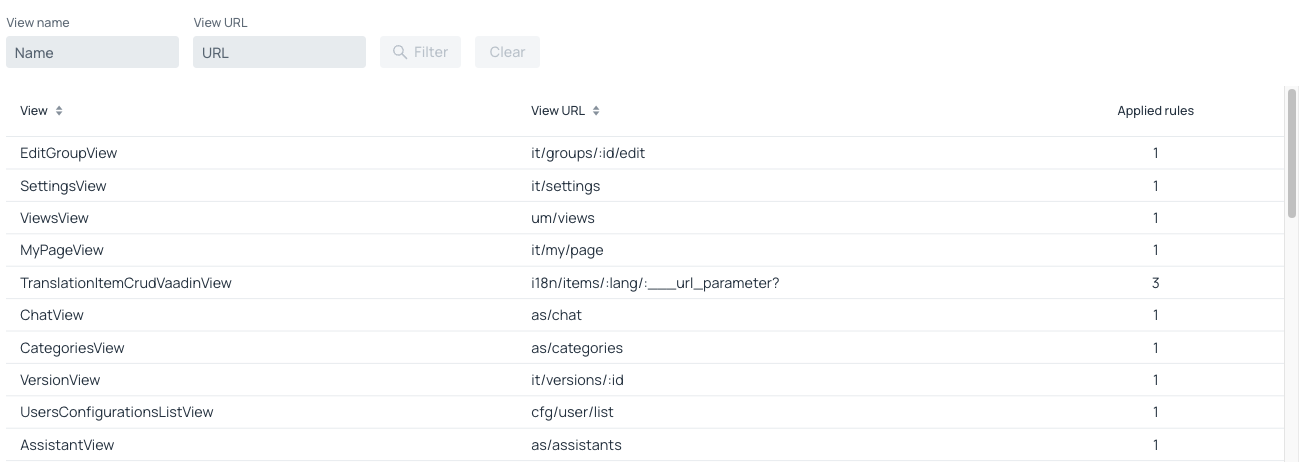
View Details
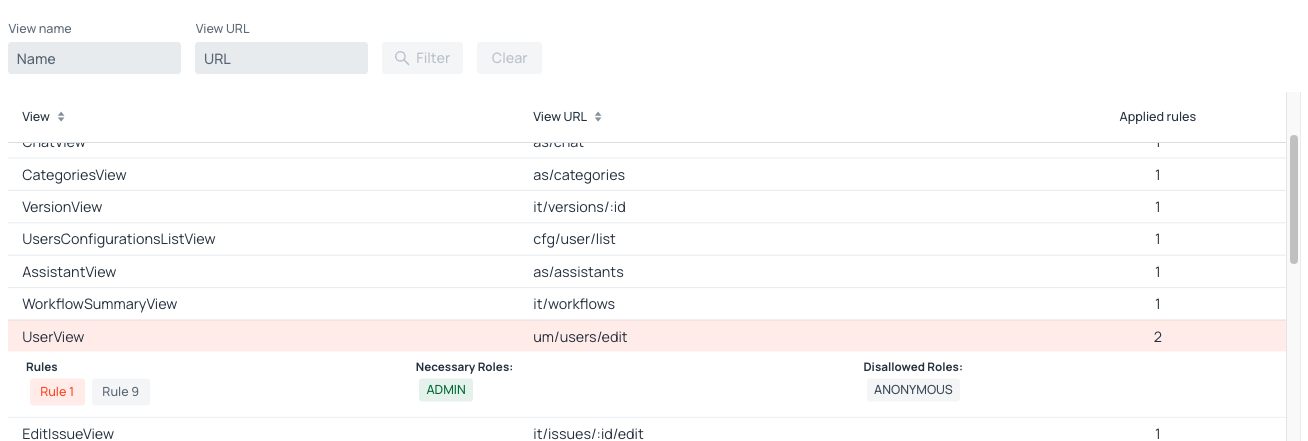
Clicking on a row in the Views listing expands it to display detailed information about that view. The expanded view includes the following sections:
Rules
This section displays all access rules that affect the selected view as clickable buttons, each labeled with the rule number (for example, "Rule 1", "Rule 2"). The rule that actually decides access for the view — the highest-priority rule matching it — is highlighted with a primary background colour and carries the tooltip "Access to this view is decided by this rule." Other rules are displayed with a contrast style to indicate that they are not the deciding rule.
Clicking a rule button:
- If the current user has access to the Access Rules page, clicking a rule button opens the rule editing dialog so an administrator can view and modify the rule details
- If the current user does not have access to the Access Rules page, the rule buttons are still visible but are inert and display a tooltip stating that the rules view is disallowed for this user
- In Free mode, once the user limit has been exceeded, the buttons are likewise inert and explain the limitation in a tooltip. To learn more, see Free mode
A button can be both the deciding rule and inert, in which case the tooltip states both.
Roles
This section displays badges for the roles that govern access to the view. The badges combine the roles of the deciding access rule with any roles required in the application's code that the rule does not already list.
Roles that are specified in the code display a special tooltip to indicate that they cannot be modified through access rules.
Authorization
Below the role badges, the authorization criteria of the deciding rule is shown, for example "Grant if the user has any of the following roles". This states how the badges are read: whether all of the roles are needed, any one of them, or whether the rule grants access to every logged-in user or to everyone. To learn more, see authorization.
When no access rule and no code-level requirement applies to the view, the details panel reports that no rules were found instead.
Understanding View Access Control
Each view in your application is protected by a combination of access control mechanisms:
- Access rules: Dynamic rules that determine which roles can access a view. These rules are managed on the Access Rules page
- Roles specified in the code: Roles that are required directly in the application's code. These cannot be changed through the User Manager interface
The two mechanisms are consulted in sequence, not combined. If an access rule matches the view, that rule decides on its own. The requirements declared in the code apply only to views that no rule matches. The Views page shows both, so that an administrator can tell which of them is deciding a given view.
Rule Priority
When multiple access rules apply to the same view, the one with the highest priority — the lowest Order value — is the one that decides, and the rest have no effect on that view. The deciding rule is visually highlighted in the Views details. An administrator can modify rule priorities on the Access Rules page.
Related Pages
- Access Rules: Manage access rules and their applied views
- Roles management: Manage roles and authorities