Assistants
The Assistants view allows administrators to create and manage the AI assistants that users interact with through the Chat view. An assistant is the central configuration entity in AI Support — it brings together a language model, a system prompt, and a set of document categories to define how the AI behaves when responding to user messages.
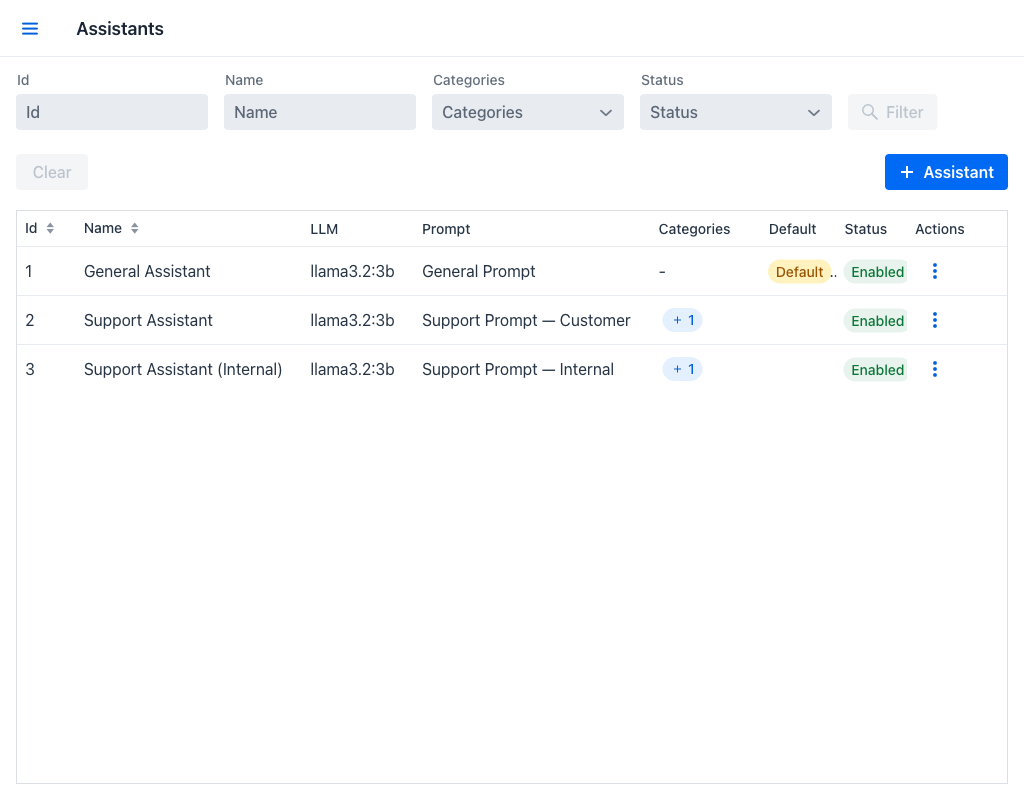
Assistants Grid
The grid displays the following columns:
- Id: Unique numeric identifier of the assistant.
- Name: The display name of the assistant as it appears to users in the Chat view.
- LLM: The name of the language model associated with this assistant.
- Prompt: The name of the system prompt that defines the assistant's behavior.
- Categories: Badges showing the document categories that this assistant has access to. These categories determine which documents are searched when the assistant uses Retrieval-Augmented Generation (RAG) to answer questions.
- Default: A badge indicating whether this assistant is the default one. The default assistant is automatically selected when a user starts a new conversation.
- Status: A badge indicating whether the assistant is enabled or disabled. Disabled assistants are not available for selection in the Chat view.
- Actions: A per-row actions menu.
Filters
The view provides the following filter fields to narrow down the list:
- Id: Filters by the assistant's numeric identifier.
- Name: Filters assistants whose name contains the entered text.
- Categories: A multi-select dropdown that filters assistants associated with any of the selected categories.
- Status: A dropdown to filter by enabled or disabled status.
Once any filter field has a value, the Filter and Clear buttons become active. Click Filter to apply the criteria or Clear to reset all filters.
At the top right of the filter area, the + Assistant button opens the dialog for creating a new assistant.
Row Actions
Click the actions menu on any row to access the following options:
- Edit: Opens the assistant creation/edition dialog with the assistant's current configuration pre-filled.
- Enable / Disable: Toggles the assistant's enabled status. Disabled assistants remain listed in the Chat view but cannot be used.
- Set as default: Makes this assistant the default for new conversations. It appears only on assistants that are not already the default, and asks for confirmation, naming the assistant that is losing the flag.
- Delete: Removes the assistant. If the assistant is currently in use by one or more sessions, a replacement dialog is displayed asking the administrator to select a different assistant to reassign those sessions to before the deletion proceeds. The dialog states how many sessions the action will modify.
The assistant marked as default cannot be deleted. Doing so reports that the assistant is marked as default and that the default must be changed first.
Warning
Deleting an assistant that is in use requires selecting a replacement. All sessions currently using the deleted assistant will be reassigned to the replacement assistant.
Creating and Editing an Assistant
Clicking the + Assistant button or the Edit action opens a dialog with the following fields:
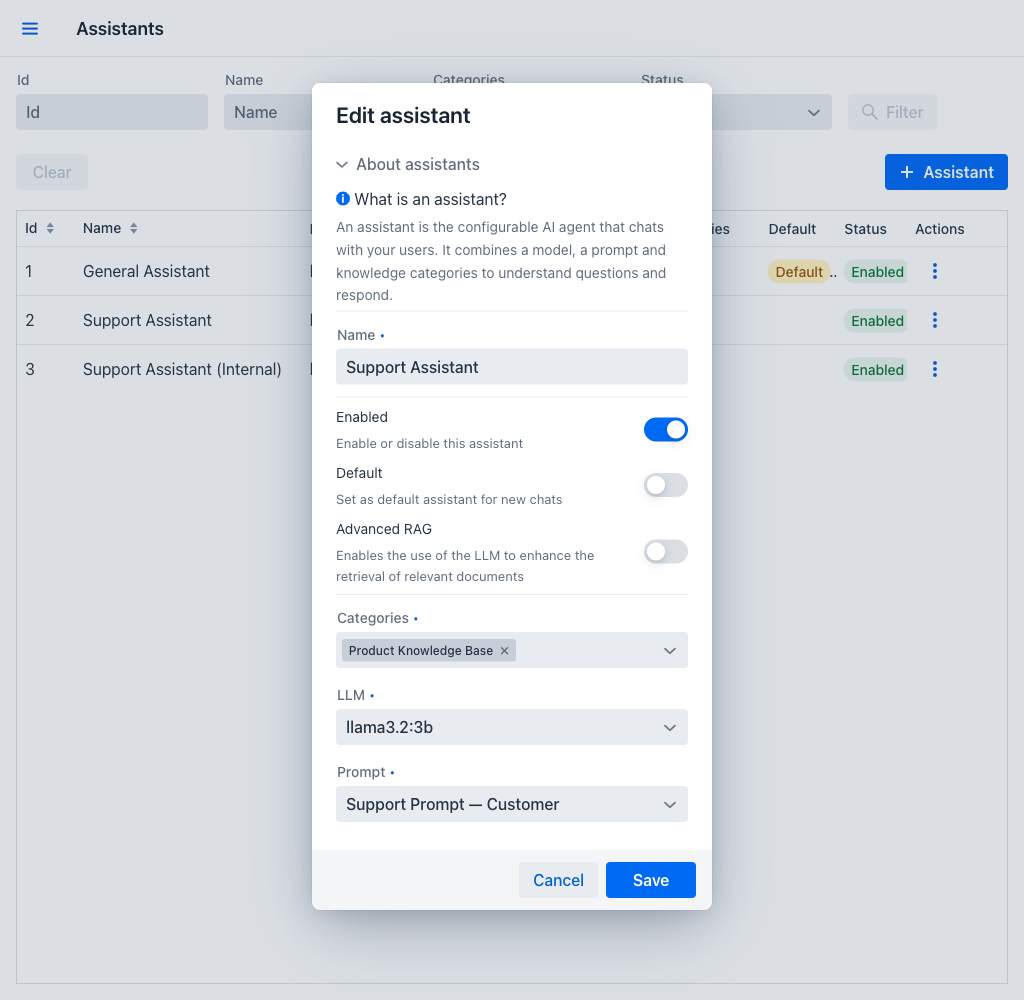
- Name (required): The display name for the assistant. Must be unique across all assistants.
- Enabled: A toggle that determines whether the assistant can be used. Enabled by default.
- Default: A toggle that marks this assistant as the default for new conversations. Only one assistant can be the default at any time; switching the flag to another assistant asks for confirmation first.
- Advanced RAG: A toggle that enables advanced Retrieval-Augmented Generation processing, described in the dialog as using the language model to enhance the retrieval of relevant documents. It produces more relevant results at the cost of additional processing time. The toggle is read-only while the assistant has no enabled category selected, since there would be nothing for the refined queries to match; a tooltip states the requirement. The stored value is left as it is, and takes effect again as soon as an enabled category is selected.
- Categories: A multi-select dropdown for associating document categories with the assistant. When the assistant processes a user message, only documents belonging to these categories are searched for relevant context. Leaving it empty is allowed: the assistant then retrieves no documents and answers from the language model alone.
- LLM (required): A dropdown to select the language model that powers this assistant. Only enabled LLMs appear in this list.
- Prompt (required): A dropdown to select the system prompt that defines the assistant's behavior and instructions. Only enabled prompts appear in this list.
The dialog opens with an About assistants section that explains what an assistant is; it can be collapsed. The footer contains a Cancel button to discard changes and a Save button to persist the configuration. Closing the dialog with unsaved changes asks whether to discard them, offering Discard and Keep editing.
Understanding Assistant Configuration
The relationship between the assistant's components is important for achieving the desired AI behavior:
The language model determines the AI's general capabilities — its reasoning ability, response quality, and supported content types (text, images, audio, etc.). Different models have different strengths and cost profiles.
The prompt shapes the AI's personality and behavior within those capabilities. A well-crafted prompt tells the AI what role it should play, how it should format responses, what topics it should focus on, and what constraints it should follow.
The categories control the knowledge scope. By associating specific categories with an assistant, administrators can ensure that the AI only references relevant documents when answering questions. For example, an assistant configured with a "Technical Documentation" category will only search documents in that category, ignoring unrelated content in other categories. Only enabled categories are searched, so an assistant whose categories are all disabled behaves like one with none at all.