Language Management
This feature allows an administrator to manage the application's supported languages and their translations. It is composed of two connected views: the Language List, where languages are configured, and the Translation Items view, where the actual translated strings for each language are managed.
Language List
The main view displays all languages registered in the system.
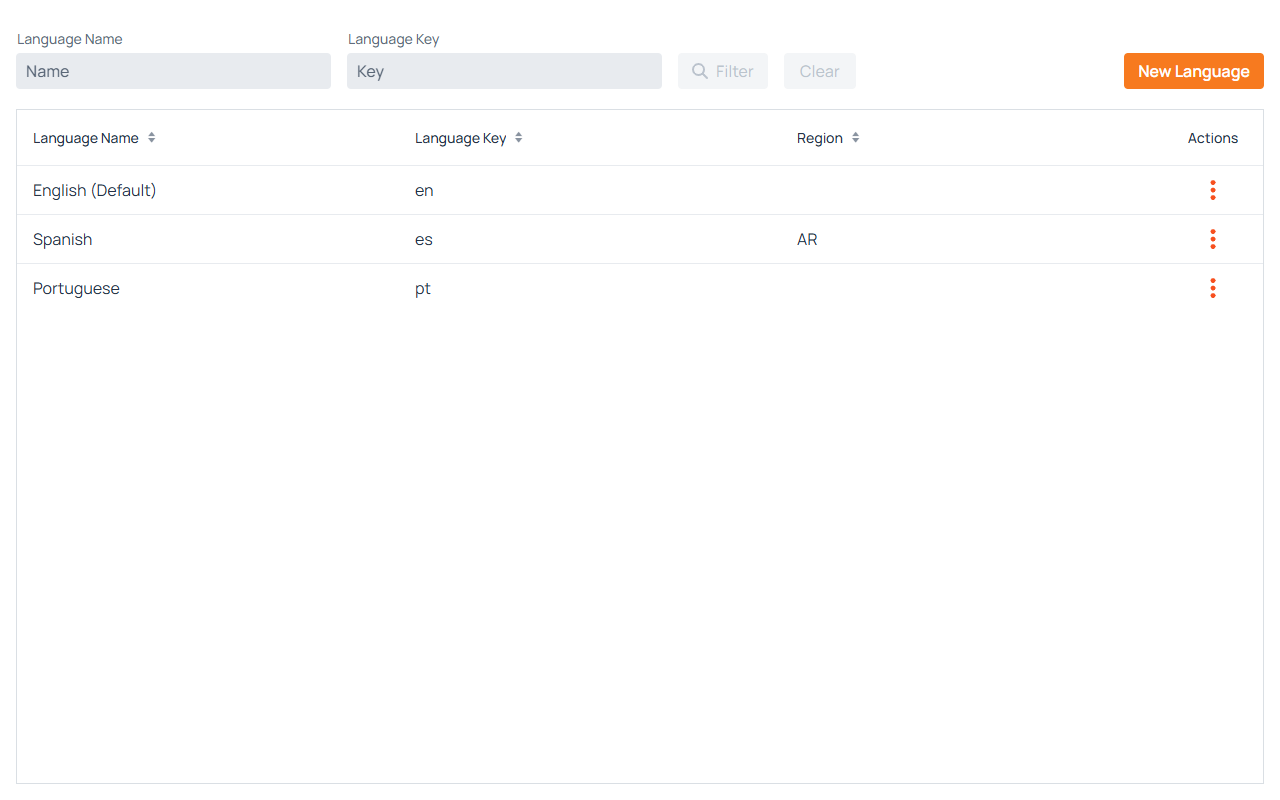
Filters
- Language Name: Filters languages whose display name contains the entered text.
- Language Key: Filters by the ISO language code (e.g.
en,es).
The Filter button activates when either field has a value. Clear resets both fields and refreshes the grid.
On a narrow screen the filter fields are replaced by a single Filter button that opens them in a dialog, and the grid shows only the Language Name and Actions columns.
Language Grid
The grid displays the following columns:
- Language Name: The display name of the language in the browser's locale. The default language is identified by a (Default) suffix in its name.
- Language Key: The ISO 639-1 two-letter language code (e.g.
en,es,pt). - Region: An optional ISO 3166-1 country code that creates a regional variant of the language (e.g.
ARfor Argentine Spanish). - Actions: A contextual menu with per-language operations. See Language Actions.
In the top-right corner, the New Language button opens the language creation dialog.
Language Actions
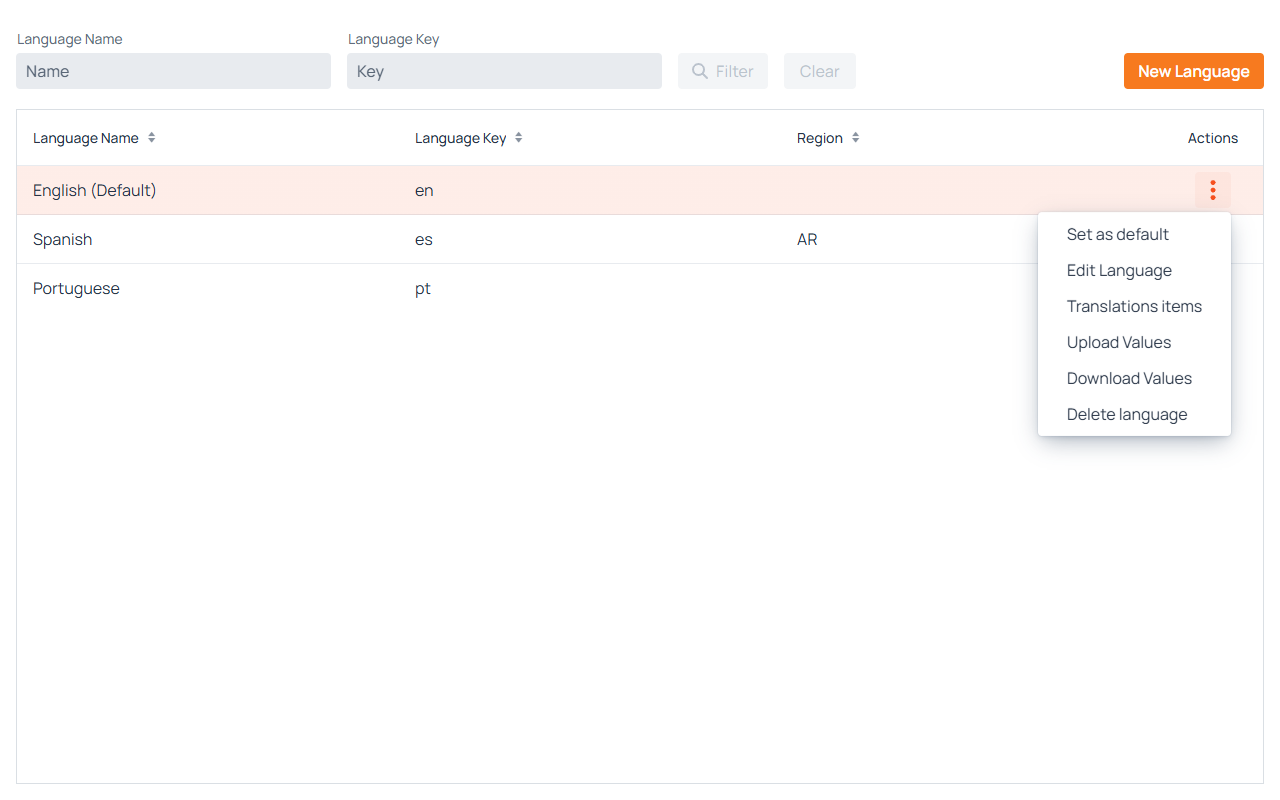
Each row has a ⋮ button that opens a menu with the following options:
- Set as default: Marks this language as the default for the application. The default language is used as the fallback when a translation is missing in another language. Only one language can be the default at a time; the current default cannot be deleted.
- Edit language: Opens the language form pre-filled with the language's current values.
- Translations items: Navigates to the Translation Items view for this language, where individual translation strings can be managed.
- Scan missing keys: Opens the Scan missing keys dialog for this language, to discover keys present in the application's bundled
.propertiesfiles but not yet registered in the database, and import the selected ones — without leaving the Language List. - Upload Values: Opens the upload dialog to bulk-import translations for this language from a
.propertiesfile. - Download Values: Downloads all current translations for this language as a
.propertiesfile, which can be used for backup or bulk editing. - Delete language: Permanently deletes the language and all its translations after confirmation. The default language cannot be deleted.
The same actions are also accessible via a right-click context menu on any row.
Creating and Editing a Language
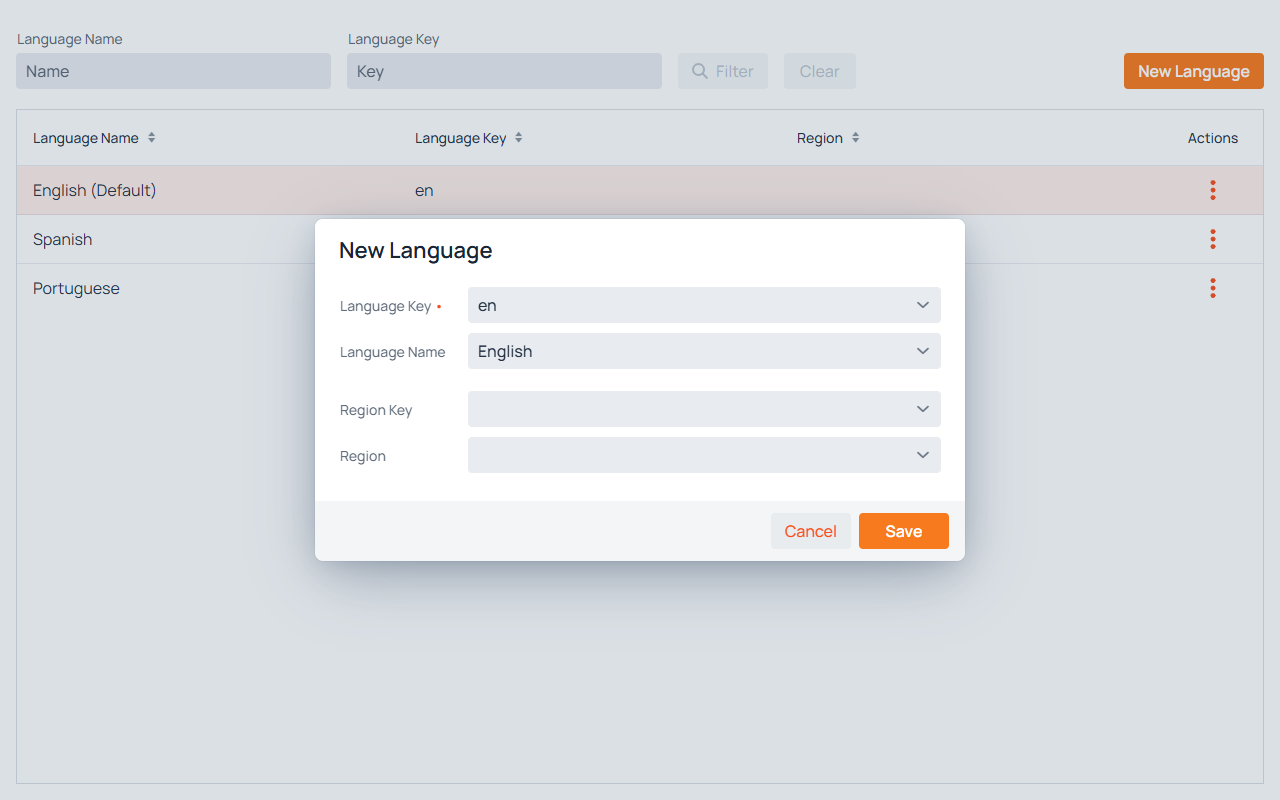
The language form contains four linked fields:
| Field | Description |
|---|---|
| Language Key | A dropdown listing all ISO 639-1 language codes. Selecting a value here automatically updates Language Name. |
| Language Name | A dropdown listing the same languages by their display name. Selecting a value here automatically updates Language Key. |
| Region Key | Optional. A dropdown listing ISO 3166-1 country codes, used to create a regional variant (e.g. selecting AR alongside es creates es_AR). Selecting a value updates Region. |
| Region | A dropdown showing country display names, linked to Region Key. |
Click Save to persist the language. Click Cancel to discard and close.
Uploading Translations
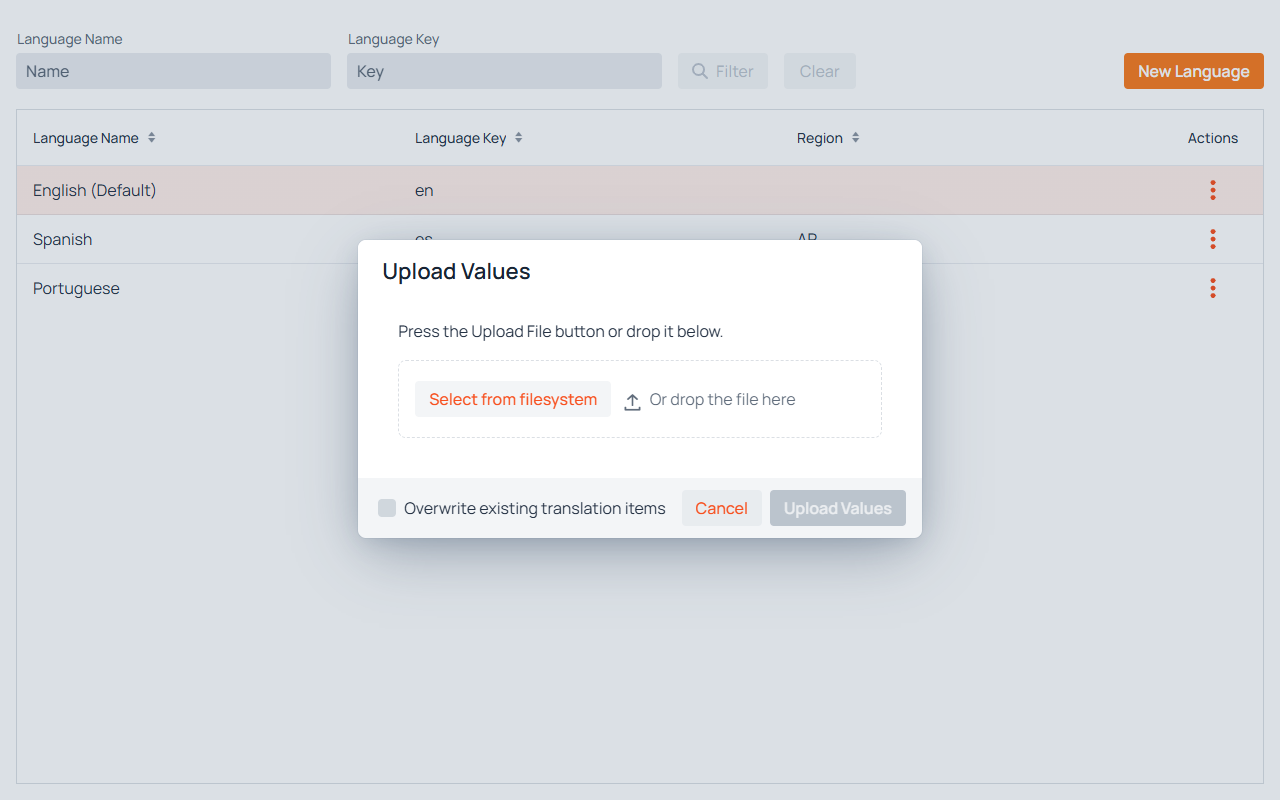
The upload dialog allows bulk-importing translation strings for a language from a .properties file (the standard Java resource bundle format: one key=value pair per line).
- File selection: Use the Select from filesystem button or drag and drop a
.propertiesfile into the drop zone. Only one file can be uploaded at a time, and it must be no larger than 5 MB. A file that is rejected — because of its extension, its size, or because a second file was added — is discarded with a notification, and the upload has to be started again. - Overwrite existing translation items: When checked, existing translations for keys already present in the system will be replaced with the values from the uploaded file. When unchecked, only keys that have no existing translation will be created.
Click Upload Values to process the file. The button is only enabled once a file has been selected.
If the database refuses some of the keys in the file as duplicates of existing keys, those keys are reported after the upload. See Skipped keys.
Free-Tier Limits
Without a full license, I18N Manager allows at most 2 languages and 100 translation items. A restrictions bar appears above the grid, showing a Free version badge, a Languages badge with the current count against the limit (for example, Languages: 2 / 2), and an Upgrade link. The count badge turns red once the limit is reached.
While the limit applies:
- The New Language button is disabled once 2 languages exist.
- Everything else in the view keeps working normally.
Note
If the database already holds more than 2 languages — for example after a full license expires — the view switches to a restricted state in which Set as default, Edit language, Translations items, Upload Values, and Download Values are all disabled. Delete language stays available, so the number of languages can be brought back within the limit.