Projects
The Projects view allows administrators to create and manage the projects that organize issues and time entries. A project serves as the primary container for all issue tracking activity, grouping related issues, members, and time logs together.
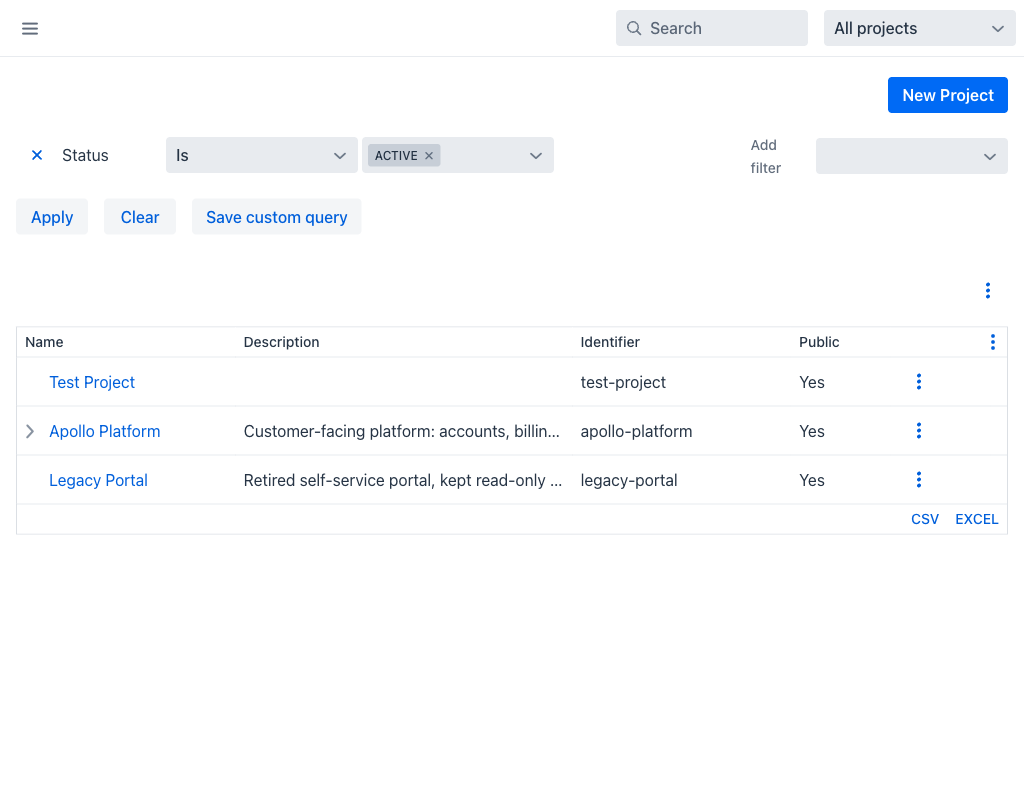
Projects Grid
The grid displays the following columns by default:
- Name: The display name of the project. Clicking the name opens the project overview. Projects with subprojects show an expand arrow that reveals their children in place.
- Description: The project description.
- Identifier: The short, URL-safe identifier used in the project's routes.
- Public: Whether the project is visible to users who are not members.
- Actions: A per-row actions menu (⋮) with available operations.
Which columns appear is configurable: the Projects list defaults section of the Settings view controls the default selection, and Created, Status, Homepage and Subproject of are among the columns that can be added.
Filters
The view provides filter fields above the grid:
- Status: Filters projects by their current status.
Additional filters can be added using the Add filter dropdown. The Apply and Clear buttons control filter execution. The Save custom query button allows saving the current filter configuration.
Row Actions
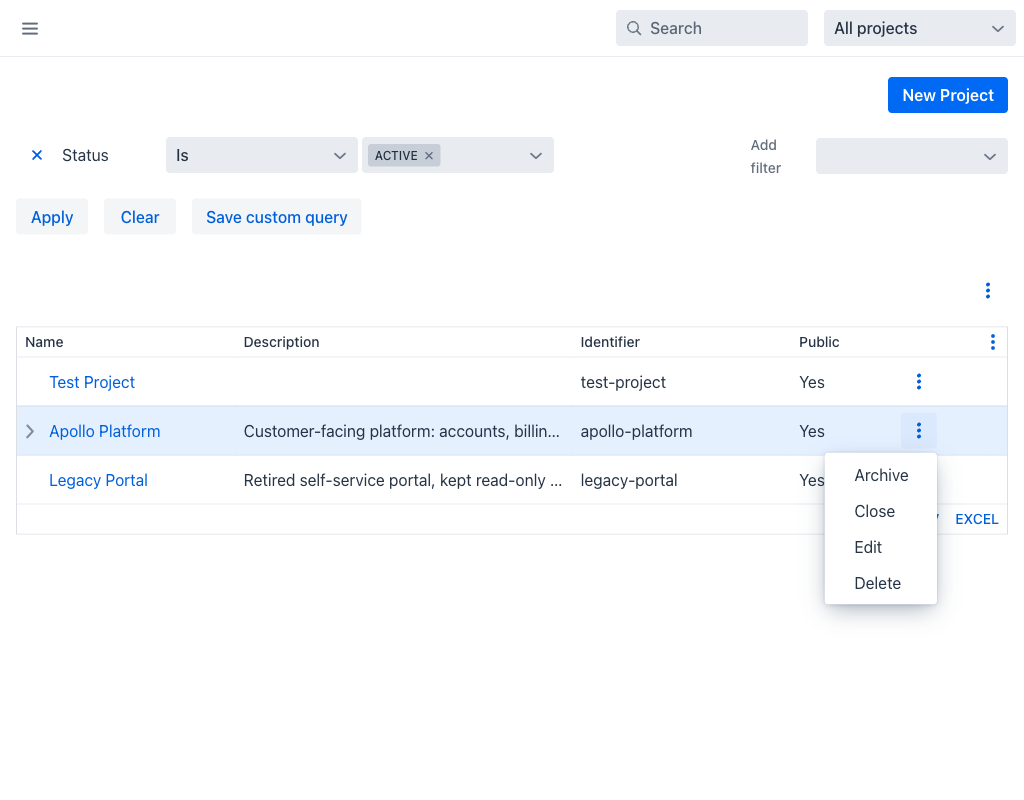
Click the ⋮ icon on any row to access the following actions:
- Archive: Moves the project to an archived state. Archived projects are hidden from default views but retain all data.
- Close: Marks the project as closed. Closed projects no longer accept new issues.
- Edit: Opens the project settings for modification.
- Delete: Permanently removes the project and all associated data after a confirmation step.
Warning
Deleting a project is a permanent action and cannot be undone. All issues, time entries, and project settings will be removed.
Project Overview
Clicking a project name from the list opens the project overview page. This page provides a summary of the project's current state and serves as the main entry point to project-level features.
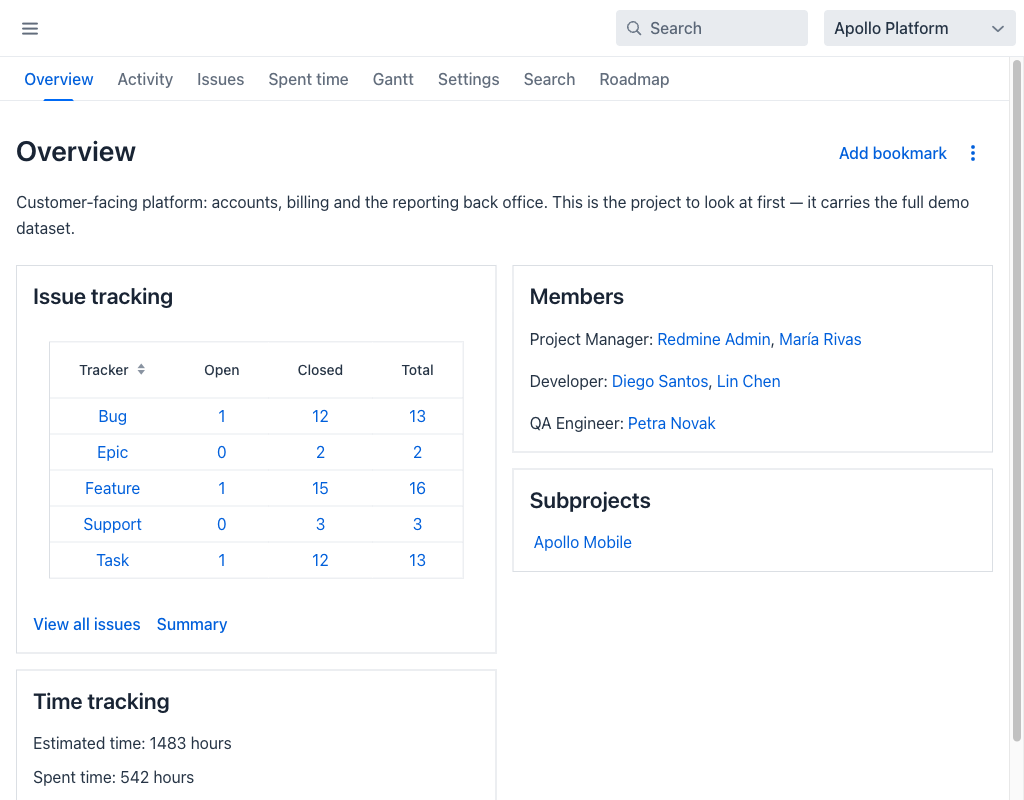
The overview page is organized into the following sections:
- Issue tracking: A table of issue counts per tracker, with Open, Closed and Total columns. The View all issues and Summary links below it open the issues list and the Issues Report.
- Members: The project members grouped by the role they hold.
- Subprojects: Links to the project's children. This section appears only when the project has subprojects.
- Time tracking: The estimated and spent hours for the project.
The Add bookmark action in the header adds the project to the Recently used group of the project switcher, keeping it within reach from any view.
Project Tabs
The project detail area includes the following navigation tabs:
- Overview: The summary view described above.
- Activity: A chronological feed of recent changes within the project, with filters for date range, user, and activity type (issues, spent time).
- Issues: The Issues list scoped to this project.
- Spent time: The Spent time view scoped to this project.
- Gantt: A Gantt chart of the project's issues, showing their start and due dates and the dependencies between them.
- Settings: Project-level configuration, organised into Project, Members, Issue tracking, Time tracking and Issue categories tabs.
- Search: Full-text search within the project's issues and content.
- Roadmap: The Roadmap for the project's versions.
Tabs are hidden when the corresponding module is disabled for the project, so the set shown varies from project to project.
Issue Tracking Settings
The Issue tracking tab of the project settings defines the defaults applied to issues in this project:
- Trackers: Which trackers are enabled for the project.
- Default assignee: The member proposed as assignee on new issues. Only members who can be assigned issues are offered.
- Default version: The target version proposed on new issues. Only versions that are still open are offered, so a released or locked version cannot become the default.
- Default issue query: The saved query applied when the issues list is opened. Only queries that are public (visible to any user) can be selected.
- Custom fields: Which project-scoped custom fields apply to the project's issues.
Activity Tab
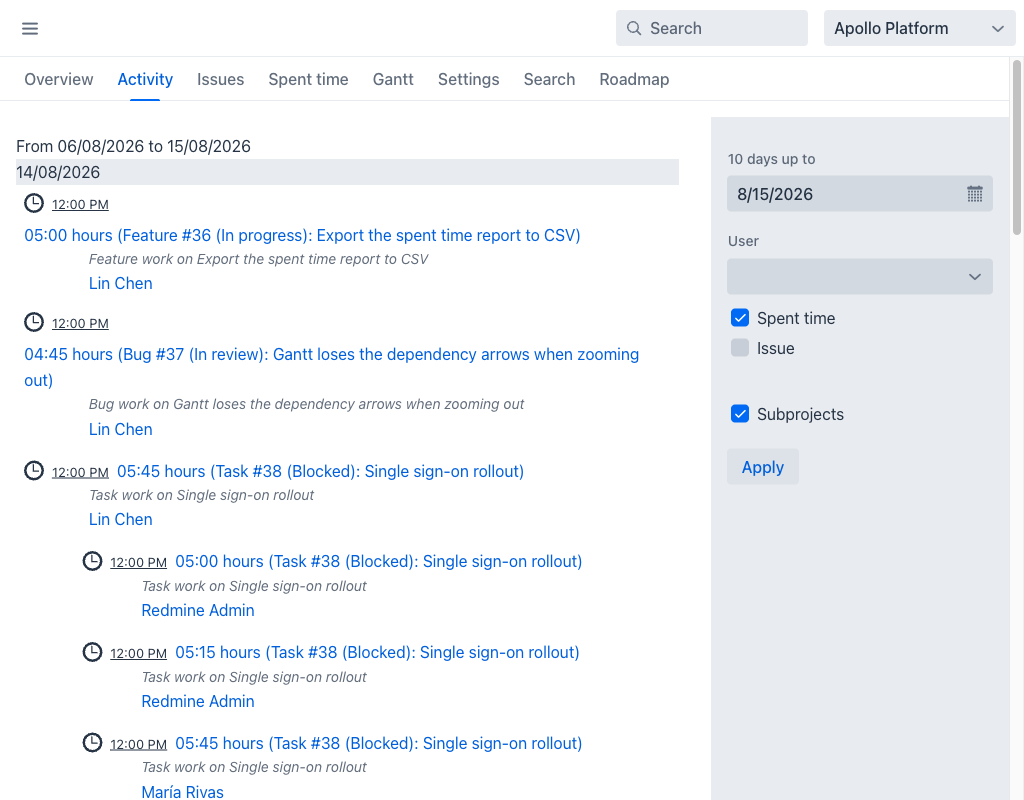
The Activity tab displays a chronological feed of recent events in the project. Filters at the top allow narrowing the feed by date range and user. Checkboxes control which activity types are visible (e.g., Spent time, Issues).
Creating a Project
Click the New Project button at the top-right of the projects list to create a new project. The creation form includes fields for the project name, description, identifier, parent project, and module selection.