Authentication Providers
The Authentication Providers view lets administrators configure how users authenticate against the application. It supports the built-in username and password mechanism as well as any number of external OAuth2 or OpenID Connect providers, such as Google and GitHub.
The Authentication Providers view is one of the administrator views provided by User Manager. It is only fully functional when the application has been built with external authentication support enabled; see Getting Started.
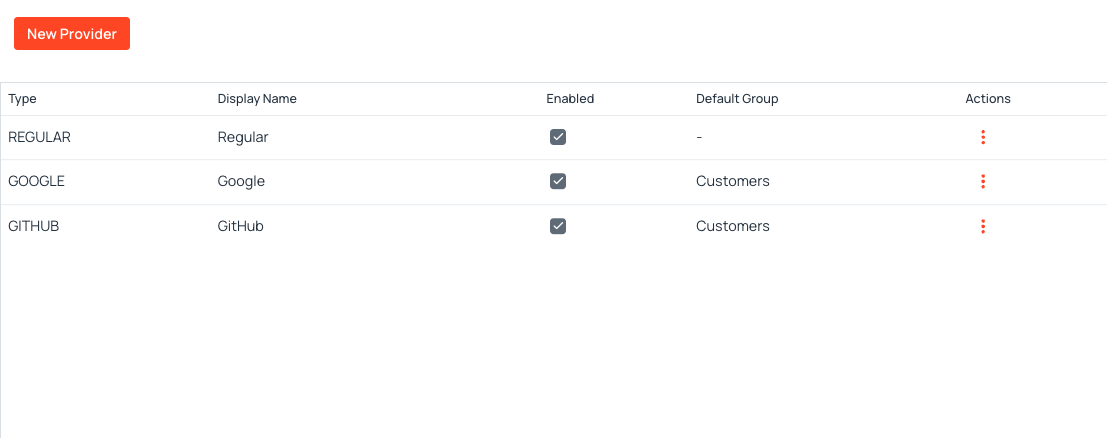
Providers grid
The grid lists every configured provider with the following columns:
- Type: The provider's type identifier (for example
REGULAR,GOOGLE,GITHUB). The type is immutable once a provider has been saved. - Display Name: The human-readable label shown to end users (on the login page, for example "Sign in with Google").
- Enabled: A read-only checkbox indicating whether the provider currently accepts logins.
- Default Group: The group automatically assigned to users created by this provider, or a dash when no default group is configured.
- Actions: A three-dots menu offering Edit, Enable/Disable, and Delete.
The New Provider button on the top-left opens the creation dialog.
Warning
At least one provider must always remain enabled. Attempting to disable or delete the last enabled provider results in an error notification, and the operation is refused.
Creating a provider
Click New Provider to open the creation dialog. Two distinct paths are available depending on the chosen type.
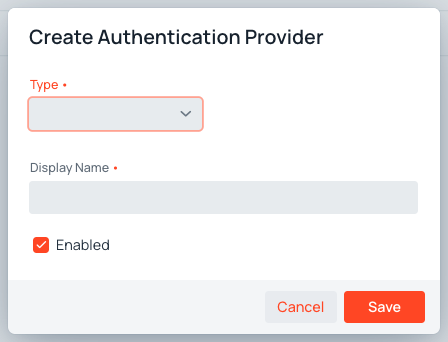
- Type: A required dropdown listing every provider available in the application.
REGULARis always present; additional entries depend on whichExternalAuthProviderimplementations are deployed (Google and GitHub are shipped with User Manager). - Display Name: A required label shown to end users. It is pre-filled from the provider's default name when an external type is selected.
- Enabled: When ticked, the provider becomes available for login as soon as the dialog is saved.
Regular authentication
Selecting Regular as the type does not require any additional fields. The dialog stores the row that controls whether the standard username and password form is shown on the login view.
Note
Only one Regular provider may exist in the database. Attempting to create a second one results in an error notification.
External providers
Selecting an external type (for example GOOGLE or GITHUB) reveals the OAuth-specific fields:
- Allow new signups: When ticked, a successful OAuth login from an unknown account auto-creates the corresponding user. When unticked, only users already pre-provisioned by an administrator may log in through the provider; unknown accounts are rejected with a dedicated error message on the login view. Hover over the field for the same explanation in tooltip form.
- Client ID: The OAuth2 client identifier obtained from the provider's developer console.
- Client Secret: The matching client secret. The field uses a password input and is stored encrypted in the database. When editing an existing provider, leaving the field blank keeps the previously stored secret.
- Scopes: A comma-separated list of OAuth2 scopes to request. Leaving the field blank uses the provider's default scopes, listed in the help text below the field.
- Default Group (for auto-created users): An optional group that newly created users will automatically belong to. Only meaningful when Allow new signups is ticked. Leave empty to leave new users with no group assignment.
- Redirect URI: A read-only field showing the URI that must be registered in the provider's developer console. It is built from the application's external URL property and the provider type, for example
https://app.example.com/login/oauth2/code/GOOGLE.
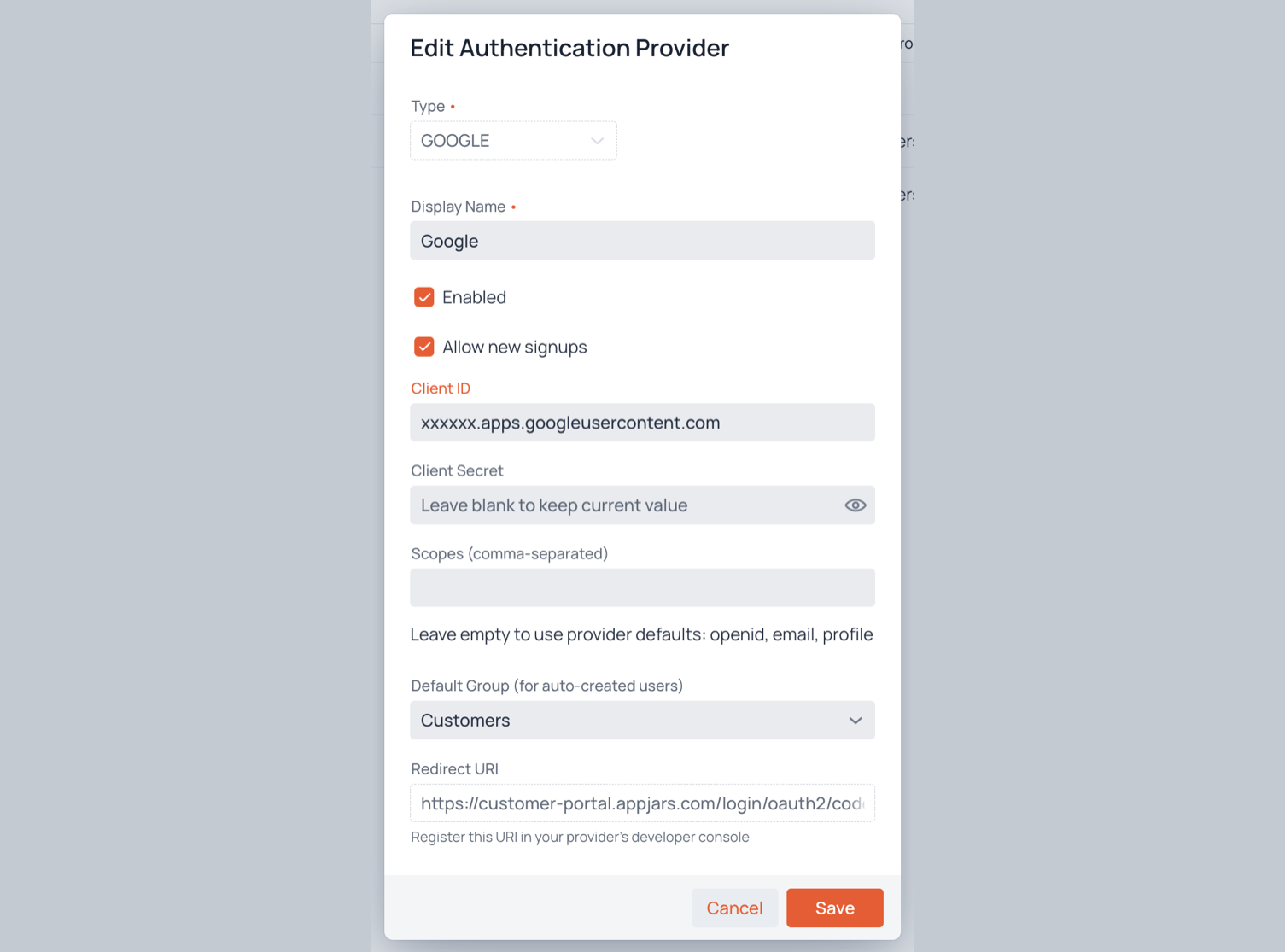
Click Save to persist the provider. If the application was built without the OAuth2 client dependency, the dialog stores the provider as disabled and shows a notification warning that external authentication is not available in this build.
Editing a provider
Select Edit from the three-dots menu on the row. The dialog opens with the current values pre-filled and the Type field locked. All other fields can be modified, including the client secret — leaving the secret field blank keeps the existing value, so it does not need to be re-entered on every save.
Enabling and disabling a provider
The Enable or Disable entry in the three-dots menu toggles the provider's enabled state without opening the edit dialog. Disabling a provider hides it from the login view immediately for new logins; already-authenticated sessions are unaffected.
Disabling the Regular provider triggers the additional behaviour described in Disabling regular authentication.
Deleting a provider
Select Delete from the three-dots menu and confirm the dialog. The provider row is removed from the database. The operation is refused with an error notification when the provider is the only enabled one remaining.
Warning
Deleting an external provider does not affect users that were created through it. Those user accounts remain in the database and continue to be subject to the regular access rules; however, they lose the ability to sign in through that provider until it is recreated with the same type.
Disabling regular authentication
When the Regular provider is disabled — or when it is enabled but with no client secret configured — User Manager treats the application as exclusively external. The following changes take effect automatically:
- The username and password fields disappear from the login view. Only the external-provider buttons remain.
- The username and password fields disappear from the registration link view. A user opening a registration link sees only the external-provider buttons; clicking one of them completes the registration without ever setting a password.
- Password reset links cannot be created and existing ones display a friendly notification when opened.
- The Change Password entry in the user menu shows the same friendly notification and redirects back to the home page.
This makes it possible to deploy User Manager as a pure OAuth gateway without any of the regular-auth UI surfaces leaking through.
Pre-provisioned users via external providers
A common workflow combines a pre-provisioned account with a registration link delivered by email. The administrator creates a user with a known username (for example, the user's email address), generates a registration link, and sends the link to the user. The user opens the link and is presented with two paths:
- Set a password to enable regular sign-in, after which they can also sign in through any configured external provider whose identity matches the username.
- Sign in with an external provider directly, completing the registration without setting a password. Regular sign-in is then unavailable until an administrator issues a password reset link.
When the external account chosen by the user does not match the pre-provisioned username (for example, the user signs in with a Google account that has a different email), the registration link remains active so that the intended invitee can still consume it later. The OAuth identity is then handled by the standard rules: if the provider has Allow new signups ticked, a new account is created for that identity; otherwise the login is refused with the dedicated "Sign-ups are disabled" message.