LLMs
The LLMs view allows administrators to configure connections to large language model providers. An LLM configuration defines the connection details and model selection that an assistant uses to generate responses. AI Support currently supports two LLM provider types: OpenAI and Ollama.
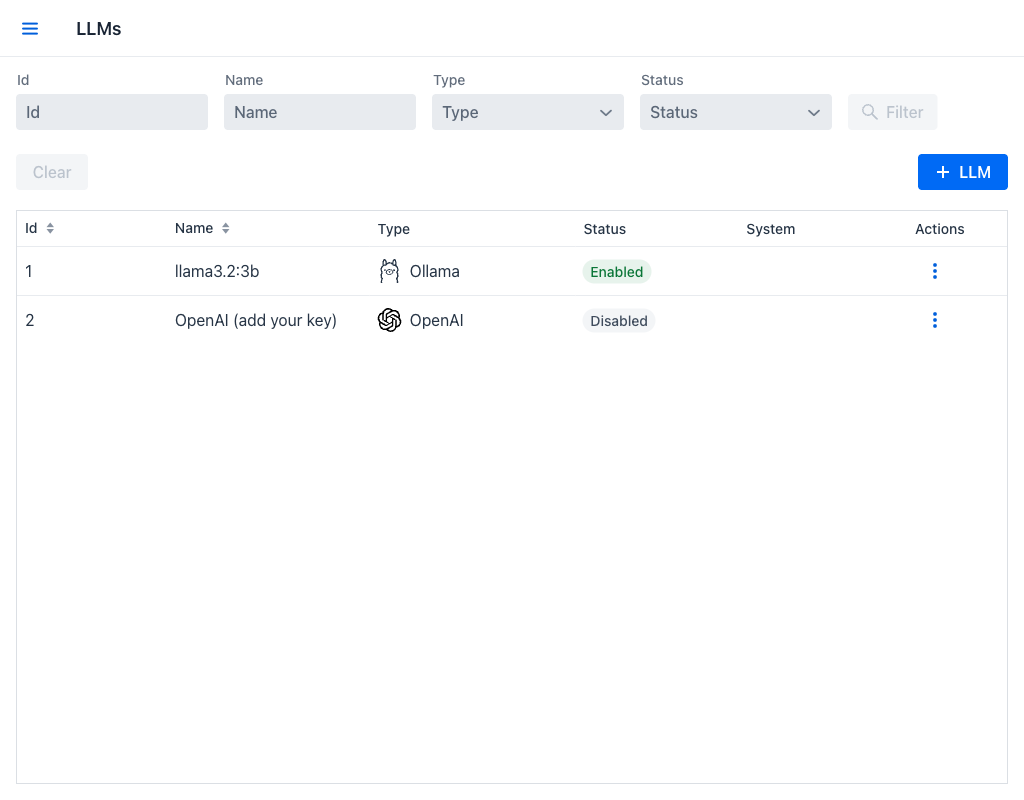
LLMs Grid
The grid displays the following columns:
- Id: Unique numeric identifier of the LLM configuration.
- Name: The display name of the LLM configuration.
- Type: The provider, shown with its logo and name: Ollama or OpenAI.
- Status: A badge indicating whether the LLM is enabled or disabled. Disabled LLMs are not available for selection when configuring assistants.
- System: A badge marking the LLM used for the appjar's internal tasks. See The System LLM.
- Actions: A per-row actions menu.
Filters
The view provides the following filter fields:
- Id: Filters by the LLM's numeric identifier.
- Name: Filters LLMs whose name contains the entered text.
- Type: A dropdown to filter by provider type (OpenAI or Ollama).
- Status: A dropdown to filter by enabled or disabled status.
Once any filter field has a value, the Filter and Clear buttons become active.
At the top right of the filter area, the + LLM button opens the dialog for creating a new LLM configuration.
Row Actions
Click the actions menu on any row to access the following options:
- Edit: Opens the LLM creation/edition dialog with the current configuration pre-filled.
- Enable / Disable: Toggles the LLM's enabled status.
- Set as system: Makes this the system LLM. It appears only on models that are not already the system LLM, and asks for confirmation, naming the model that is losing the flag.
- Delete: Removes the LLM configuration. If the LLM is assigned to one or more assistants, a replacement dialog asks for the model to reassign them to, and states how many assistants the action will modify.
The model marked as system cannot be deleted. Doing so reports that the model is marked as system and that the flag must be moved first.
The System LLM
At most one LLM is marked as the system LLM. It handles the work that happens around a conversation rather than inside it — generating the short session summaries shown on session cards, and classifying messages when profanity checking is enabled.
The flag adds this responsibility rather than reserving the model for it. A system LLM can also be assigned to assistants and used to answer users like any other model, which is the usual arrangement when a single model serves the whole application.
Marking one is optional. When no LLM is marked as the system LLM — or when the one marked is disabled — these internal tasks fall back to the language model of the assistant handling the conversation, so nothing stops working. Different conversations may then use different models for the same internal task.
The flag is therefore worth setting when the internal tasks should be handled by a specific model regardless of the assistant in use: a cheaper or faster model for summarising, for example, while the assistants answer with a stronger one.
Creating and Editing an LLM
Clicking the + LLM button or the Edit action opens a dialog with the following fields:
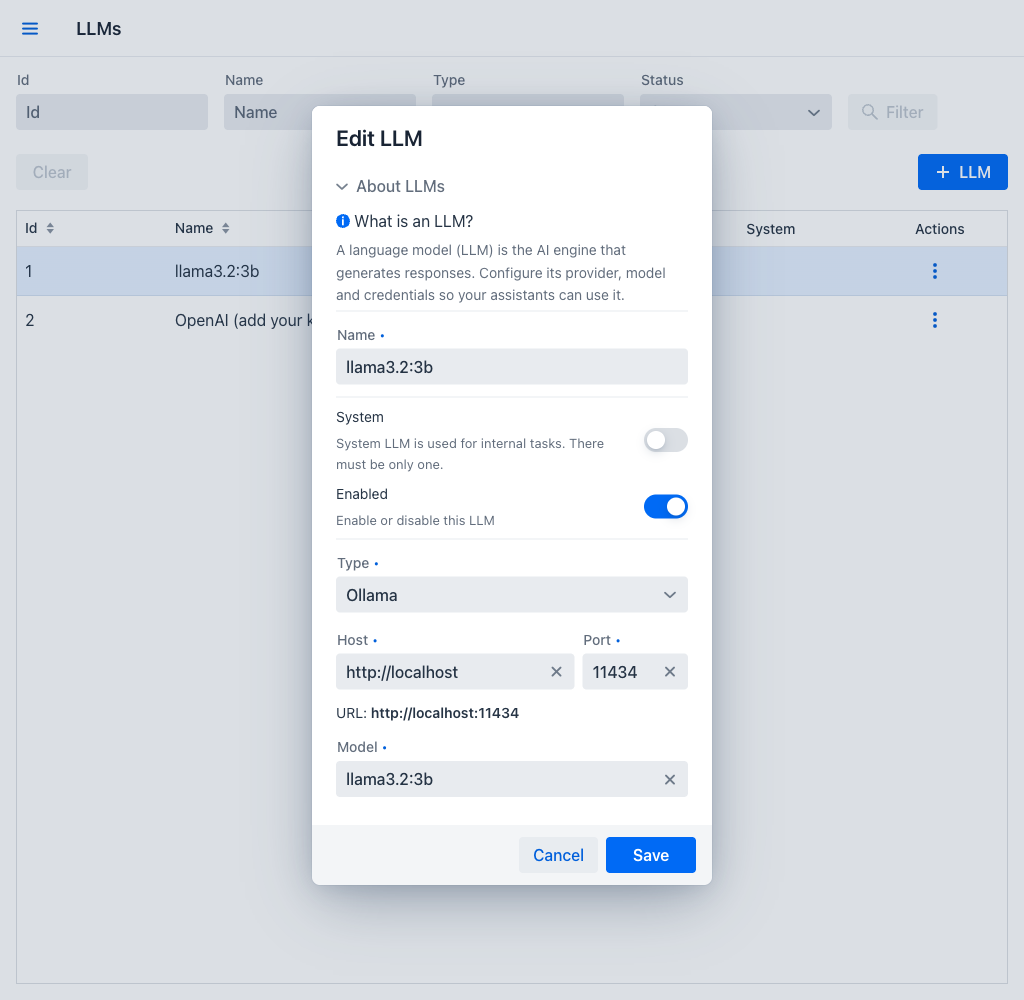
- Name (required): The display name for this LLM configuration. Must be unique across all LLMs.
- System: A toggle that marks this model as the system LLM, described in the dialog as being used for internal tasks, with only one allowed.
- Enabled: A toggle that determines whether the LLM is available for use in assistant configurations. Enabled by default.
- Type (required): A dropdown to select the provider. Choosing a provider changes the additional configuration fields displayed in the dialog.
The dialog opens with an About LLMs section explaining what a language model is in this context.
OpenAI Configuration
When the type is set to OpenAI, the following fields are displayed:
- Url: The API endpoint URL. Defaults to
https://api.openai.com/v1. This can be changed to point to a compatible API endpoint, such as an Azure OpenAI deployment or another OpenAI-compatible service. - Key: The API key used for authentication with the OpenAI service. The field is masked: the value is shown as dots, and the eye button at its right reveals it while it is being checked or corrected.
- Model (required): The model name to use (e.g.,
gpt-4,gpt-3.5-turbo). The available models depend on the API key's permissions and the provider's offerings.
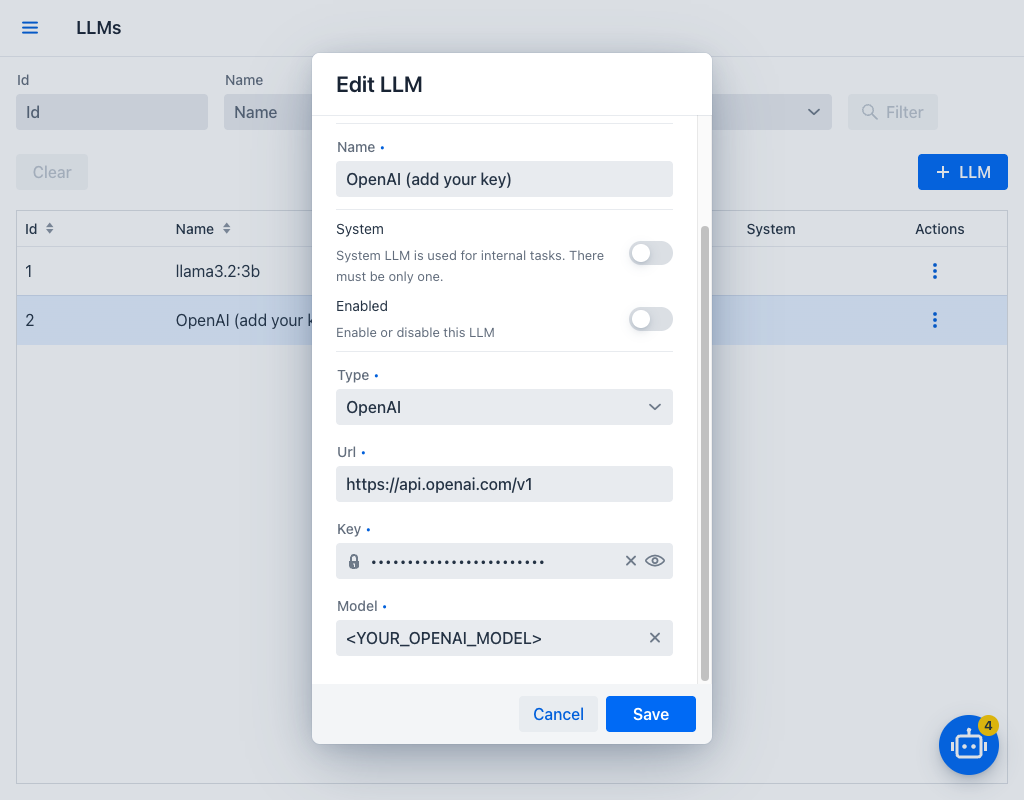
OpenAI-type LLMs support the following content types: text, images, video, audio, and PDF files.
Ollama Configuration
When the type is set to Ollama, the following fields are displayed:
- Host (required): The scheme and hostname of the Ollama server. Defaults to
http://localhost. The value must include a scheme and a hostname; the dialog reports which of the two is missing. - Port (required): The port number of the Ollama service. Defaults to
11434, and must be between 1 and 65535. - Model (required): The model name to use (e.g.,
llama3.2:3b,mistral). The available models depend on what has been pulled to the Ollama server.
The resolved endpoint is shown beneath the fields as the host and port are edited, so the address can be checked before saving.
Ollama-type LLMs support text and image content types.
Choosing Between Providers
OpenAI is suitable for organizations that prefer a cloud-hosted solution with access to the latest commercial models. It requires an API key and incurs per-token costs based on usage.
Ollama is suitable for organizations that need to run models locally, either for data privacy reasons, to reduce latency, or to avoid per-token costs. It requires a self-hosted Ollama server with the desired models pre-installed.
Both provider types can be configured simultaneously, allowing administrators to create different assistants powered by different models depending on the use case.