LLM Inspector
The LLM Inspector view provides administrators with a detailed, low-level view of the exchanges between the AI Support system and the language model. This tool is essential for debugging assistant behavior, verifying that the correct context is being sent to the model, and understanding why the AI generated a particular response.
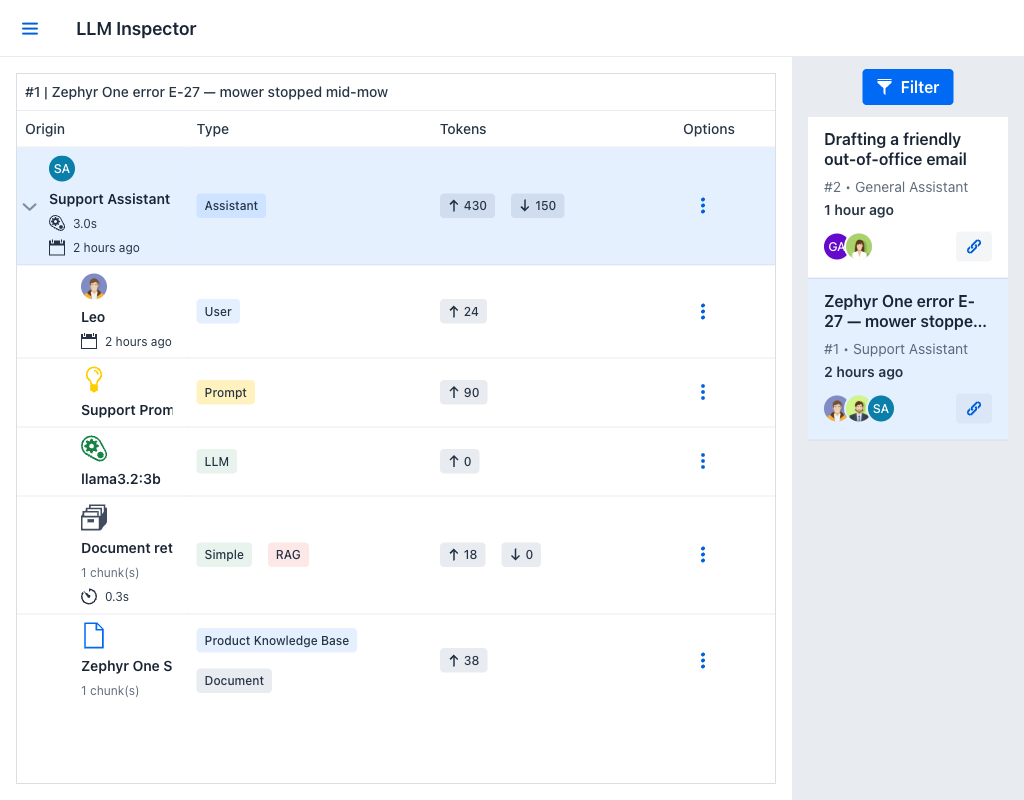
Layout
The LLM Inspector uses a two-panel layout. The left panel displays the exchanges of the selected session as a tree. The right panel displays the list of sessions available for inspection.
When no session is selected, the left panel displays Select a session to continue.
Session Selection
The session list on the right side displays sessions as cards, with their summary, number, assistant name, last activity time, participants, and rating. The Filter button opens the same Session filters dialog as the Chat view, described in Session filters. Each card also offers Copy session link.
Clicking a session loads its exchanges into the left panel, and the panel header shows the session number and summary. A session in which no assistant has answered yet reports that no messages made by assistants were found.
The Exchange Tree
The left panel is a tree grid with four columns:
- Origin: What produced the entry — an assistant, a user, a prompt, a language model, or a document — with its name and timestamp.
- Type: One or more badges classifying the entry.
- Tokens: The token counts, shown as an inbound and an outbound value where both apply.
- Options: A per-row actions menu.
Each top-level row is one exchange: a single request-response cycle with the language model, labelled with the assistant that answered and the time the request took. Expanding it reveals everything that went into that request, each part as its own row:
- User — the message that triggered the exchange.
- Prompt — the system prompt in force at the time.
- LLM — the language model that was called.
- Document retrieval — present when RAG ran, with the number of chunks retrieved and how long retrieval took.
- Document — one row per retrieved document, with its categories.
This structure makes it possible to trace exactly how a user message was processed: what context was assembled, what was sent to the model, and what came back.
The Type badges are worth reading closely. Simple and Advanced distinguish standard retrieval from advanced RAG with query expansion. RAG marks the retrieval step itself. Private marks an administrator-only message. Attachments marks files submitted with a message. Early marks a response whose generation was stopped before it finished, and Failed marks one that could not be generated.
Row Actions
The actions available on a row depend on what the row represents:
- Request: On an exchange row, opens the full request that was sent to the model.
- Content: On the other rows, opens the content that row contributed — the user's message, the prompt text, or a document's retrieved text.
- Response: Opens the full response received from the model.
- Retrieved documents: Opens the retrieval detail described below.
- Retrieval queries: Opens the same dialog on its queries section.
- Go to conversation: Navigates to the message in the Chat view, which is the quickest way to see an exchange in the context the user experienced.
Content opens in a dialog that names its source, such as Request to, Response from, or Content from, and renders markdown. Long values can be sorted oldest or newest first, and report their token and character counts.
When an exchange predates the audit record, or its record has been pruned, the inspector reports that the complete exchange data for the message is unavailable rather than showing an empty dialog.
Message Attachments
When a user message includes file attachments, they are marked with an Attachments badge and listed with the message, so administrators can see exactly which files were submitted as part of the conversation turn being inspected.
Document Retrieval Detail
The Retrieved documents and Retrieval queries actions open the Document retrieval dialog, which explains why the assistant was given the context it was given. It reports the Search type — simple or advanced RAG — and two timings: RAG time for the whole retrieval, and Query time for generating the expanded queries when advanced RAG is in use.
The dialog has two sections:
- RAG Queries lists the queries that were actually run against the embedding store. With standard retrieval this is the user's message; with advanced RAG it is the set of reformulations generated from it, each numbered and scored. Filter grid by this query narrows the chunks below to the ones a single query returned. A session with no recorded queries reports that none were found.
- Retrieved Chunks lists the chunks that came back, with the columns Document, Index, Content, and Metadata, and a total count. Filter by query and Filter by document narrow the list.
Opening a chunk's Metadata shows the score it achieved, the document and chunk index it came from, and its category information. Document nodes also report an Average score across their chunks.
Read together, these two sections answer the question a poor answer usually raises: whether the right passages were retrieved at all, or whether they were retrieved and the model failed to use them.
Use Cases
The LLM Inspector is valuable in several scenarios:
Quality assurance: After configuring a new assistant or updating a prompt, administrators can review the inspector to verify that the assistant behaves as expected and that the correct documents are being retrieved.
Debugging poor responses: When users report that the AI gave an incorrect or unhelpful answer, administrators can inspect the exchange to understand whether the issue was caused by a missing document, an incorrect prompt, insufficient context, or a model limitation.
Token usage monitoring: The inspector shows token counts for requests and responses, helping administrators understand the cost and efficiency of their assistant configurations.
RAG verification: By examining the request details, administrators can confirm that the embedding search is returning relevant document passages and that the context window is being used effectively.