Roles and Permissions
The Roles view allows administrators to define roles that control what actions users can perform within projects. Each role specifies a set of permissions that determine access to issue tracking features.
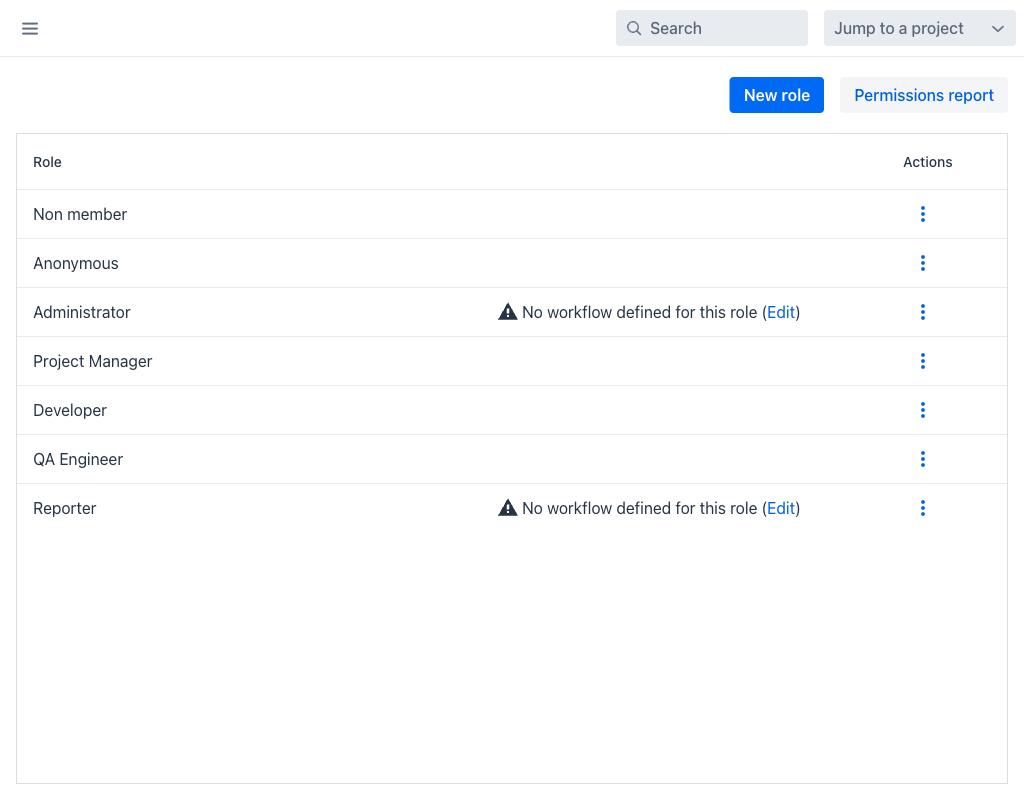
Roles Grid
The grid displays the following columns:
- Role: The display name of the role.
- Actions: A per-row actions menu (⋮) with Modify and Delete.
The top of the view provides two buttons:
- New role: Opens the role creation form.
- Permissions report: Displays a matrix of every role against every permission, which is the fastest way to compare what two roles are allowed to do.
A role with no workflow defined is flagged in the grid with the warning No workflow defined for this role, followed by an Edit link that opens the workflow editor. Members holding such a role cannot move issues between statuses until transitions are configured for it.
Built-in Roles
Two roles are created by the system and cannot be deleted:
- Non member: The permissions applied to authenticated users who are not members of a project.
- Anonymous: The permissions applied to unauthenticated visitors.
All other roles are ordinary roles that administrators create and may delete.
Creating a Role
Click the New role button at the top of the view to create a new role.
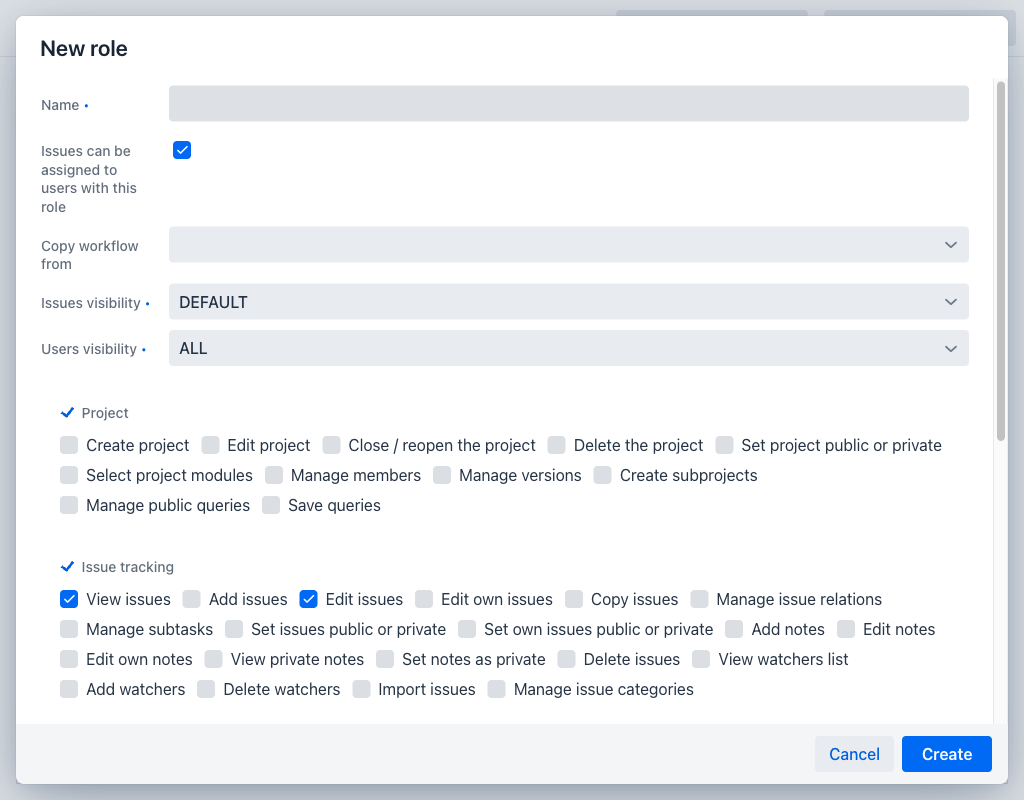
The creation form includes:
- Name (required): The display name of the role.
- Issues can be assigned to users with this role: When enabled, members holding this role appear in the assignee selector. Roles that represent observers rather than workers are usually left unchecked.
- Copy workflow from: An existing role whose workflow is copied onto the new one. This is offered only while creating a role. Leaving it empty creates the role with no workflow, which the grid then flags, and members holding it cannot move issues between statuses until transitions are configured.
- Member management: Controls which roles a member holding this role may grant when managing project members — either All roles, or Only these roles: followed by an explicit selection. This allows delegating membership administration without allowing privilege escalation. The field appears only once the Manage members permission is selected.
- Issues visibility (required): Controls which issues the role can see (e.g., all issues, only public issues, only issues created by or assigned to the user).
- Time logs visibility: Controls which time entries the role can see. The field appears only once the View spent time permission is selected, and it is not offered for the Anonymous role.
- Users visibility (required): Controls which other users the role can see.
Permissions
Each role defines a detailed set of permissions organised by category:
- Project: Permissions related to project management (e.g., create project, edit project, close or reopen the project, delete the project, set project public or private).
- Issue tracking: Permissions for creating, editing, deleting, and managing issues (e.g., add issues, edit own issues, manage issue relations, manage versions, move issues).
- Time tracking: Permissions for logging and managing time entries (e.g., log time, edit own time entries, view all time entries).
Assigning Roles
Roles are assigned to users or groups within the context of a specific project. A user can have different roles in different projects. Role assignment is managed through the project settings Members tab, where administrators add users or groups and select the role to assign.
Note
Changes to a role's permissions take effect immediately for all users who hold that role in any project.
Deleting a Role
A role that is still assigned to project members cannot be deleted; the application reports This role cannot be deleted because there are project members assigned to it. Remove those memberships first.