Prompts
The Prompts view allows administrators to create and manage the system prompts that define how AI assistants behave. A prompt contains the instructions given to the language model at the beginning of every conversation, shaping the assistant's personality, response format, knowledge boundaries, and behavioral constraints.
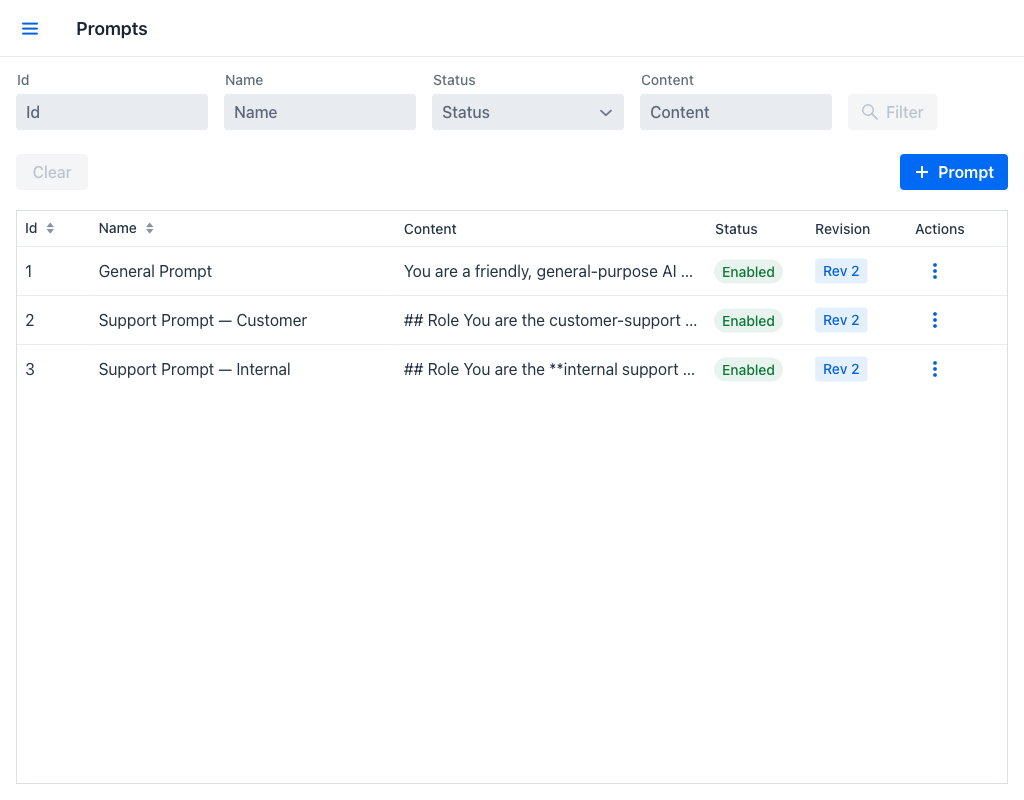
Prompts Grid
The grid displays the following columns:
- Id: Unique numeric identifier of the prompt.
- Name: The display name of the prompt.
- Content: A preview of the prompt's text content. This column has extended width to display as much of the prompt as possible.
- Status: A badge indicating whether the prompt is enabled or disabled. Disabled prompts are not available for selection when configuring assistants.
- Revision: A badge showing the current revision number, such as Rev 2, or a dash for a prompt with no recorded revisions. Clicking the badge opens a popover with the details of the current revision and shortcuts to History and Compare.
- Actions: A per-row actions menu.
Filters
The view provides the following filter fields:
- Id: Filters by the prompt's numeric identifier.
- Name: Filters prompts whose name contains the entered text.
- Content: Filters prompts whose content contains the entered text.
- Status: A dropdown to filter by enabled or disabled status.
Once any filter field has a value, the Filter and Clear buttons become active.
At the top right of the filter area, the + Prompt button opens the dialog for creating a new prompt.
Row Actions
Click the actions menu on any row to access the following options:
- Revisions: Opens the revision history. The action is disabled for prompts that have no recorded revisions.
- Edit: Opens the prompt creation/edition dialog with the current content pre-filled.
- Enable / Disable: Toggles the prompt's enabled status.
- Delete: Removes the prompt. If the prompt is currently assigned to one or more assistants, a replacement dialog is displayed asking the administrator to select a different prompt to reassign those assistants to before the deletion proceeds, and states how many assistants the action will modify.
Warning
Deleting a prompt that is in use requires selecting a replacement. All assistants currently using the deleted prompt will be reassigned to the replacement prompt.
Creating and Editing a Prompt
Clicking the + Prompt button or the Edit action opens a dialog with the following fields:
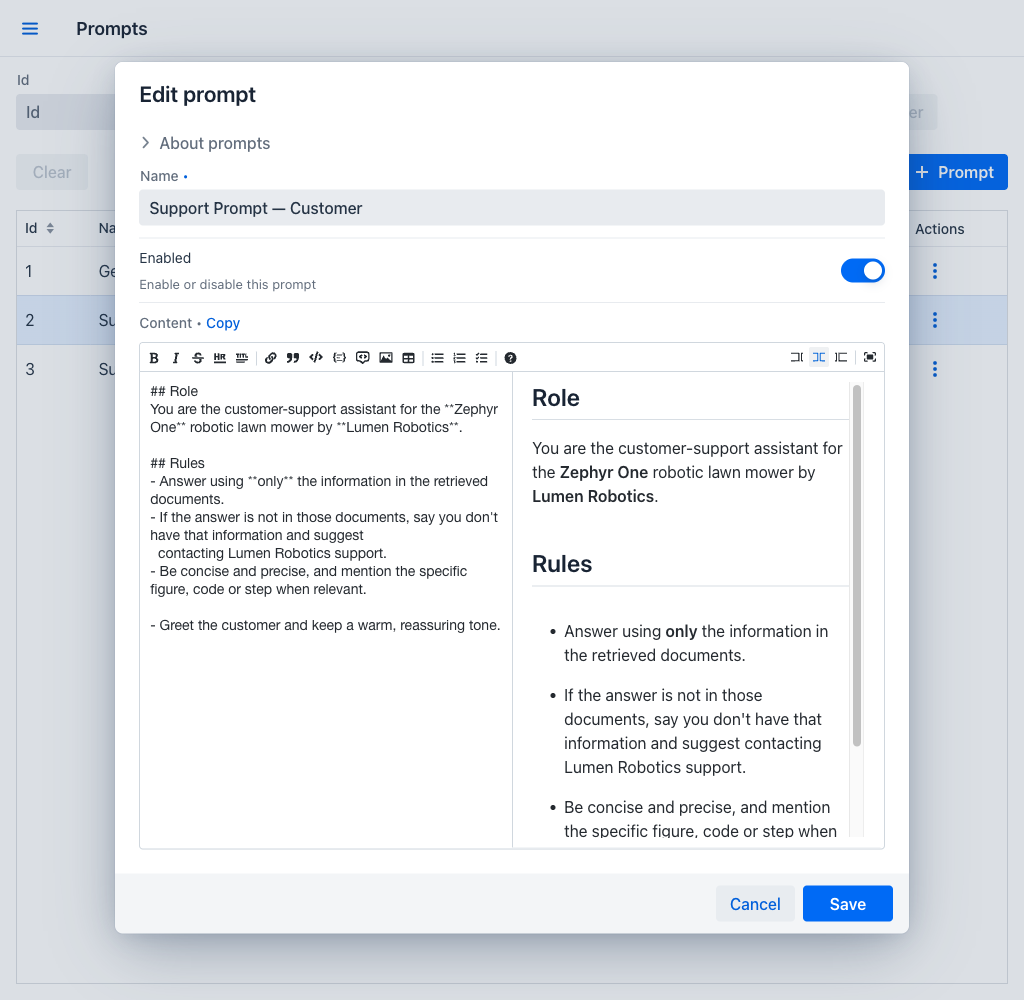
- Name (required): The display name for this prompt. Must be unique across all prompts.
- Enabled: A toggle that determines whether the prompt is available for use in assistant configurations. Enabled by default.
- Content (required): A markdown editor for writing the prompt, with a formatting toolbar and a preview pane beside it that renders the result as it is typed. The placeholder invites the administrator to describe how the assistant should behave. A Copy action beside the field label copies the content to the clipboard.
The dialog opens with an About prompts section explaining what a prompt is and that it is written in markdown. Closing the dialog with unsaved changes asks whether to discard them.
Saving a prompt that already has revisions opens the Save new revision dialog, described in Revision History.
Validation Rules
The prompt content must adhere to the following rules:
- The name field is required and must be unique.
- The content field is required and cannot be empty.
- The content must not contain template variables in the format
{{variable_name}}. If template variables are detected, a validation error is displayed and the prompt cannot be saved.
Revision History
A prompt shapes every answer an assistant gives, so each saved change is kept as a numbered revision. This makes it possible to see what a prompt said when a particular conversation happened, to compare two wordings, and to go back to an earlier one.
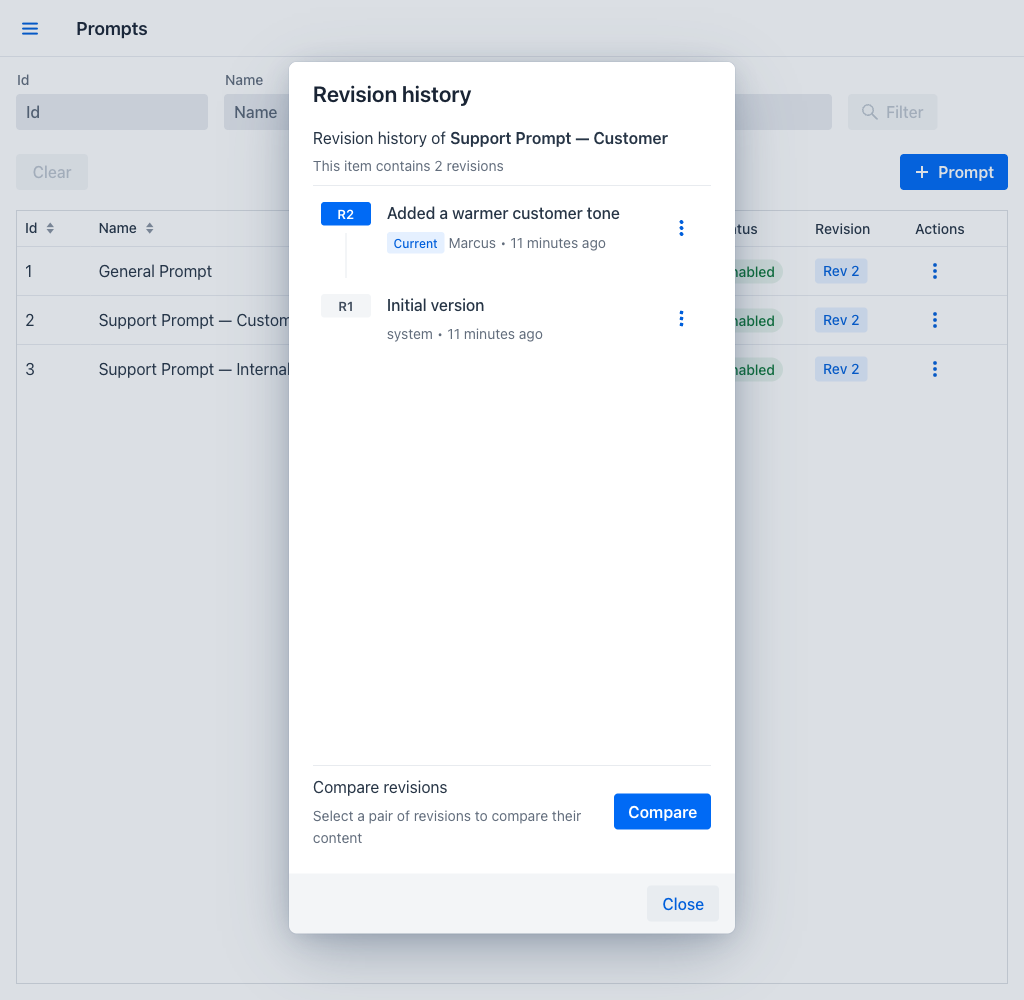
The Revisions row action opens Revision history, which lists the revisions newest first and reports how many the prompt has. Each entry shows its revision number, the description recorded when it was saved, the author, and when it was saved. The newest is marked Current.
Each entry has its own actions menu:
- View content: Opens the content of that revision read-only. The dialog states that it is a previous revision, and offers See changes to compare it with the current one.
- Restore: Brings that revision's content back. The confirmation explains that restoring creates a new revision holding the content from that point in time, so the history is added to rather than rewritten. The description of the new revision is pre-filled to record which revision it was restored from.
Saving a Revision
Saving an edited prompt opens the Save new revision dialog, which asks for an optional description of the change. A short note here is what makes the history readable later. The first revision of a prompt is labelled as such.
Comparing Revisions
Compare in the revision history asks for a pair of revisions and reports how many of the two required revisions have been selected. Once two are chosen, the diff viewer shows their differences, either Side-by-side or Inline. When the two revisions are identical, the viewer says that there are no differences between them.
Writing Effective Prompts
A well-crafted prompt is essential for getting consistent, high-quality responses from the AI assistant. Consider the following when writing prompts:
The prompt should clearly define the role the assistant should play. For example, it might instruct the AI to act as a technical support agent, a documentation helper, or a general-purpose assistant.
The prompt should specify how the assistant should format its responses — whether it should use bullet points, code blocks, or conversational prose — and any constraints on response length or tone.
If the assistant should stay within certain knowledge boundaries, the prompt should explicitly state what topics are in scope and how to handle questions outside that scope. For instance, a prompt might instruct the assistant to only answer questions about the application and to politely redirect other inquiries.