Translation Items
Clicking Translations items from a language's actions menu opens the Translation Items view for that language.
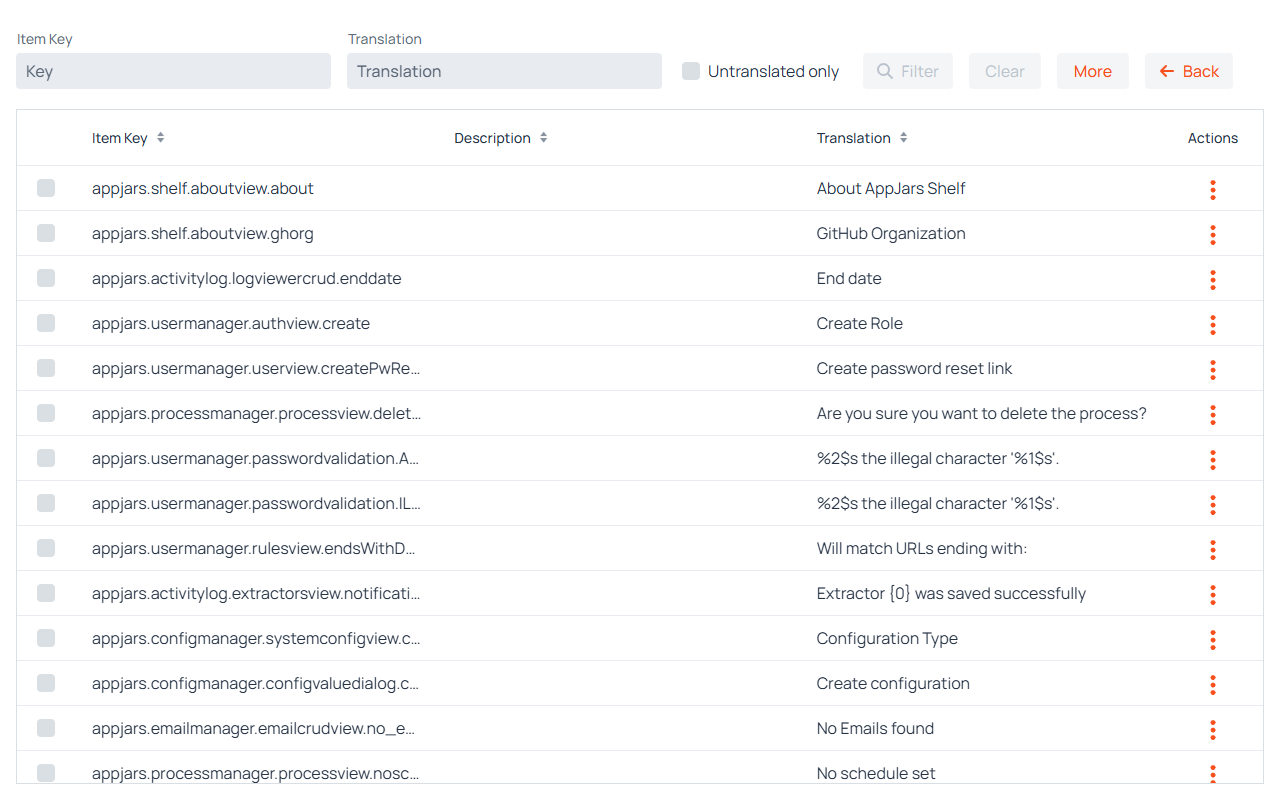
This view lists all translation keys registered in the system alongside their translated value for the selected language.
Filters
- Item Key: Filters by key name (partial match).
- Translation: Filters by the translated text (partial match). Disabled when Untranslated only is active.
- Untranslated only: When checked, shows only keys that have no translation for the current language.
On a narrow screen the filter fields are replaced by a single Filter button that opens them in a dialog.
Translation Grid
| Column | Description |
|---|---|
| Item Key | The unique i18n key used in the application code. |
| Description | An optional human-readable description of the key's purpose. Editable only on the default language. |
| Default translation | The translation value from the default language. Shown only when the current language is not the default, as a reference for translators. |
| Translation | The translated string for the current language. Displayed in italic if no translation has been set. |
| Actions | Per-row options. See Translation Actions. |
When the current language is the default language, multi-row selection is enabled (click or drag to select). Rows can also be selected by clicking the checkbox on the left of each row.
Editing a Translation Inline
Double-clicking any row opens an inline editor directly in the grid. The Translation field (and Description field, for the default language) becomes editable in place. Press Enter to save or Escape to cancel. The row is only saved if the value has actually changed.
A translation entered inline can be at most 500 characters long, and must be a valid placeholder pattern. See Placeholders in Translations. If Enter is pressed while the value is invalid, the row is not saved and the focus returns to the Translation field, so that the feedback described below explains why.
Format Feedback
While a row is being edited, focusing or typing in the Translation field opens a feedback popover below it that explains how the translation will be shown. The popover appears only when there is something to report, and closes when the focus leaves the field. It can contain:
- Errors: A value that cannot be saved, such as one with a malformed brace or one longer than 500 characters, is explained here, since the grid cell is too small to show an error message under the field.
- Warnings: In a text with placeholders, a single apostrophe either disappears or prevents placeholders from being replaced. The popover warns with A single apostrophe is not shown. or A single apostrophe stops 1 placeholder from being replaced. (with the number of affected placeholders), followed by Type it twice: and the corrected value.
- Preview: When the text as shown differs from the text as typed, for example because of a doubled apostrophe, the popover shows the result after Preview:, with each placeholder highlighted, followed by the number of placeholders in the text (for example, This text has 1 placeholder.).
- Learn more: Opens the Placeholders and apostrophes dialog.
The ← Back button at the top right returns to the Language List.
Placeholders in Translations
A translation value may contain numbered placeholders such as {0} and {1}, which the application replaces with values at runtime. Because of this, curly braces are not ordinary characters: a value containing an unbalanced or malformed brace cannot be saved, and the error "Braces must form a placeholder such as {0}. To show a brace as text, put it between apostrophes." is shown. The same error is shown when braces that do not form a placeholder are accepted only because a single apostrophe precedes them, as in It's {name}. A value that is too long is rejected with "A translation can be at most 500 characters." (or the limit that applies).
The value is checked while it is typed, not only when it is saved. In the inline editor, errors appear in the format feedback popover; in the New item dialog they appear under the Translation field.
The rules that matter in practice are:
- Placeholders are numbered from zero and written between braces:
Welcome, {0}. - In a text with placeholders, an apostrophe is the quoting character, so a straight apostrophe must be typed twice:
L''utilisateur {0}is shown asL'utilisateur Anawhen{0}isAna. The typographic apostrophe (’) is an alternative that needs no doubling:L’utilisateur {0}. - In a text with placeholders, a brace shown as text is put between apostrophes:
'{'name'}' for {0}is shown as{name} for Ana. - A text without placeholders is shown exactly as typed, so an apostrophe is typed once:
Don't, notDon''t.
A value that contains no braces is never rejected.
Note
The rule for texts without placeholders assumes that the application supplies no values for that key. If the application does supply values for a key whose translation contains no placeholders, the translation is processed as a text with placeholders, and a single apostrophe in it is not shown.
Placeholders and Apostrophes Dialog
The Learn more button in the format feedback opens the Placeholders and apostrophes dialog, which summarises these rules inside the application. It begins with a short introduction and a Full documentation link to the Java MessageFormat reference, followed by four sections:
- Placeholders
- Apostrophes in texts with placeholders
- Texts without placeholders
- Braces as text
Each section states its rule and gives examples in a table with a You type column and a Shown as column, marking examples to follow with a check mark and examples to avoid with a cross. Click Close to return to the field being edited.
Translation Actions
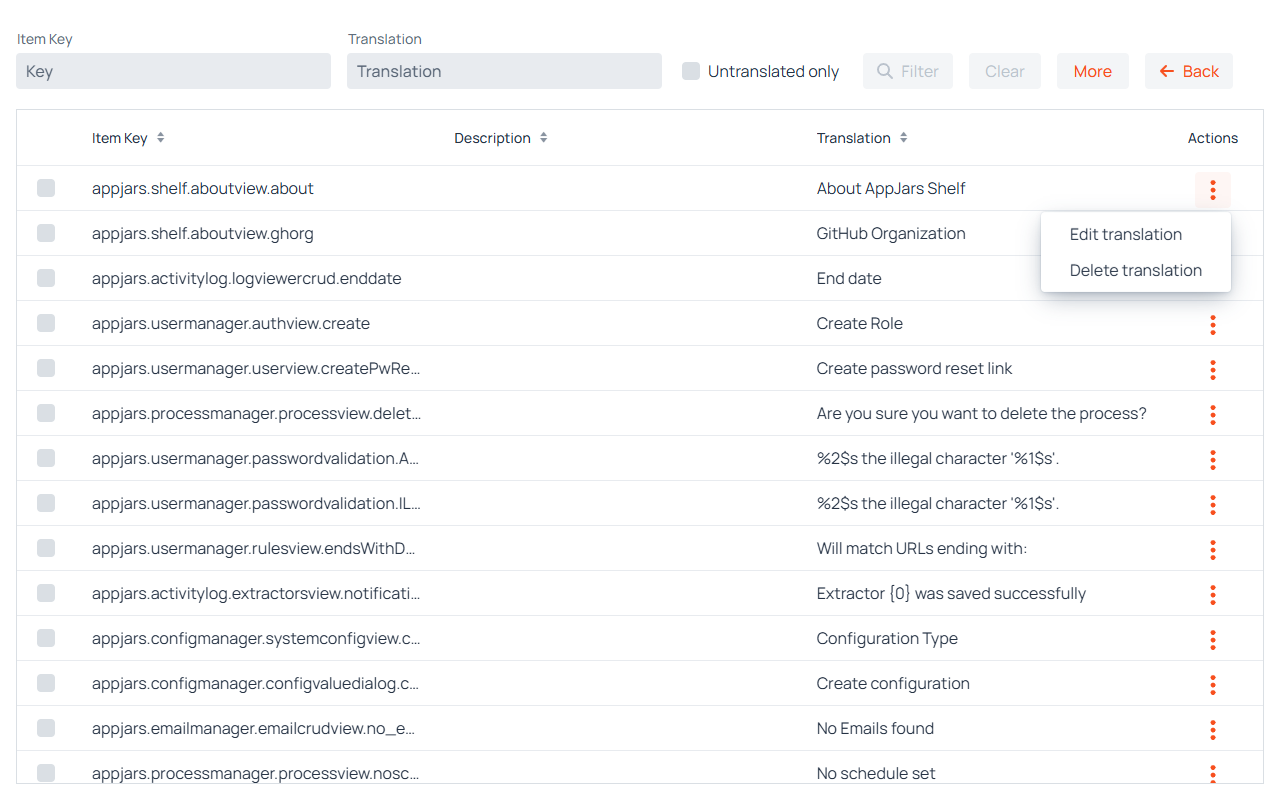
Each row has a ⋮ button with two options:
- Edit translation: Opens the inline editor for that row and focuses the translation field.
- Delete translation: Deletes the key and its translations across all languages. A confirmation dialog is shown before proceeding.
Warning
Deleting a translation key removes it from every language in the system, not just the current one. This action cannot be undone.
The same options are also accessible via a right-click context menu on any row.
Keys Options
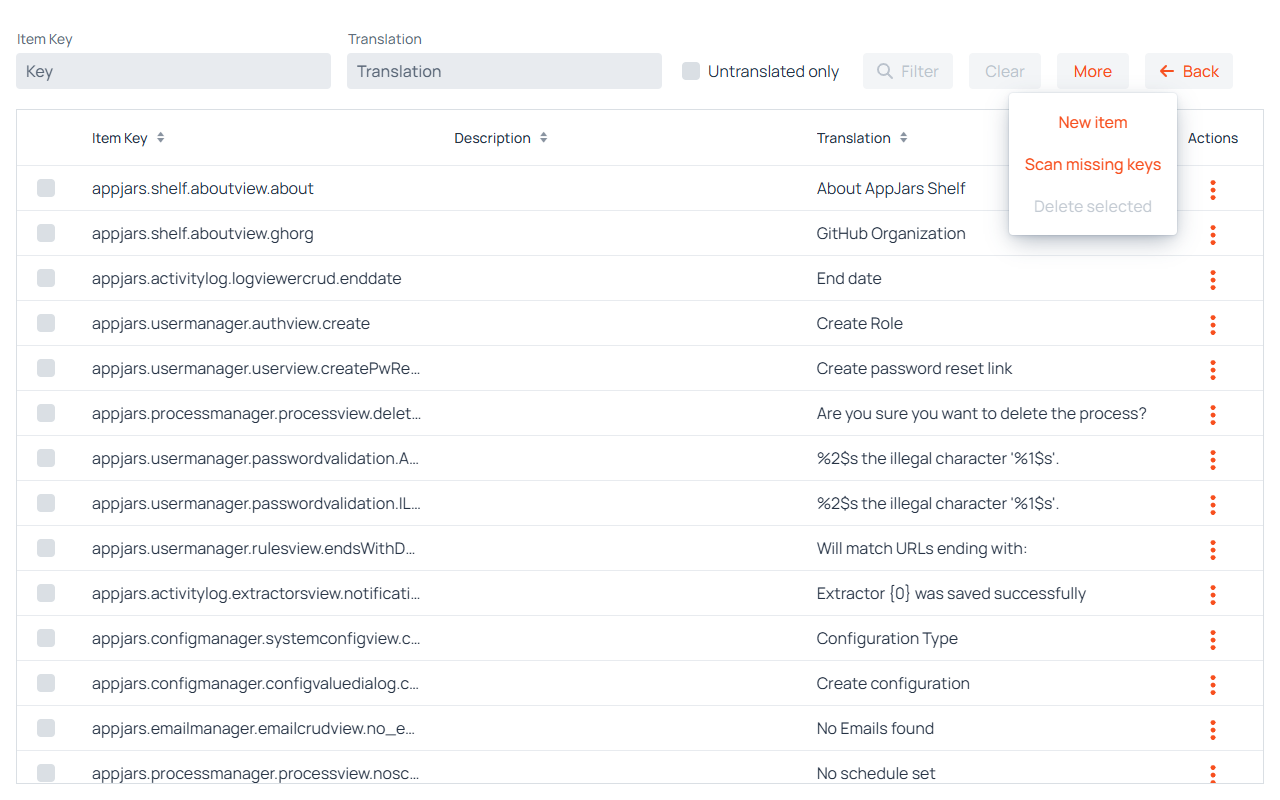
A More button in the toolbar opens a popover with options for managing translation keys:
- New item: Opens the Add key dialog to manually register a new translation key.
- Scan missing keys: Opens the Scan missing keys dialog to discover and import keys that exist in the application's bundled
.propertiesfiles but are not yet registered in the database. - Delete selected: Deletes all currently selected rows (and their translations in all languages) after confirmation. The button is only active when at least one row is selected.
Note
New item and Scan missing keys are available while viewing any language. Delete selected — and the multi-row selection it relies on — is available only while viewing the default language, to avoid accidental cross-language deletions.
Adding a New Key
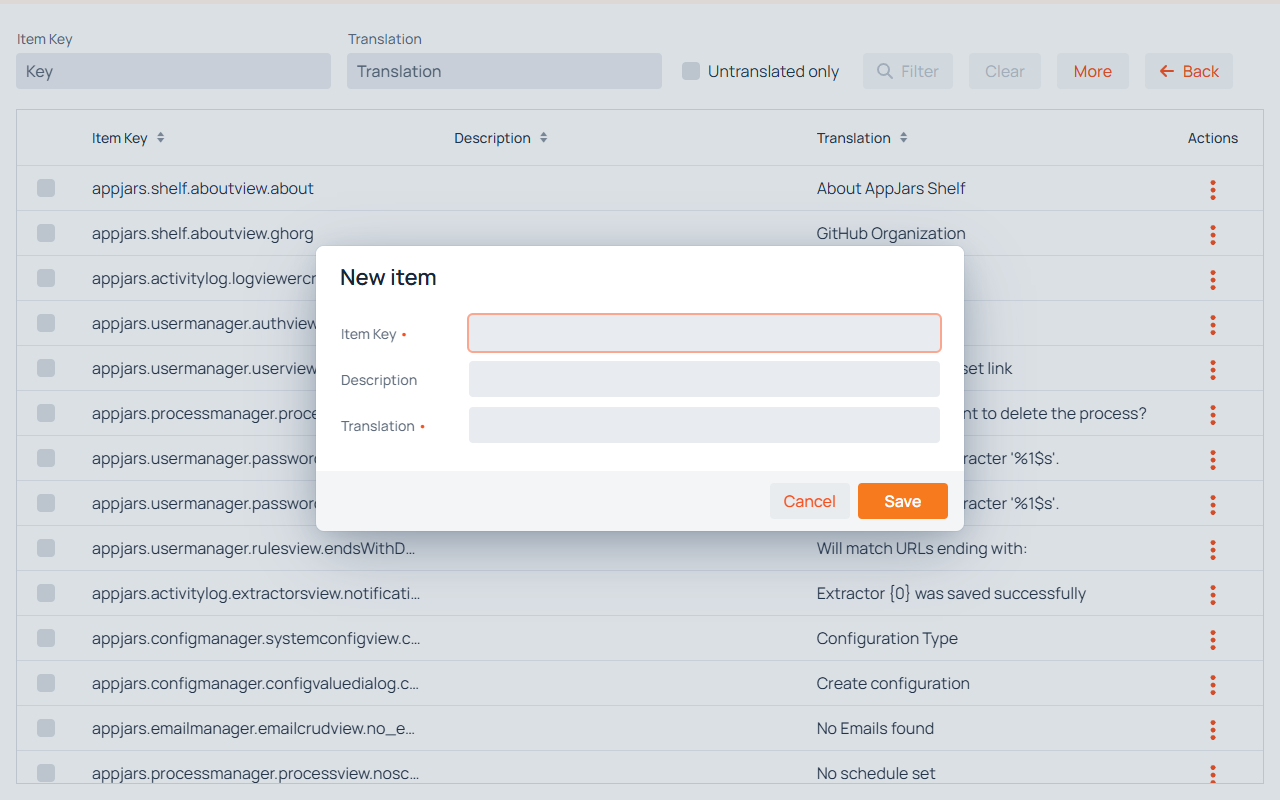
| Field | Description |
|---|---|
| Item Key | Required. The unique identifier for this translation key, typically in reverse-domain notation (e.g. appjars.mymodule.myview.label). |
| Description | Optional. A human-readable explanation of where and how this key is used. |
| Translation | Required. The translation value for the language currently being viewed. Must be a valid placeholder pattern, and is limited to the same maximum length as a key (255 characters by default). |
While a value is typed in Translation, the same format feedback as in the inline editor appears below the field, with its warnings, preview and Learn more button. Errors are shown as the field's own error message instead.
Click Save to create the key. It will immediately become available for translation in all other languages. The key and its translation are stored together, so a failure leaves neither behind.
Scan Missing Keys
The scan dialog compares the keys registered in the database against those found in the application's bundled .properties files for the selected language. Keys present in the files but absent from the database are listed as candidates for import. The scan can be started from the More popover in the Translation Items view for any language, or from a language's actions menu in the Language List.
The scan reads every messages_<locale>.properties file on the application's classpath, both at the root and under the vaadin-i18n/ folder, so keys contributed by the application and by the appjars it uses are all picked up.
Each candidate row shows its key and the value found in the properties file. Rows can be selected individually; the translation value can be edited inline by double-clicking before saving. Click Save to persist the selected keys and their translations, or Close to dismiss the dialog. Only selected rows are imported.
Scanning the Parent Language File
When a language has a region (for example, Spanish (Argentina), es_AR), the scan looks for a locale-specific file such as messages_es_AR.properties. If that file does not exist but a file for the parent language (messages_es.properties) does, a Parent language file found dialog appears and offers to scan the parent language file instead. Confirm to load the missing keys from the parent file, or cancel to skip the scan.
Skipped Keys
Some keys may not be stored if the database treats them as duplicates of an existing key — for example, when the database uses a case-insensitive collation and a key differing only in letter case already exists. This applies both to Scan missing keys and to a .properties upload.
When it happens, a Skipped keys dialog lists the affected keys and provides a Copy to clipboard button. All other keys in the operation are still imported.
Note
On MySQL this is the default behaviour, because its standard utf8mb4 collation is case-insensitive. A one-time change to the schema makes the key column case-sensitive and prevents it. Ask your administrator to apply the statement described in the Developer Guide.
Free-Tier Limits
Without a full license, I18N Manager allows at most 2 languages and 100 translation items. A restrictions bar appears above the grid, showing a Free version badge, a Languages badge, a Translation Items badge with the current count against the limit (for example, Translation Items: 12 / 100), and an Upgrade link. A count badge turns red once its limit is reached.
The Translation Items count covers the application's own translations for the language currently being viewed. Keys under appjars. — the translation keys belonging to the AppJars themselves — do not count toward the limit.
While the limit applies:
- New item and Scan missing keys are disabled once 100 translation items exist.
- Inline editing and the rest of the view keep working normally.
Note
If the database already holds more than 100 translation items, or more than 2 languages — for example after a full license expires — the view switches to a restricted state in which the inline editor and Edit translation are disabled as well. Delete translation and Delete selected stay available, so the number of items can be brought back within the limit.