Email Management
This feature allows an administrator to compose, queue, send, and track outgoing emails from the application. It provides a central view to manage the full lifecycle of an email, from drafting to delivery.
Email List
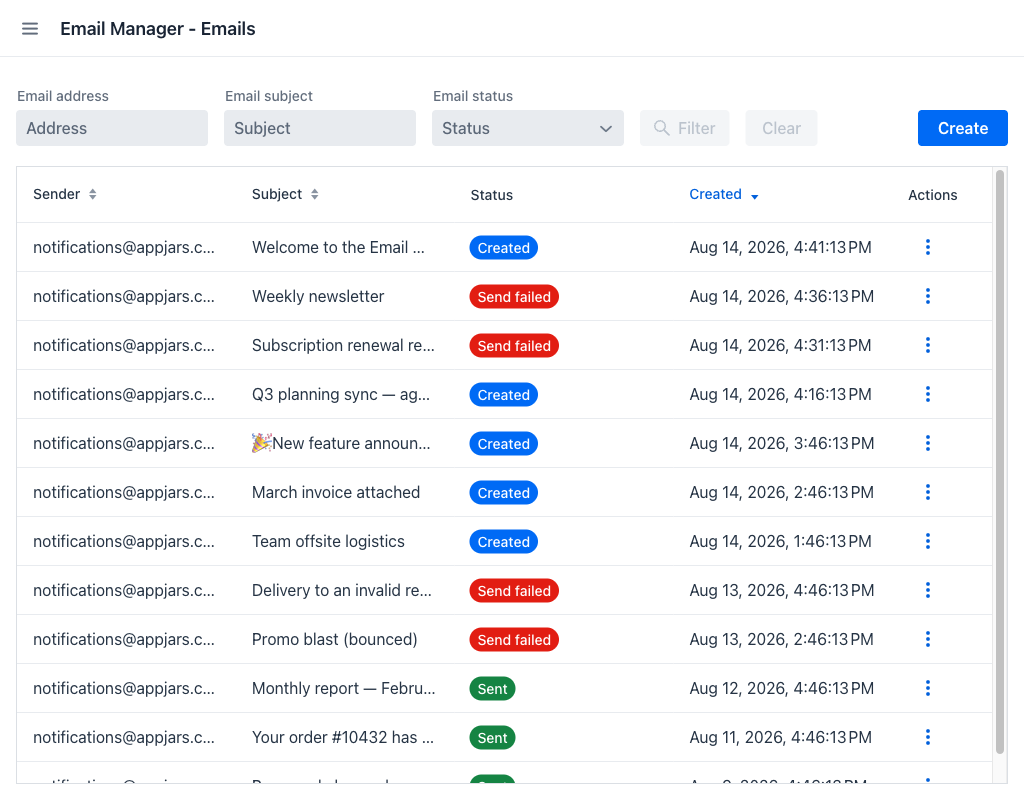
When entering the view, a grid displays all emails registered in the system, sorted by creation date descending.
Filters
The following fields are available to narrow down the results displayed in the grid:
- Email address: Filters emails whose sender or recipient address contains the entered text.
- Email subject: Filters emails whose subject contains the entered text.
- Email status: A dropdown that filters by the current status of the email. See Email Statuses.
The Filter button becomes active as soon as any filter field has a value. Pressing Enter in either text field applies the filter as well. Clicking Clear resets all filters and refreshes the grid.
On narrow screens the filter fields are replaced by a single Filter button that opens a dialog containing them.
Email Grid
The grid shows the following columns for each email:
- Sender: The address the email was (or will be) sent from.
- Subject: The subject line of the email.
- Status: A coloured badge indicating the current state of the email. See Email Statuses.
- Created: The date and time the email was created, shown in the time zone reported by the browser. The grid is sorted by this column (descending) by default.
- Actions: A contextual menu whose entries vary depending on the email's status. See Email Actions.
The Sender, Subject and Created columns are sortable, and all columns can be resized by dragging their header separators.
When no emails match the current filters, a hint message is shown in place of the grid.
In the top-right corner of the filter bar, the Create button opens the email creation dialog.
Email Statuses
Each email is always in one of the following states:
- Created (blue): The email has been composed and saved but not yet sent or queued.
- Send pending (yellow): The email is queued and will be sent by the background mail sender service.
- Sent (green): The email was successfully delivered.
- Send failed (red): The last delivery attempt failed. The email can be retried.
Email Actions
Every action is reached through the ⋮ menu in the Actions column. The entries the menu offers depend on the email's current status.
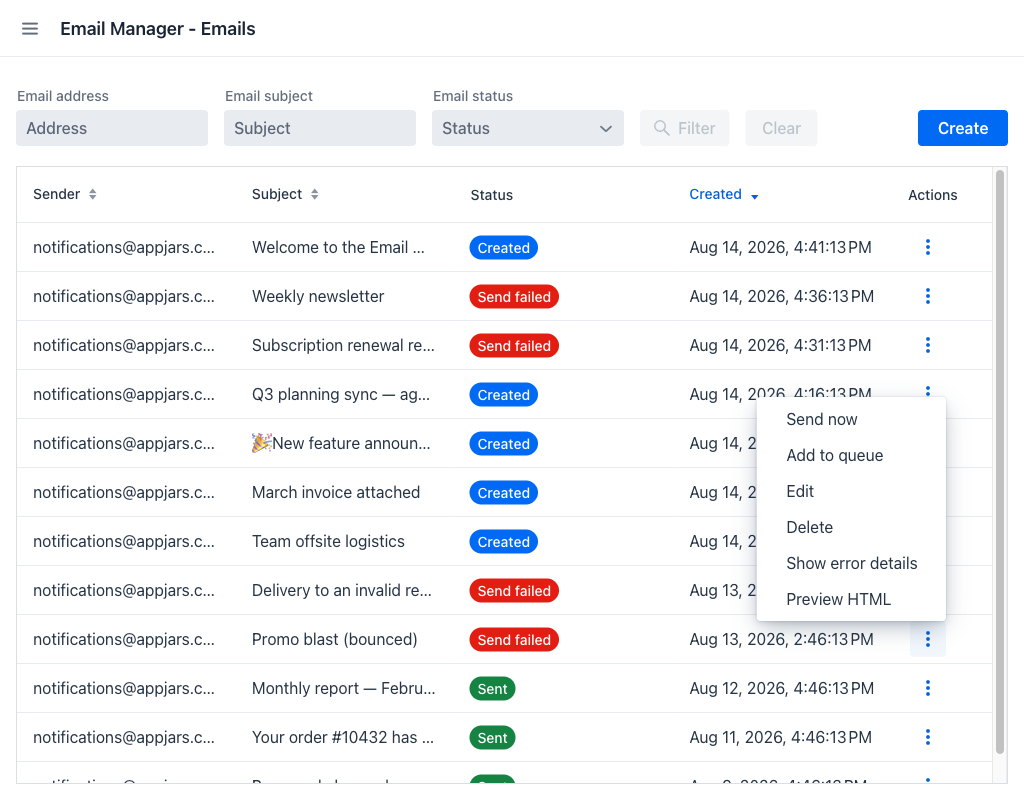
The full set of entries is:
- View: Opens the email in read-only mode.
- Send now: Immediately attempts to deliver the email. A notification confirms success or failure. On success, the status changes to Sent; on failure it changes to Send failed.
- Add to queue: Marks the email as Send pending, scheduling it for delivery by the background mail sender service.
- Remove from send queue: Takes the email out of the queue, reverting its status to Created.
- Edit: Opens the email form pre-filled with the email's current content, allowing modifications before sending.
- Delete: Permanently deletes the email after confirmation.
- Show error details: Opens the send failure details dialog.
- Preview HTML: Opens the HTML preview dialog.
Which of them appear depends on the status:
| Status | Available entries |
|---|---|
| Created | Send now, Add to queue, Edit, Delete |
| Send pending | View, Remove from send queue, Delete |
| Sent | View, Delete |
| Send failed | Send now, Add to queue, Edit, Delete, Show error details |
Preview HTML is independent of the status: it is offered for every email whose body is marked as HTML, and hidden for plain-text emails.
Warning
Email deletion is permanent and cannot be undone.
Send failure details
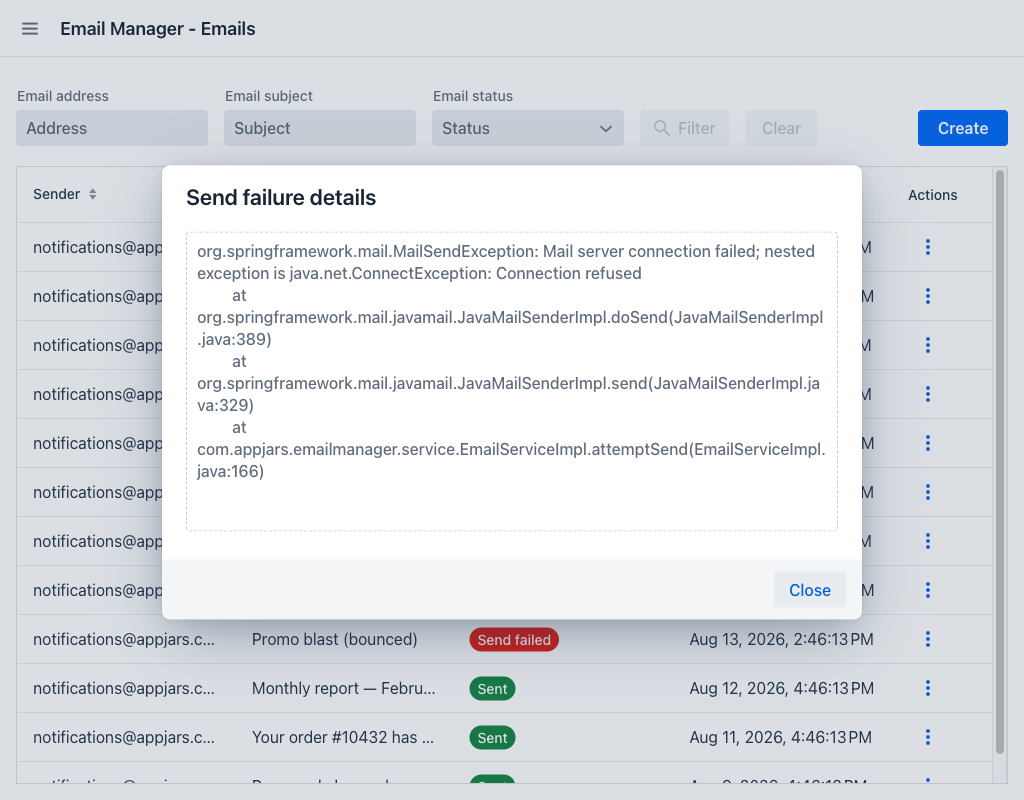
When a delivery attempt fails, the error reported by the mail server is stored with the email. Show error details opens the Send failure details dialog, which displays that error in a read-only text area. If no details were recorded, the dialog says so.
HTML preview
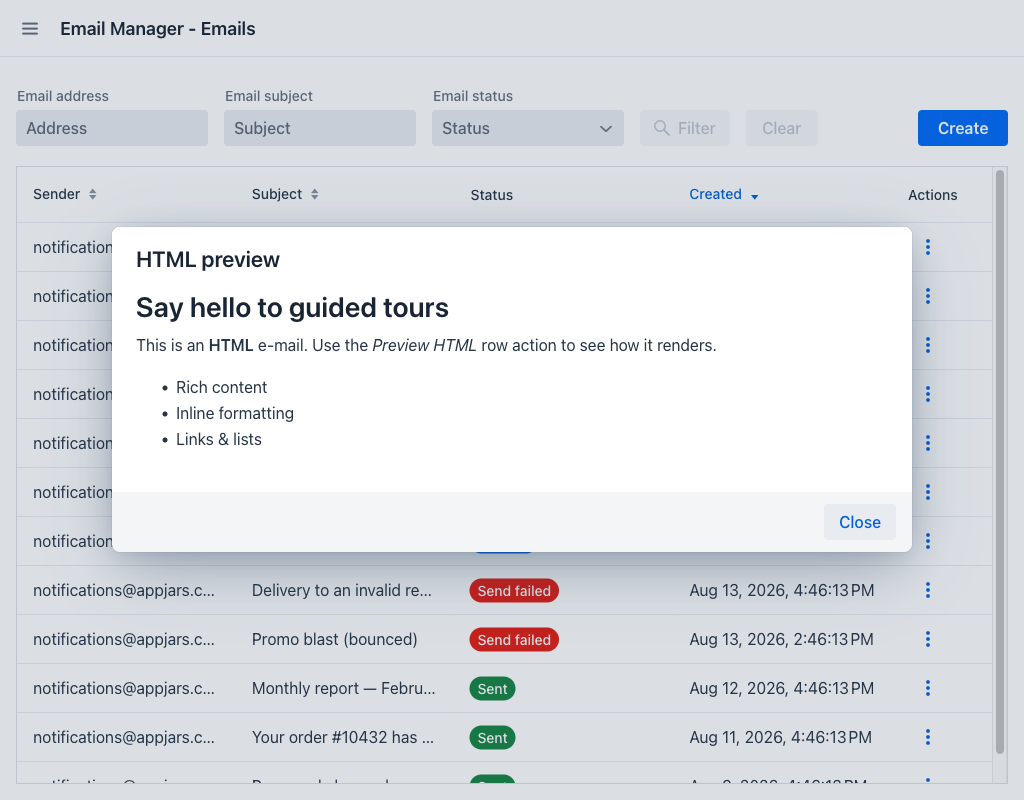
For emails composed as HTML, Preview HTML opens the HTML preview dialog, which renders the body as the recipient will see it. Emails with an empty body show a message instead of a preview.
Composing an Email
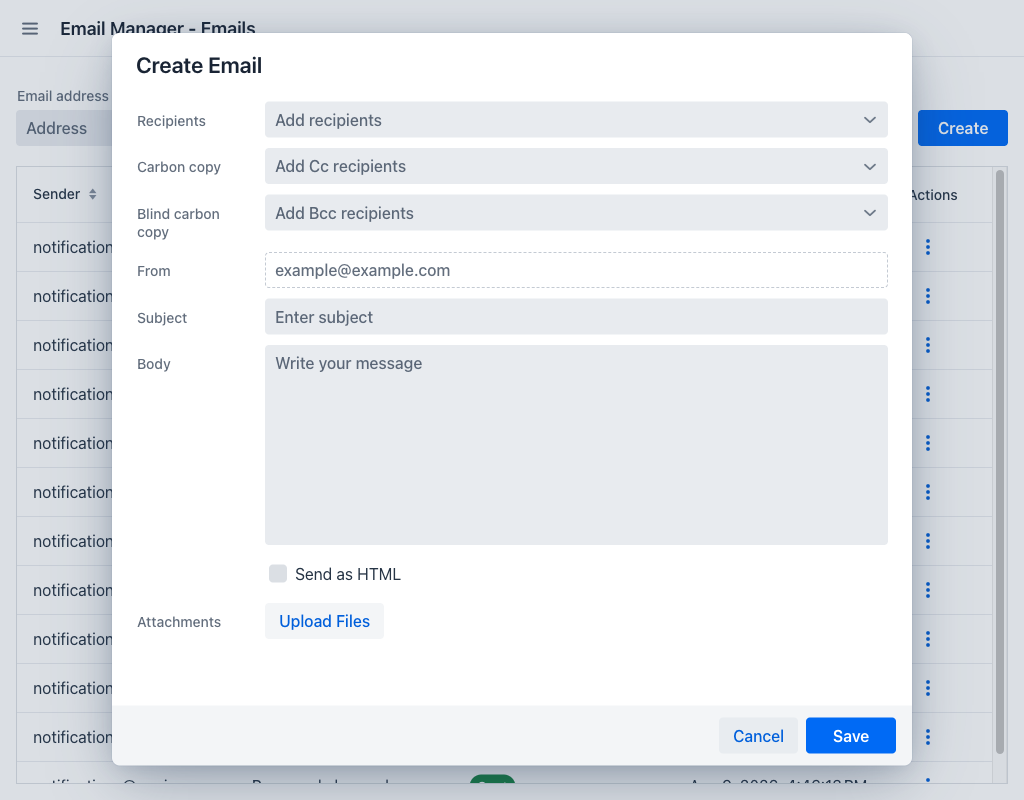
Clicking Create, or Edit from the contextual menu, opens the email form dialog.
Form Fields
- Recipients: Required. One or more destination email addresses. Addresses used in recently created emails are suggested; custom addresses can be typed in and confirmed. All entered values must be valid email addresses.
- Carbon copy: Optional. Additional recipients who receive a visible copy of the email (CC).
- Blind carbon copy: Optional. Additional recipients who receive a hidden copy of the email (BCC). Other recipients cannot see these addresses.
- From: The sender address. If no sender addresses are configured, the field allows free-form input of any valid email address. If a single sender address is configured, the field is pre-filled and read-only. If multiple sender addresses are configured, a dropdown is shown to select which one to use.
- Subject: The subject line of the email.
- Body: The body text of the email.
- Send as HTML: A checkbox that controls the format of the body. When checked, the body is interpreted and sent as HTML; when unchecked, it is sent as plain text.
- Attachments: Files to attach to the email. By default up to 5 files can be attached, with a maximum size of 25 MB per file, and only files of an accepted type are allowed. Attached files are listed in a grid with their filename and the date they were added. Each attachment can be removed individually before saving.
A file that is too large, of a type that is not accepted, or that would take the email past the maximum number of attachments is not attached: a notification names the file and the reason, and the rest of the form is left untouched. The same happens for a file that cannot be read. All three limits are set by the application, so an installation may allow more, larger, or different files than the defaults above.
Action Buttons
- Save: Validates the form and saves the email with Created status. If a file upload is still in progress, saving is blocked until it completes.
- Cancel: Closes the dialog without saving.
If the form has unsaved changes, closing it — with Cancel, with the Escape key, or through the dialog's close control — opens a Discard changes confirmation first. Confirming discards the changes; cancelling returns to the form.
Note
Saving the email does not send it immediately. Use Send now or Add to queue from the email list to trigger delivery.
Viewing an Email
When an email has already been sent or is queued for sending, it opens in read-only mode. All fields display their saved values but cannot be modified, and the upload control is hidden while existing attachments remain visible. The dialog shows a Close button instead of Save.
Limited Version
When the application runs without a valid Email Manager licence, a bar above the grid reports how many emails have been sent during the current day against the maximum the limited version allows.
Once that maximum is reached, the Send now and Edit entries are disabled for every email, and emails waiting in the queue display a Limit reached badge in place of their status. The counter resets at the start of the next day, after which sending resumes normally.