System Configurations
The System Configurations view gives administrators full control over application-wide configuration values. System configurations apply globally to the entire application and are not tied to any specific user.
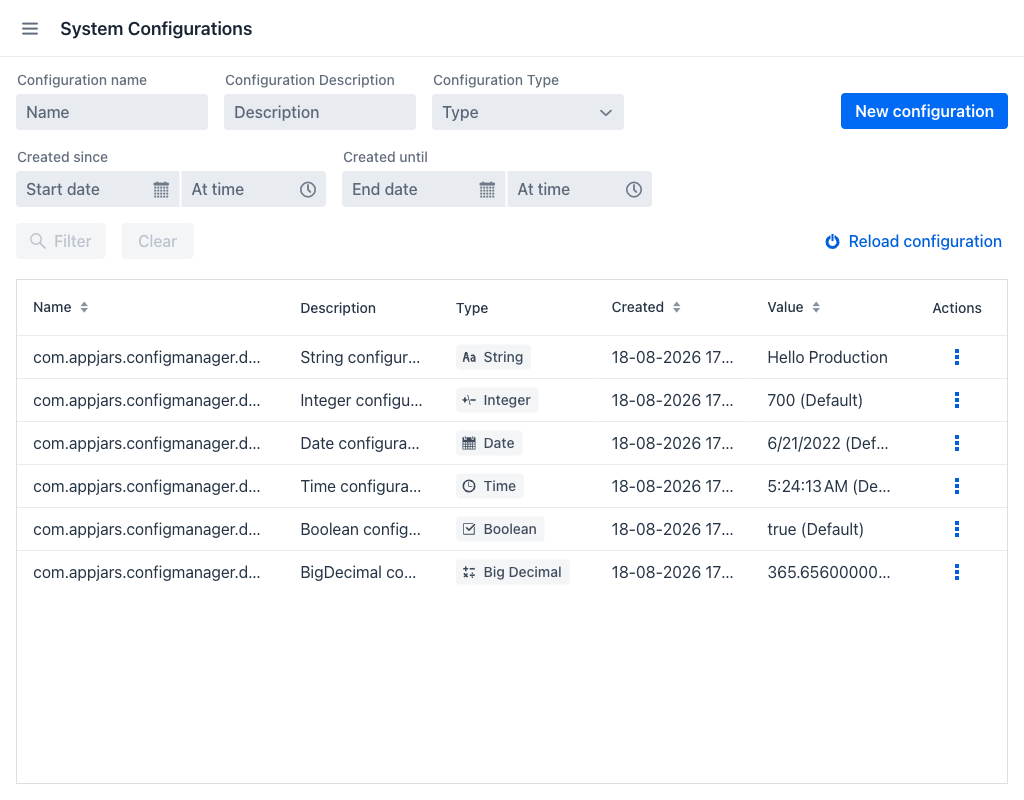
Configurations Grid
The grid displays all existing system configurations with the following columns:
- Name: The configuration key name. Keys are usually written as dotted property names, such as
com.appjars.configmanager.demo.system_string. - Description: A human-readable explanation of the configuration's purpose.
- Type: The data type, shown as a badge: String, Integer, Big Decimal, Boolean, Date or Time.
- Created: The date and time when the configuration was originally created, shown in the administrator's own time zone.
- Value: The current active value. If no override has been set, the cell displays the default value followed by (Default).
- Actions: A per-row actions menu.
The Name, Created and Value columns can be sorted, and every column can be resized by dragging its edge.
Filters
The following filter fields are available at the top of the view:
- Configuration name: Filters entries whose name contains the entered text.
- Configuration Description: Filters by description text.
- Configuration Type: Dropdown to filter by data type.
- Created since / Created until: Date and time range that narrows results by creation date. Each bound is split into a date field and a time field, and the missing half is filled in automatically: a date without a time starts at the beginning of the day for Created since and runs to the end of the day for Created until, while a time without a date applies to the current day.
The Filter and Clear buttons become active once any filter field has a value. On narrow screens the filter fields collapse behind a Filter button that opens them in a dialog.
Creating a System Configuration
Click the New configuration button to open the creation dialog.
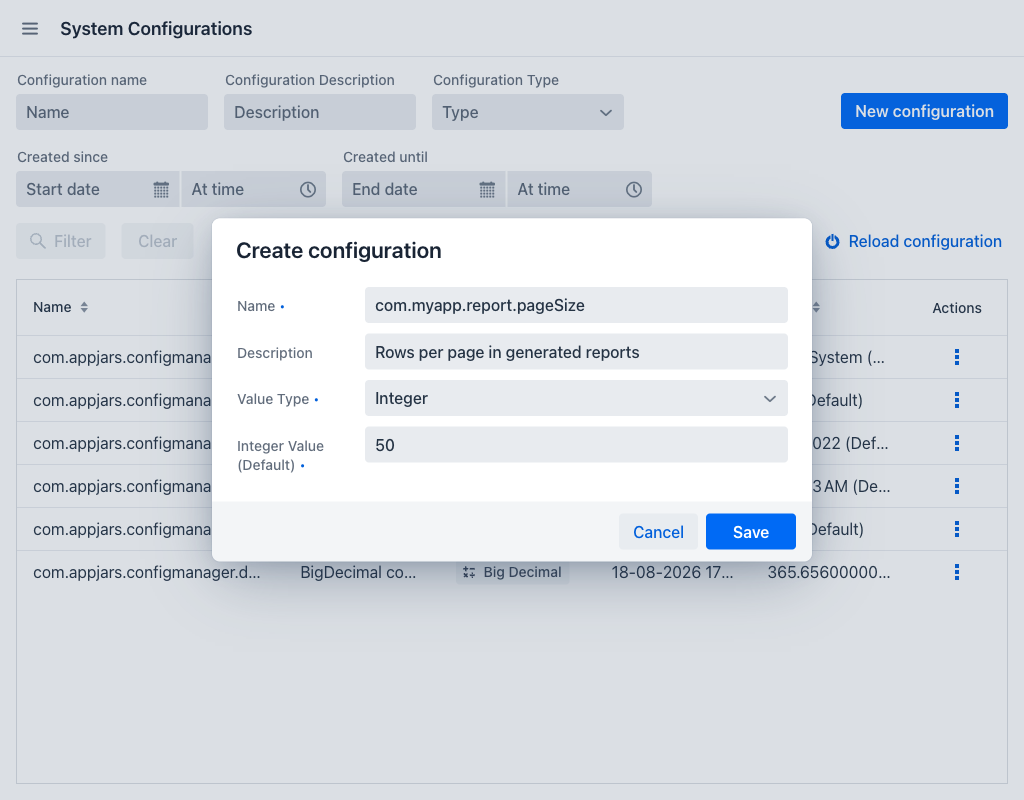
Fill in the following fields:
- Name (required): A unique key for the configuration. To make the value available to application code through a
@Valueplaceholder, use the property name that code expects, for examplecom.myapp.report.pageSize. - Description: An optional human-readable explanation.
- Value Type (required): The data type of the value. Once the entry is created, this cannot be changed.
- Value (required): The default value for the entry. The field appears once a type is selected, and its label names that type — Integer Value (Default), String Value (Default) and so on:
| Value Type | Input Control |
|---|---|
STRING |
Text field |
INTEGER |
Integer number field |
BIG_DECIMAL |
Decimal number field |
BOOLEAN |
Dropdown showing true and false |
DATE |
Date picker |
TIME |
Time picker |
Click Save to create the entry, or Cancel to discard the operation.
Row Actions
Click the actions icon on any row to access the available actions. The same actions are also available by right-clicking a row:
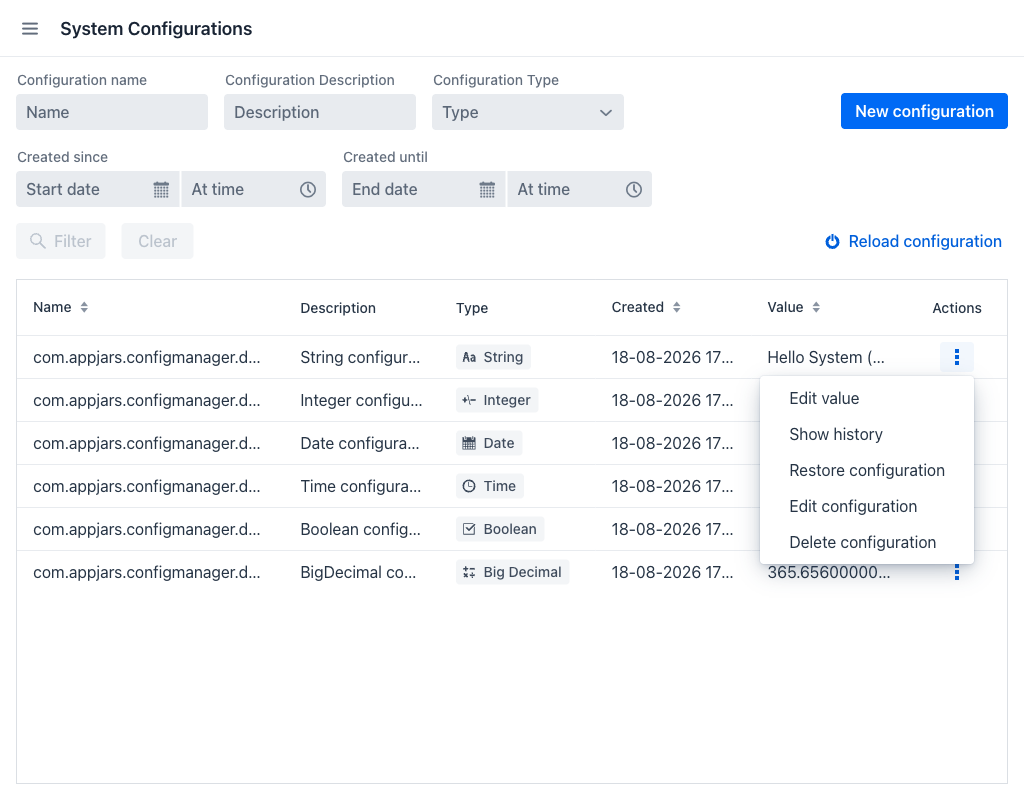
- Edit value: Opens the Edit value dialog to change the active value.
- Show history: Opens the Values history dialog.
- Restore configuration: Resets the active value back to the entry's default, after a confirmation step.
- Edit configuration: Opens the Edit Configuration dialog to change the description or the default value.
- Delete configuration: Removes the configuration entry, after a confirmation step.
Warning
Deleting a configuration also discards its complete value history. Application code that resolves the deleted key falls back to the default written in its own @Value placeholder.
Editing the Current Value
The Edit value dialog changes the value the application is currently using, without touching the entry's definition.
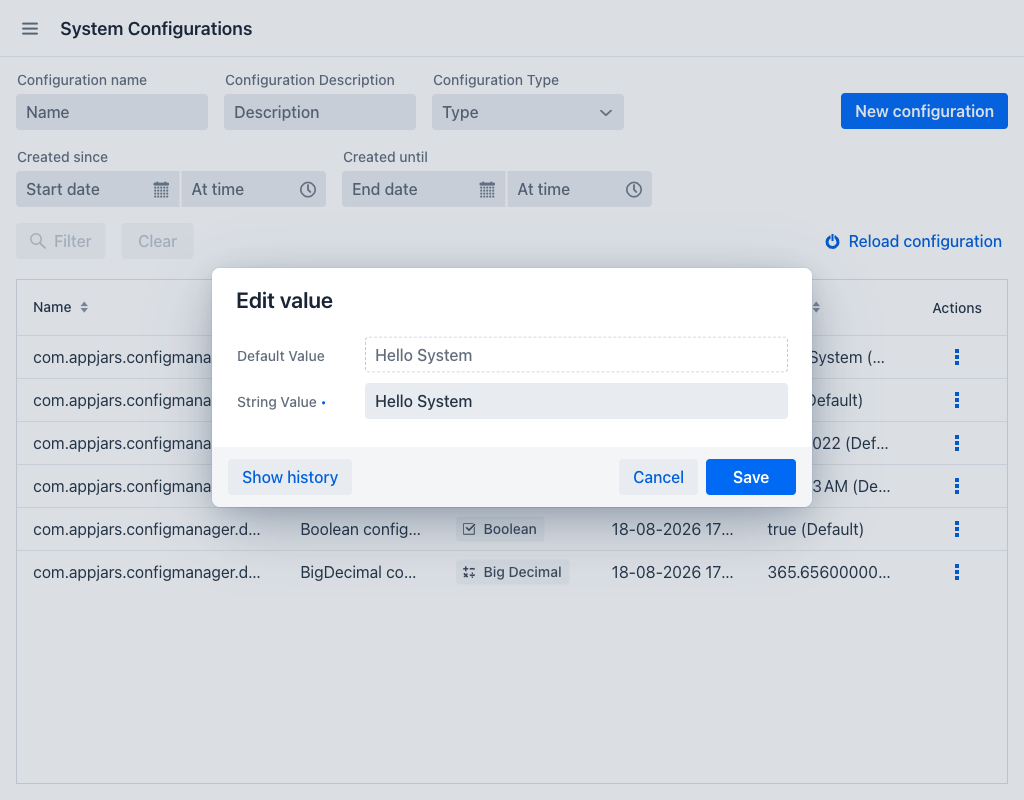
The dialog shows:
- Default Value: The value the entry falls back to when no override is set. Read-only.
- Value (required): The new active value. Its label names the data type, and the input control adapts to it in the same way as in the creation dialog.
The dialog footer contains:
- Show history: Opens the Values history dialog.
- Cancel: Closes the dialog without saving.
- Save: Stores the new value. The previous value is kept in the history.
Editing a Configuration
The Edit Configuration dialog changes the entry's own definition rather than its current value.
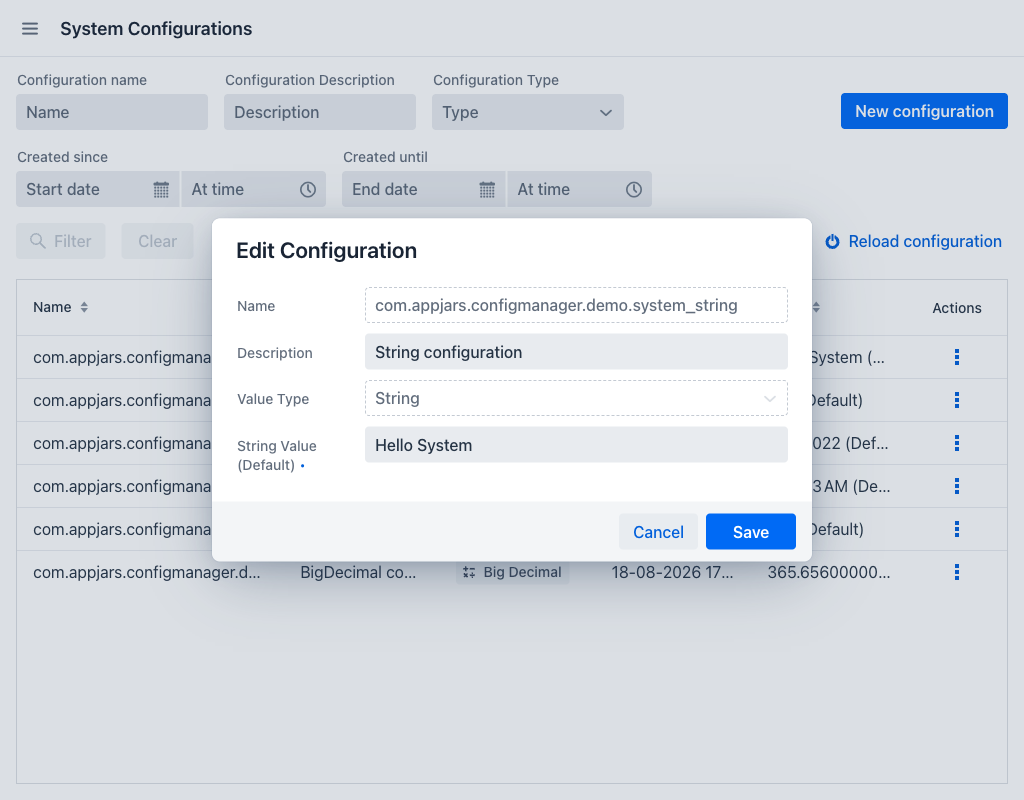
The dialog shows:
- Name: The configuration key. Read-only.
- Value Type: The data type. Read-only.
- Description: The description of the configuration. Editable.
- Value (required): The entry's default value, labelled with the data type followed by (Default). Editable.
Click Save to store the changes, or Cancel to discard them.
Values History
The history dialog lists every value the configuration has held, most recent first. Saving a value never overwrites the previous one, so this list is a complete record of how the configuration has changed.
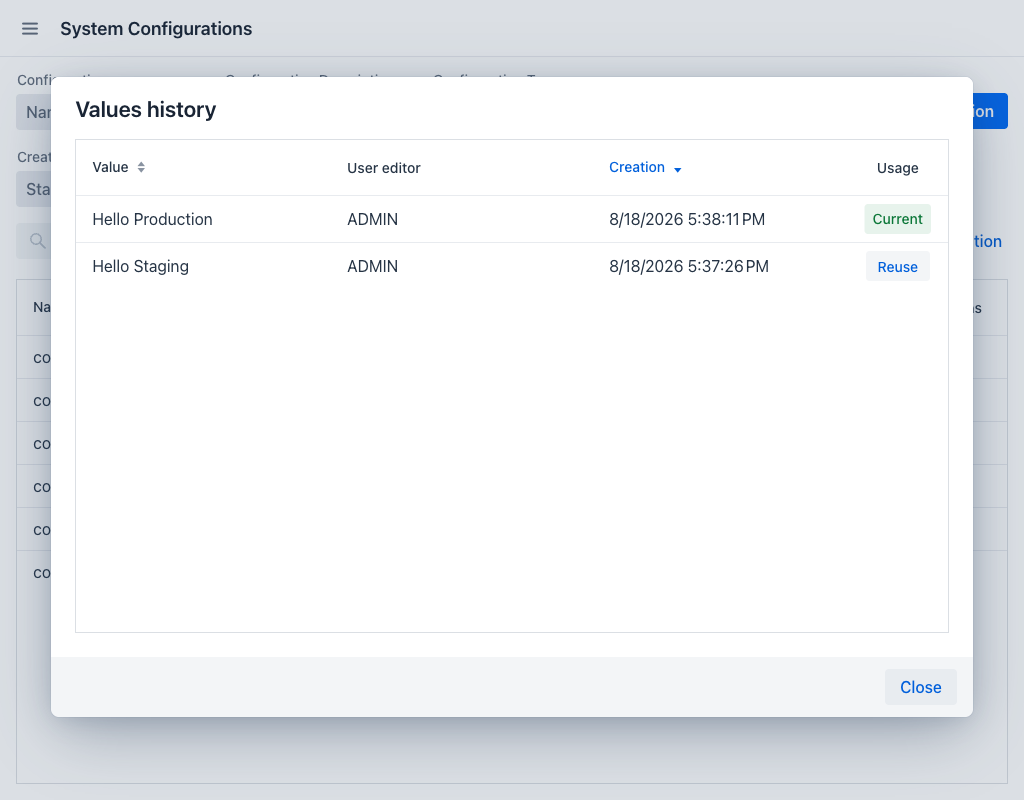
Each row shows:
- Value: The saved value.
- User editor: The administrator who saved that value.
- Creation: The date and time when the value was saved.
- Usage: Marks the value currently in use with a Current badge. Every other row offers a Reuse button, which creates a new entry with that value and makes it the current one.
When the entry has never been changed, the dialog shows a message stating that the configuration has no value history.
Reloading the Configuration
Application code that reads a configuration through a @Value placeholder resolves it once, when the bean holding it is created. Saving a new value therefore does not by itself change what such a bean returns.
The Reload configuration button restarts the application so that every @Value placeholder is resolved again from the current values.
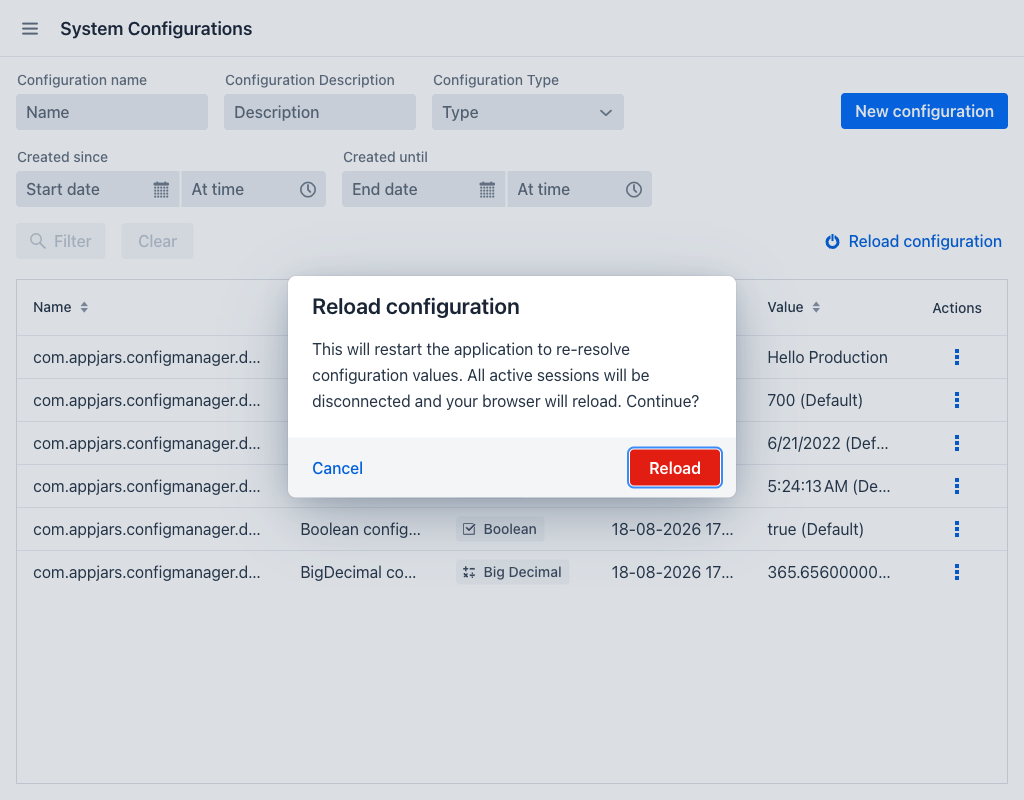
Warning
Reloading restarts the application. All active sessions are disconnected and every user's browser reloads. Use it outside working hours, or when the application is not serving users.
The button is only shown when the feature has been enabled in the application's configuration, which is not the case by default, and when the way the application was started allows it to restart itself. See the Developer Guide for the property that controls it.
Free Mode
When the application runs without a valid Configuration Manager licence, the view operates in free mode. A bar above the grid carries a Free version badge, whose information icon explains that this version restricts the number of configurations, an Upgrade badge linking to the licensing information, and a Configurations: counter showing how much of the free allowance is in use.
The allowance is five configurations, counting system and user configurations together. Entries whose name begins with com.appjars. belong to the AppJars themselves and are not counted. Once five exist, the New configuration button is disabled and no further configuration can be created. The five that exist stay fully usable.
An application that previously ran with a licence may hold more configurations than the allowance. In that case the Edit value, Show history, Restore configuration and Edit configuration actions are disabled as well, and the only action left on each row is Delete configuration. Removing configurations until five remain restores the rest of the actions.