Custom Fields
The Custom Fields view allows administrators to define additional fields that extend the default data model. Custom fields can be added to issues, time entries, or projects, enabling organizations to capture domain-specific information beyond the standard fields provided by the Issue Tracker.
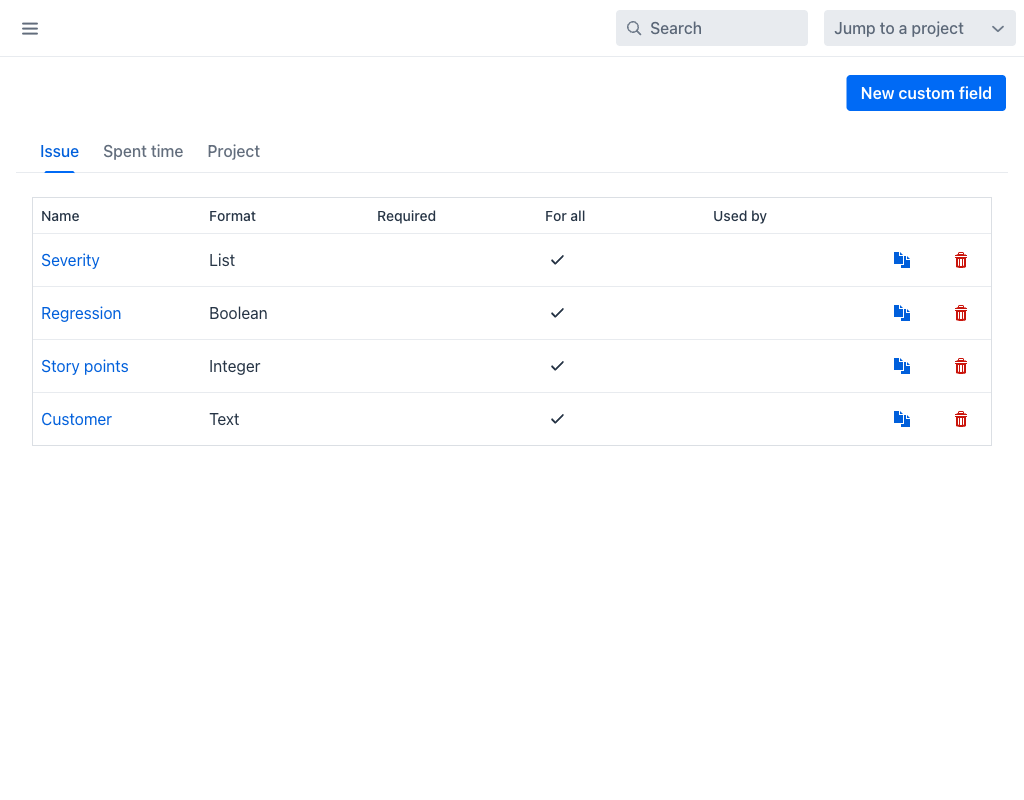
Entity Tabs
Custom fields are organized into tabs based on the entity they extend:
- Issue: Fields that appear on the issue creation and editing forms.
- Spent time: Fields that appear on time entry forms.
- Project: Fields that appear in project settings.
Custom Fields List
Each tab displays a list of defined custom fields with the following columns:
- Name: The display name of the custom field. Clicking the name opens the field for editing.
- Format: The data type of the field (e.g., Date, List, Text, Integer, Boolean).
- Required: Indicates whether the field must be filled in when creating or editing the associated entity.
- For all: Indicates whether the field applies to all projects or only to specific ones.
- Used by: Shows which projects currently use this custom field, or "no projects" if it has not been assigned.
Each row also provides a copy icon, which creates a new field preloaded with the settings of the selected one, and a delete icon.
Creating a Custom Field
Click the New custom field button at the top-right to create a new custom field. The form adapts to the selected format, so not every field below is shown for every format.
- Name (required): The label displayed on forms. Names must be unique.
- Format (required): The data type. The supported formats are Text, Long text, Integer, Float, Date, Boolean, List, Key/value list, File, Link, User and Version. The format determines how the field is rendered and validated.
- Description: An optional help text displayed alongside the field.
- Default value: An optional value pre-filled when creating new entries. It is validated against the constraints below, so a default that is too short, too long, or absent from the list of possible values is rejected.
- Required: Whether the field must have a value.
- Visible: Controls who can see the field — to any users, or to these roles only: followed by an explicit role selection.
- Used as a filter: Makes the field available in the filter panel of the issue and time entry lists.
- Searchable: Includes the field's values in the search index.
- For all projects: When enabled, the field appears in all projects. When disabled, it is enabled per project through the Projects selector.
- Trackers: For issue custom fields, which trackers the field applies to.
Format-specific options include:
- Min - Max length, Regular expression and Text formatting for text formats. Lengths cannot be negative.
- Possible values and Multiple values for List and Key/value list formats.
- Link values to url and URL for the Link format.
- Allowed extensions for the File format, as a comma-separated list of extensions without the leading dot, for example
txt, png. - Full width layout, which makes the field span the whole width of the form.
Changing the format of an existing field preserves its role, tracker and project selections, so a field can be retyped without reconfiguring where it applies.
The Create and Create and add another buttons are at the end of the form; the latter keeps the form open for defining several fields in a row.
Warning
Deleting a custom field permanently removes it and all associated data from every issue, time entry, or project where it was used.