Extractors
An Extractor defines the criteria that determine which log entries the AppJar captures and persists to the database. Only log events that match at least one active Extractor are stored. This allows fine-grained control over what is retained, preventing irrelevant noise from filling the log database.
Extractors List
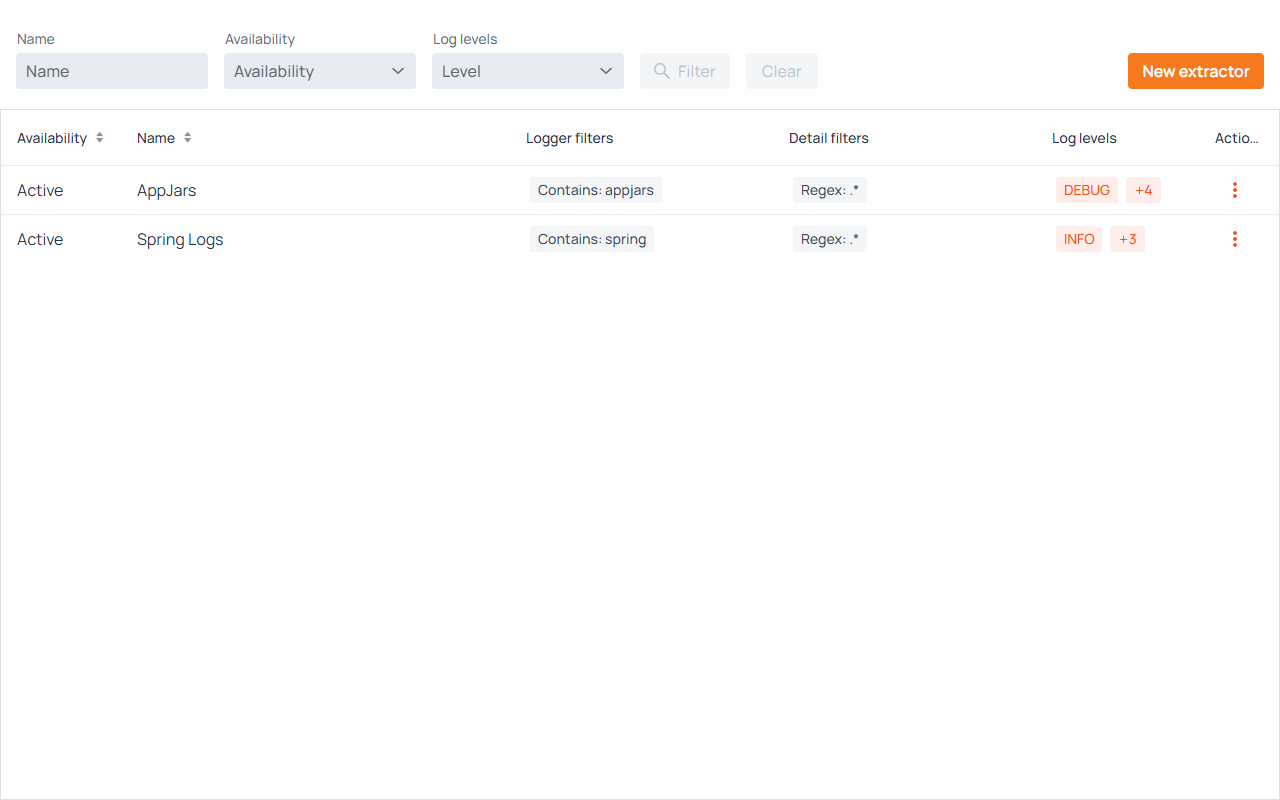
The Extractors list view is available at /al/extractors under Activity Log → Extractors in the navigation menu.
Filters
The top of the view contains filters to narrow down the list:
- Name — Filters extractors by name (partial match).
- Availability — Filters by active or inactive status.
- Log levels — Filters extractors that include a specific severity level.
Click Filter to apply, or press Enter in the Name field. Click Clear to reset.
Grid Columns
- Availability — Displays whether the extractor is Active or Inactive. Active extractors are currently capturing logs.
- Name — The name assigned to the extractor.
- Logger filters — A summary of the logger name patterns configured.
- Detail filters — A summary of the log message content patterns configured.
- Log levels — The severity levels this extractor captures.
- Actions — A menu with available operations for the row.
Row Actions
Clicking the ··· icon in the Actions column opens a menu with the following options:
- Edit extractor — Opens the extractor's configuration form for editing.
- Duplicate extractor — Creates a copy of the extractor with the name prefixed by "Copy of".
- Activate / Deactivate extractor — Toggles the active state. Inactive extractors do not capture any logs.
- Delete extractor — Opens a confirmation dialog before permanently deleting the extractor.
Creating and Editing an Extractor
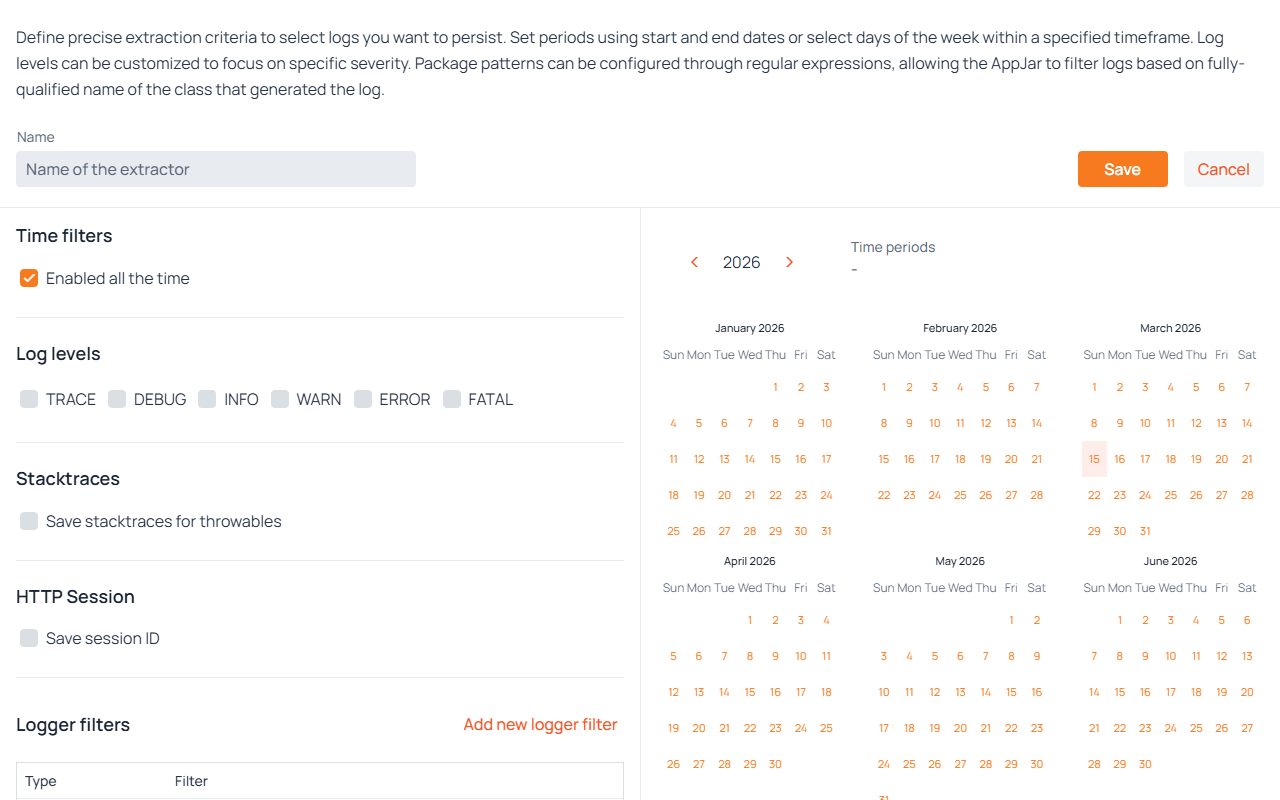
Click New extractor to open the creation form. Clicking Edit extractor from a row's action menu opens the same form pre-filled with the existing values.
Name
Enter a unique name that identifies the purpose of this extractor (e.g., "AppJars Logs", "Spring Framework").
Time Filters
Defines the time windows during which this extractor captures logs.
- Enabled all the time — When checked, the extractor captures logs at all times, on all days. No specific time range configuration is needed.
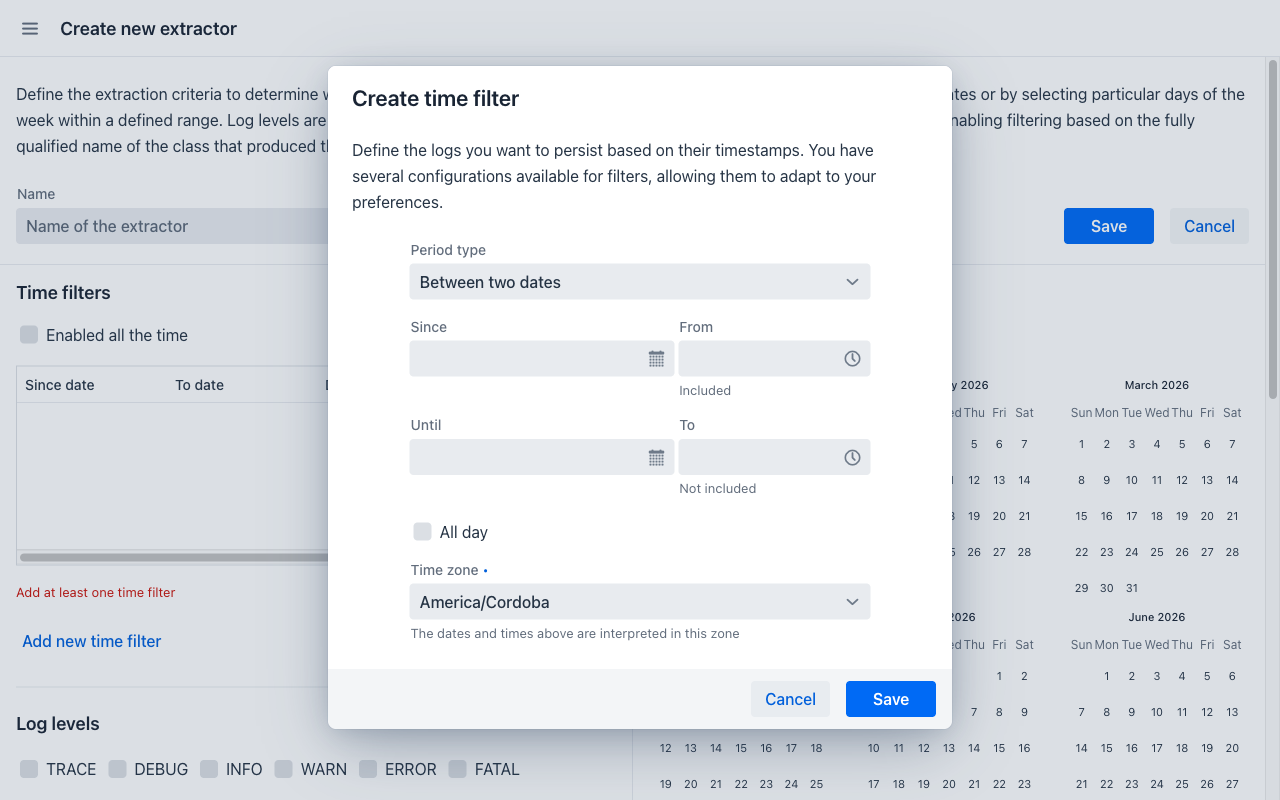
- If unchecked, one or more time filters must be defined. Click Add new time filter to open the time filter dialog.
Each time filter supports three modes:
- Between two dates — Captures logs across one continuous span, running from the Since date at the From time straight through to the Until date at the To time. The times are the two ends of the span, not a window that reopens each day: a filter set to 1 July at 09:00 through 31 July at 17:00 covers the whole of every day in between, 15 July at 03:00 included. Leaving a bound empty leaves that end of the span open.
- Days of week between two dates — Captures logs on specific days of the week, within a date range. The daily time range applies on each covered day.
- Days of week — Captures logs on recurring days of the week (no date boundary), optionally within a daily time range that applies on each of them.
The From time is included in the window and the To time is not; the dialog states this beside each field. Because a Between two dates span crosses midnight by definition, its end time does not have to fall later on the clock than its start time when the span covers more than one date.
Time Zone
Each time filter carries a Time zone, set in the time filter dialog and defaulting to the server's own zone. Time filters are written in wall-clock terms — "weekdays, 09:00 to 17:00" — while a log entry records an absolute instant, and the time zone is what relates the two. Setting it explicitly means a filter written for office hours in one location keeps that meaning if the application later runs on a server elsewhere.
A year calendar is displayed alongside the time filter grid (on wider screens). It visually highlights which days are covered by the configured filters, in the zone each filter was written in. Clicking a date shows the active time periods for that day.
Log Levels
Select one or more severity levels that this extractor should capture. Available levels: TRACE, DEBUG, INFO, WARN, ERROR, FATAL. At least one level must be selected.
Stacktraces
- Save stacktraces for throwables — When enabled, the extractor will also persist the full stack trace for log entries that are associated with an exception (Throwable instance).
HTTP Session
- Save session ID — When enabled, a session identifier is stored alongside each captured log entry, so that every entry produced during one browser session can be recognised as belonging together. This is what makes the Vaadin session filter in the Activity Log view useful. The stored value is generated for logging purposes only: it identifies the session within the log, and cannot be used to act as the user it belongs to.
Logger Filters
Defines which loggers (by class name) this extractor should capture. At least one logger filter is required.
Click Add new logger filter to open the filter dialog. Each filter has a Type and a Pattern:
- Contains — Matches loggers whose fully qualified class name contains the specified string.
- Starts with — Matches loggers whose class name starts with the specified string.
- Ends with — Matches loggers whose class name ends with the specified string.
- Regex — Matches loggers using a regular expression pattern.
- Everything — Matches all loggers (no filtering by logger name).
- Doesn't contain — Excludes loggers whose class name contains the specified string.
- Multiple substring match regex — Matches loggers containing all specified substrings.
- Multiple substring exclude regex — Excludes loggers containing any of the specified substrings.
Detail Filters
Defines which log messages (by content) this extractor should capture. At least one detail filter is required.
The same filter types available for Logger Filters apply here, but are applied against the log message content instead of the class name.
When multiple detail filters are configured, a log entry is captured if its message content satisfies any of them. Detail filters are evaluated in combination with logger and timestamp filters: a log entry is extracted only when all three filter types match. If no detail filters are defined, no log entries are captured by this extractor.
Saving
Click Save to persist the extractor. Validation errors are shown next to the field they concern, and an empty logger or detail filter section is reported under its own grid. If the form cannot be saved, a Check the form for errors notification appears and the view scrolls to the first section with an error. Click Cancel to discard changes and return to the list.
When editing an existing extractor, a Delete button is also available, which opens a confirmation dialog before removing the extractor permanently.