Query Definitions
A query definition is the unit of work in Data Query. It holds the query itself, the parameters it accepts, the columns it returns, and everything that governs how those results are presented — the chart configuration, the drill-down links, the queries it depends on, and the printed report attached to it. Every report and every dashboard widget a user opens is a query definition being rendered.
This section explains how an administrator creates and maintains them.
Query Definitions Listing
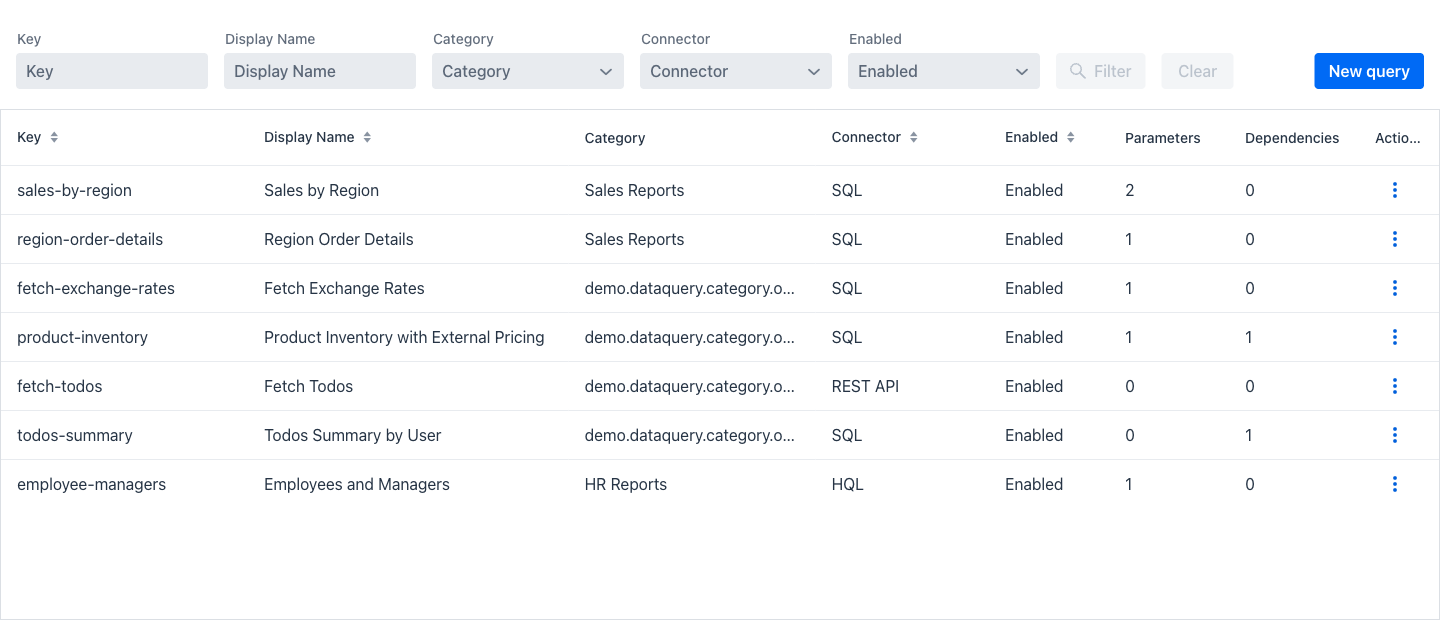
Entering the view shows a listing of every query definition in the system. The view is divided in two areas: a filter area at the top, and a grid of the matching definitions below it.
Filters
The filter area offers five fields. The Filter button becomes active as soon as any field has a value, and Clear resets them all.
- Key: When entering a text in this field, only the definitions whose key contains the entered text are shown.
- Display Name: When entering a text in this field, only the definitions whose display name contains the entered text are shown.
- Category: A dropdown listing the existing categories. Selecting one restricts the grid to the definitions in that category.
- Connector: A dropdown holding SQL, HQL and REST API. Selecting one restricts the grid to the definitions using that connector.
- Enabled: A dropdown restricting the grid to enabled or to disabled definitions.
At the right of the filter area, the New query button opens an empty query definition form.
Query definitions grid
Below the filter area, a grid containing the matching definitions is displayed. This grid shows the following columns:
- Key: The unique internal identifier of the definition. It is the value that appears in the address of the report view, and the value that links and dependencies use to point at this query.
- Display Name: The user-facing name of the query, shown as the title of its report view.
- Category: The category the query belongs to, or empty when it has none.
- Connector: The data source connector the query uses.
- Enabled: Whether the query can be executed. A disabled query cannot be opened by a user.
- Parameters: The number of parameters the query declares.
- Dependencies: The number of queries that must run before this one.
- Actions: A dropdown menu of the actions that can be performed on the definition of the current row.
Note
The Display Name and Category columns both show translated text when the query, or the category, is marked as internationalised. Sorting and filtering still work on the stored value, so an internationalised query is ordered by its translation key rather than by the name on screen.
Actions
The actions that can be performed on each of the rows are the following:
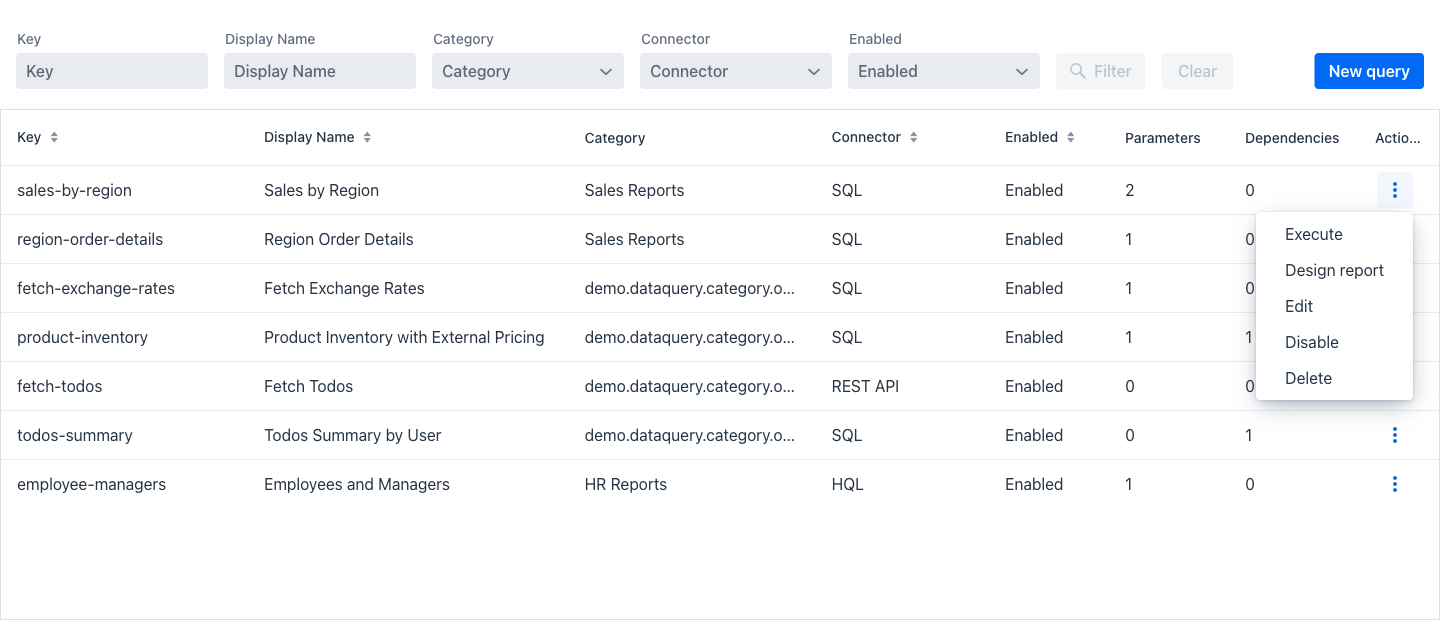
- Execute: Opens the report view of the query, which is what a user sees.
- Design report: Opens the Report Designer for the query, to draw or edit its printed layout.
- Edit: Opens the query definition form described below.
- Disable / Enable: Toggles whether the query can be executed, without deleting it.
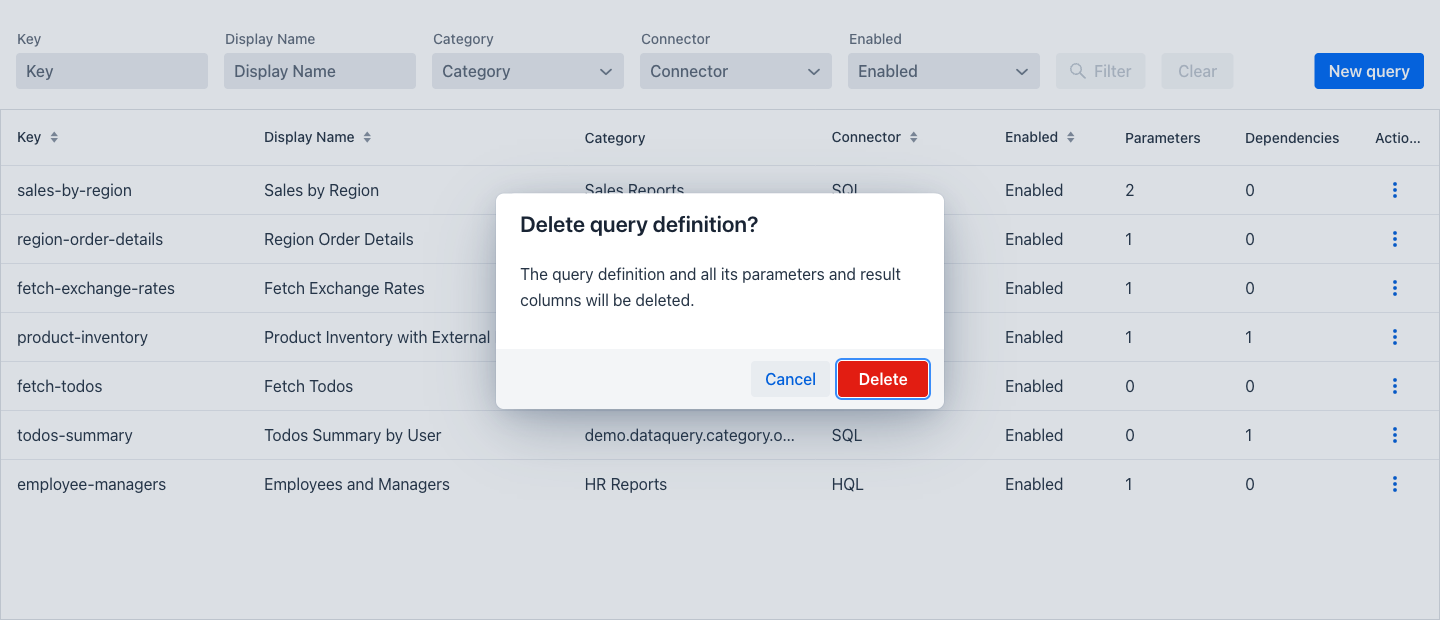
- Delete: Displays a confirmation dialog asking to confirm the deletion.
Warning
Deleting a query definition also deletes its parameters, result columns, link configurations, dependency declarations, chart configuration and printed report. The action cannot be undone. Dashboards and other queries that pointed at the deleted one keep their reference, which no longer resolves.
Query Definition Edition
The query definition form is organised into six tabs: General, Parameters, Result Columns, Dependencies, Visualization and Report. The Save, Cancel and Delete buttons at the top apply to the whole definition, so changes made across several tabs are saved together.
General Tab
The General tab holds the identity of the query and the query itself.
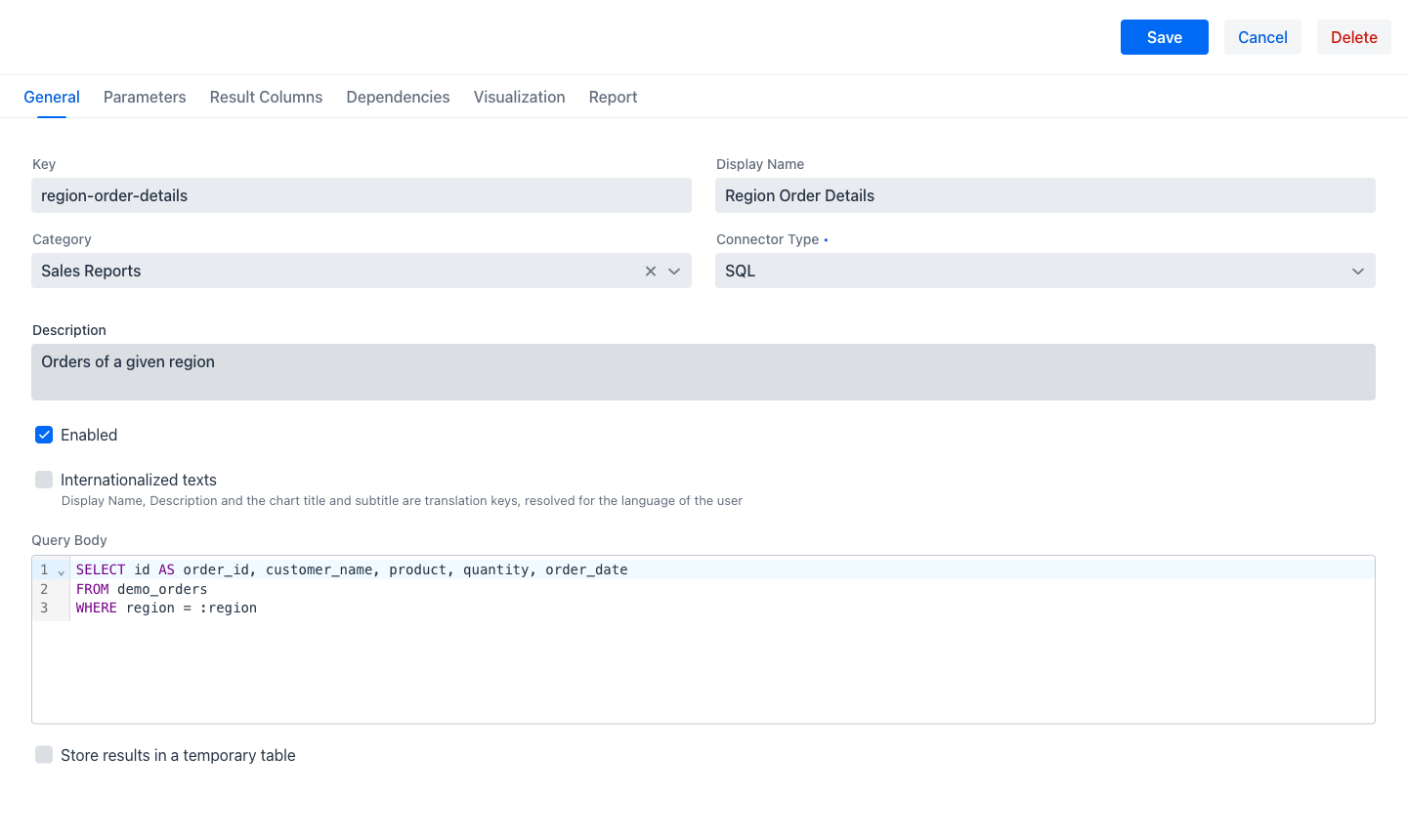
- Key: The unique internal identifier. It appears in the address of the report view and is how links, dependencies and dashboard widgets refer to this query. Required, and rejected if another definition already uses it.
- Display Name: The user-facing name. Required.
- Category: A dropdown of the existing categories. Optional; a query may belong to none.
- Connector Type: SQL, HQL or REST API. Required. Changing it changes how the query body below is written and validated.
- Description: Optional free text documenting what the query returns.
- Enabled: Whether the query can be executed.
- Internationalized texts: When ticked, the display name, the description, and the chart title and subtitle on the Visualization tab are no longer literal text but translation keys, resolved for the language of each user. Ticking it relabels those fields to end in "key", as a reminder of what now belongs in them.
- Query Body: The query itself. Its label and its editor depend on the connector, as described below.
- Store results in a temporary table: Marks the query as an intermediate step of a chain rather than something a user opens. When ticked, a Temporary Table Name field appears.
Writing an SQL query
With the SQL connector, the query body is an SQL statement executed against the application's data source. The editor highlights SQL syntax and numbers the lines.
Parameters are referenced as :parameterKey, matching the keys declared on the Parameters tab. Values are always bound rather than pasted into the statement, so a parameter cannot alter the shape of the query.
Every column the query returns should be given an alias, because the alias is the key that the result column definitions on the next tab refer to.
Writing an HQL query
With the HQL connector, the query body is a single select statement written against the application's mapped entities rather than its physical tables. The field is labelled HQL query.
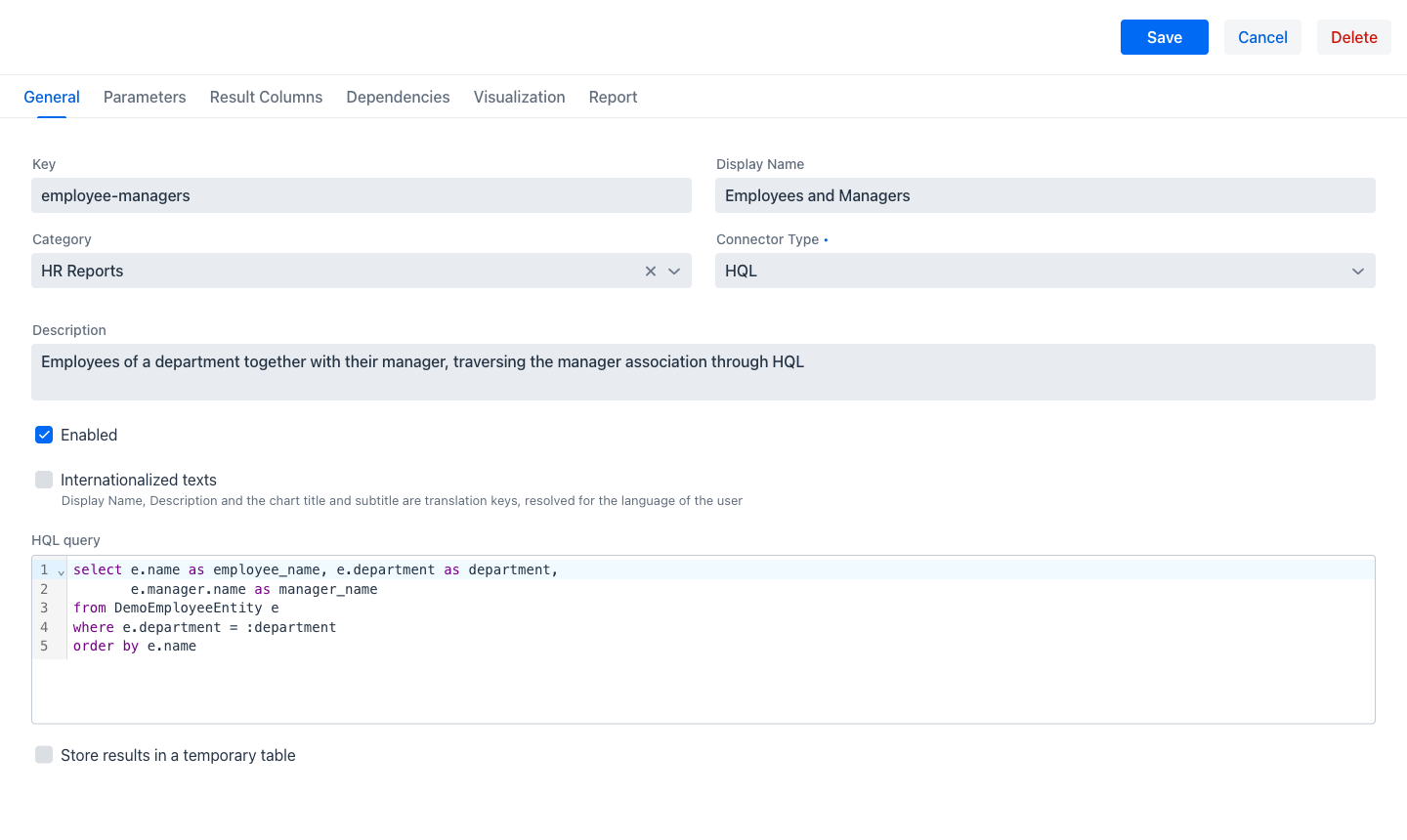
Two rules apply to the selected expressions:
- Every selected expression must be given an alias, written with
as. The alias is the result column key. Two expressions may not share an alias. - Only individual values may be selected. Selecting a whole entity, or an association, is rejected when the query is saved.
Because the query is written against the mapping, the editor can offer completion from the application's own domain model: entity names after from and join, and attribute names after an alias followed by a dot, including the attributes reached by traversing an association.
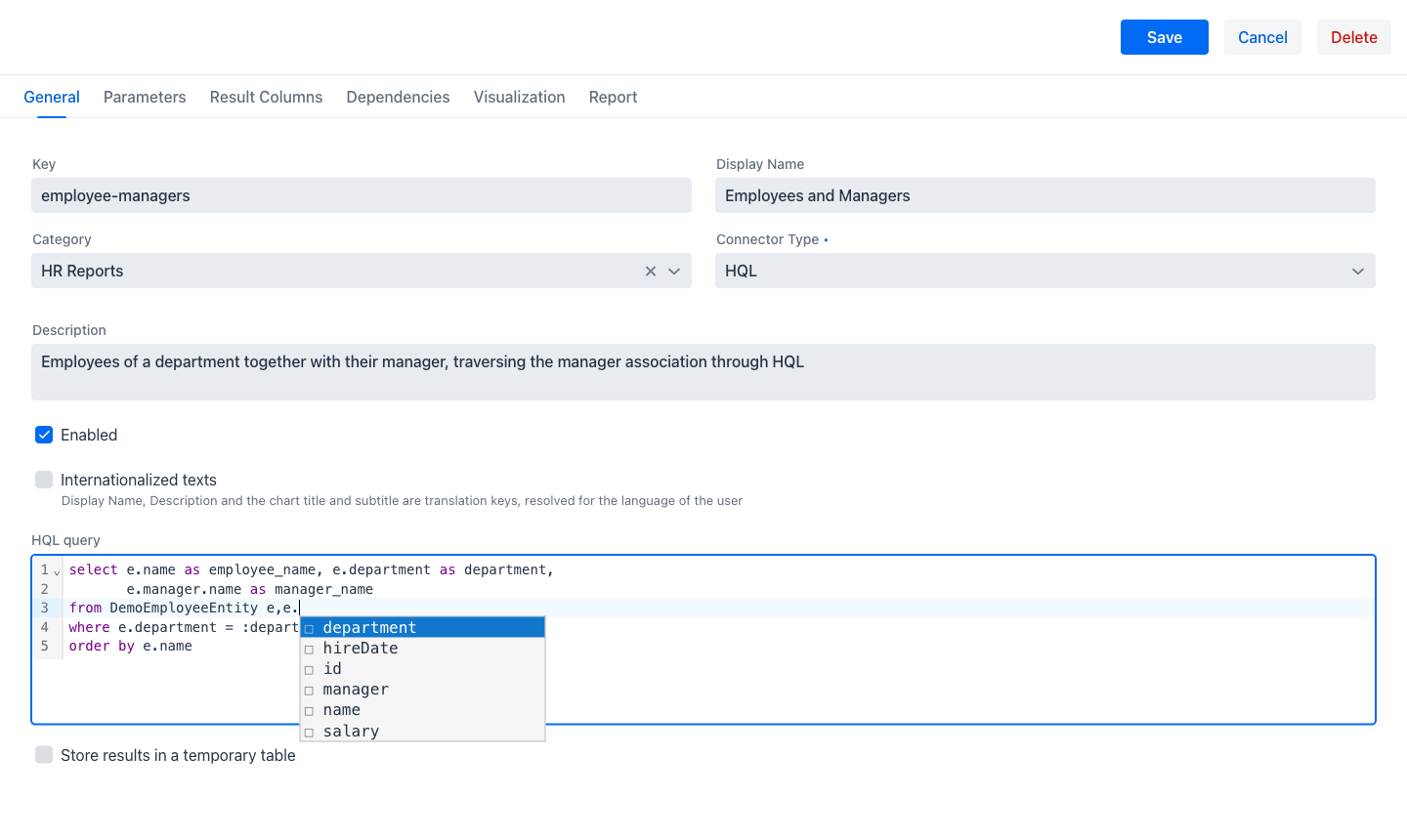
Saving an HQL query validates it: the statement must parse, it must be a select, its aliases must be unique and present, every entity it reaches must be mapped and permitted, and every declared result column must match one of its aliases. Problems are reported on the field.
Configuring a REST API query
With the REST API connector, there is no query text. The query body editor is replaced by a request panel describing an HTTP call whose JSON response becomes the rows of the report.
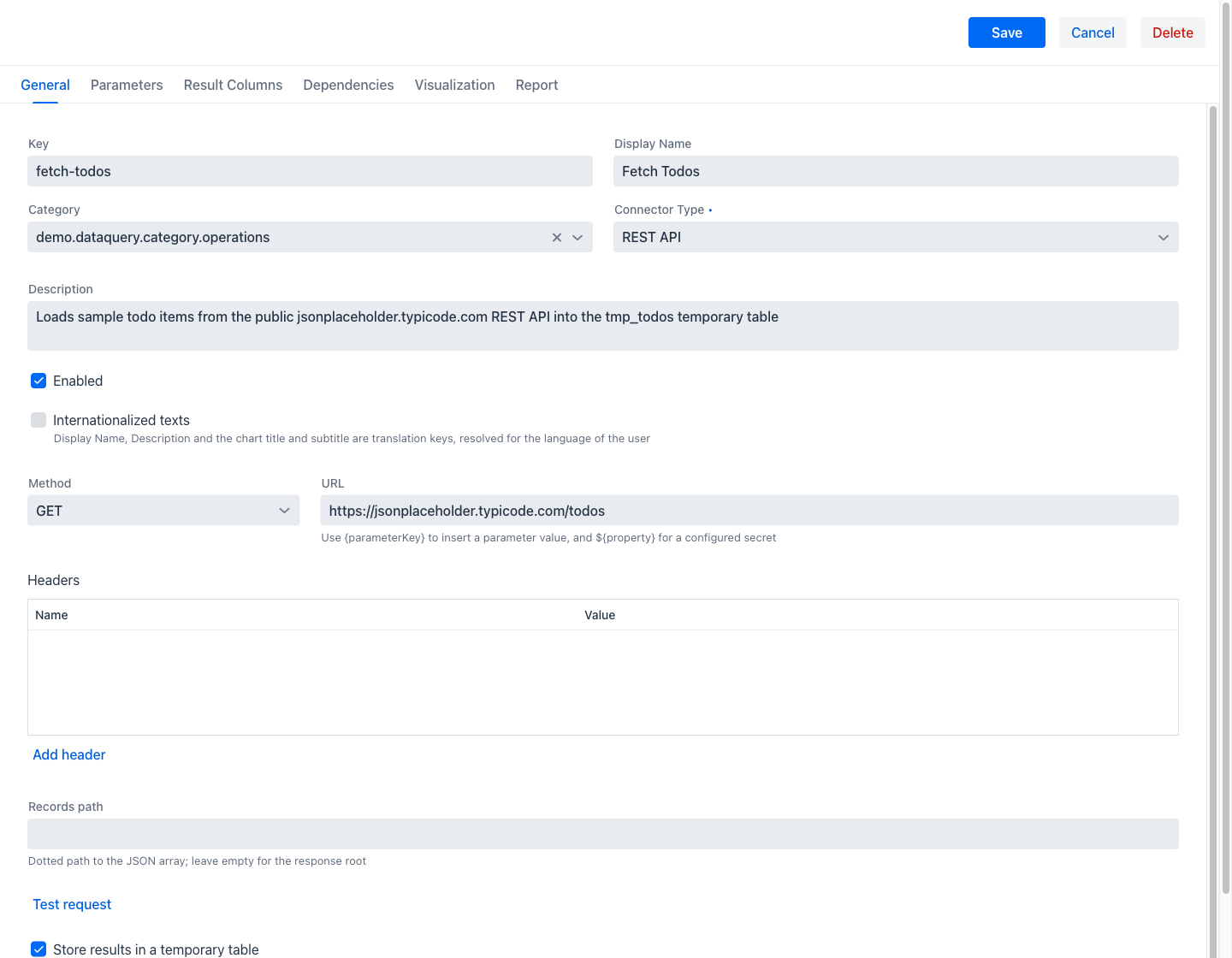
- Method: GET, POST or PUT.
- URL: The address to call. It may contain
{parameterKey}placeholders, substituted with parameter values and escaped for the position they occupy, and${property}placeholders, resolved from the application's configuration. Secrets belong in the latter, so a credential lives in the application's configuration rather than in the query record. - Headers: A grid of name and value pairs, extended with Add header. Values may use both kinds of placeholder, which is how a bearer token or API key is supplied.
- Body: A JSON template, shown only for methods that take a body.
- Records path: The dotted path locating the array of records inside the response, for example
data.items. Leaving it empty means the array is the response itself.
The response must reduce to an array of flat objects. Their keys become the result column keys, in lowercase.
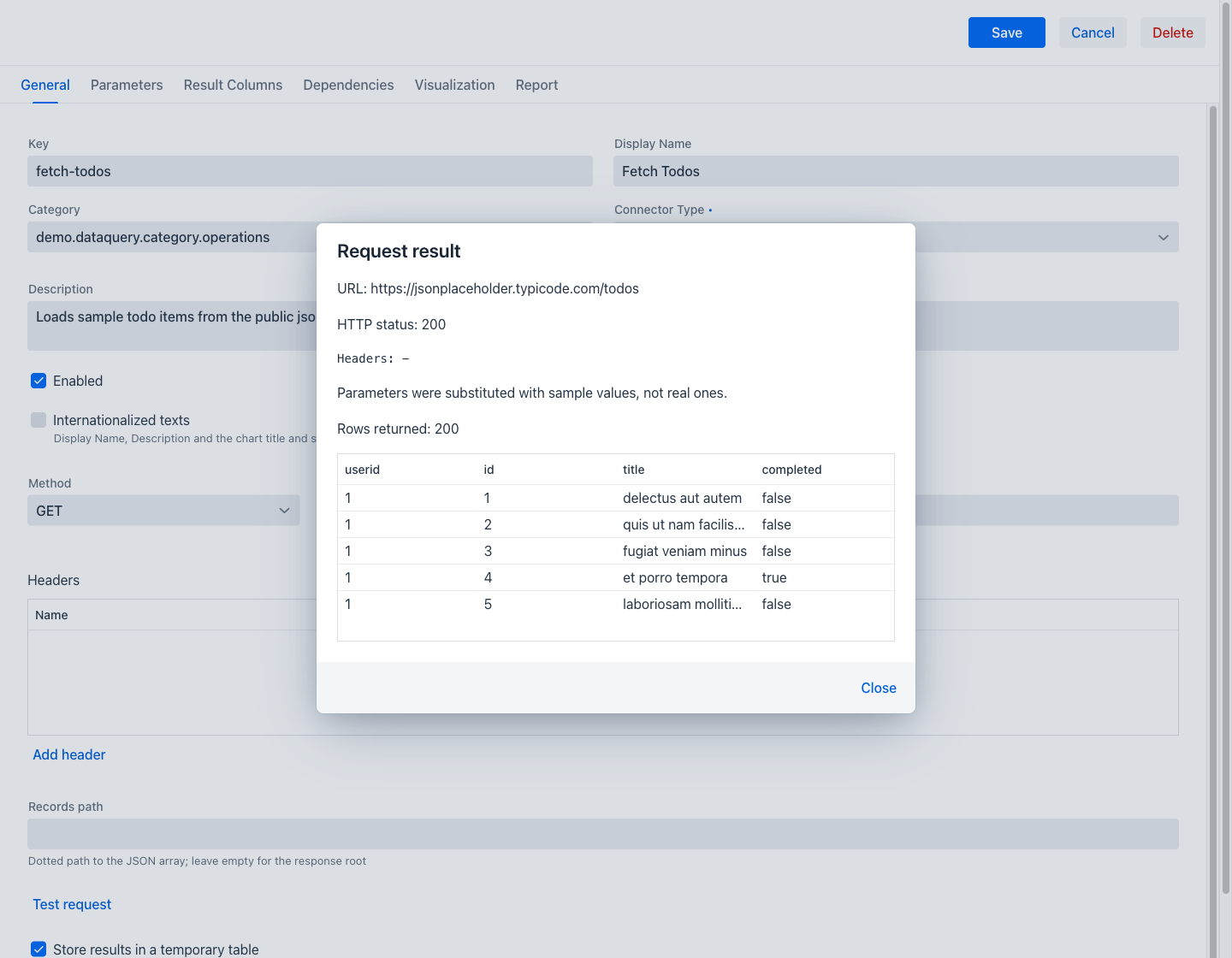
Test request issues the call there and then, on the administrator's explicit action, and reports what came back: the resolved address, the status, the number of records located and a preview of the first rows. Values that were resolved from configuration are redacted. The Request result dialog opens at once and shows Testing request... while the call runs in the background, so a slow endpoint does not freeze the application; clicking Test request again while a call is still pending reopens the dialog instead of issuing a second one. Saving the definition never issues the request.
Warning
A REST query only runs against hosts the application has explicitly allowed. Until the allowlist is configured, no REST query executes at all. See Configuration Properties.
Storing results in a temporary table
Ticking Store results in a temporary table and giving a Temporary Table Name turns the query into an intermediate step of a chain. Its rows are written into a table under that name, which a later SQL query in the same chain reads like any other table.
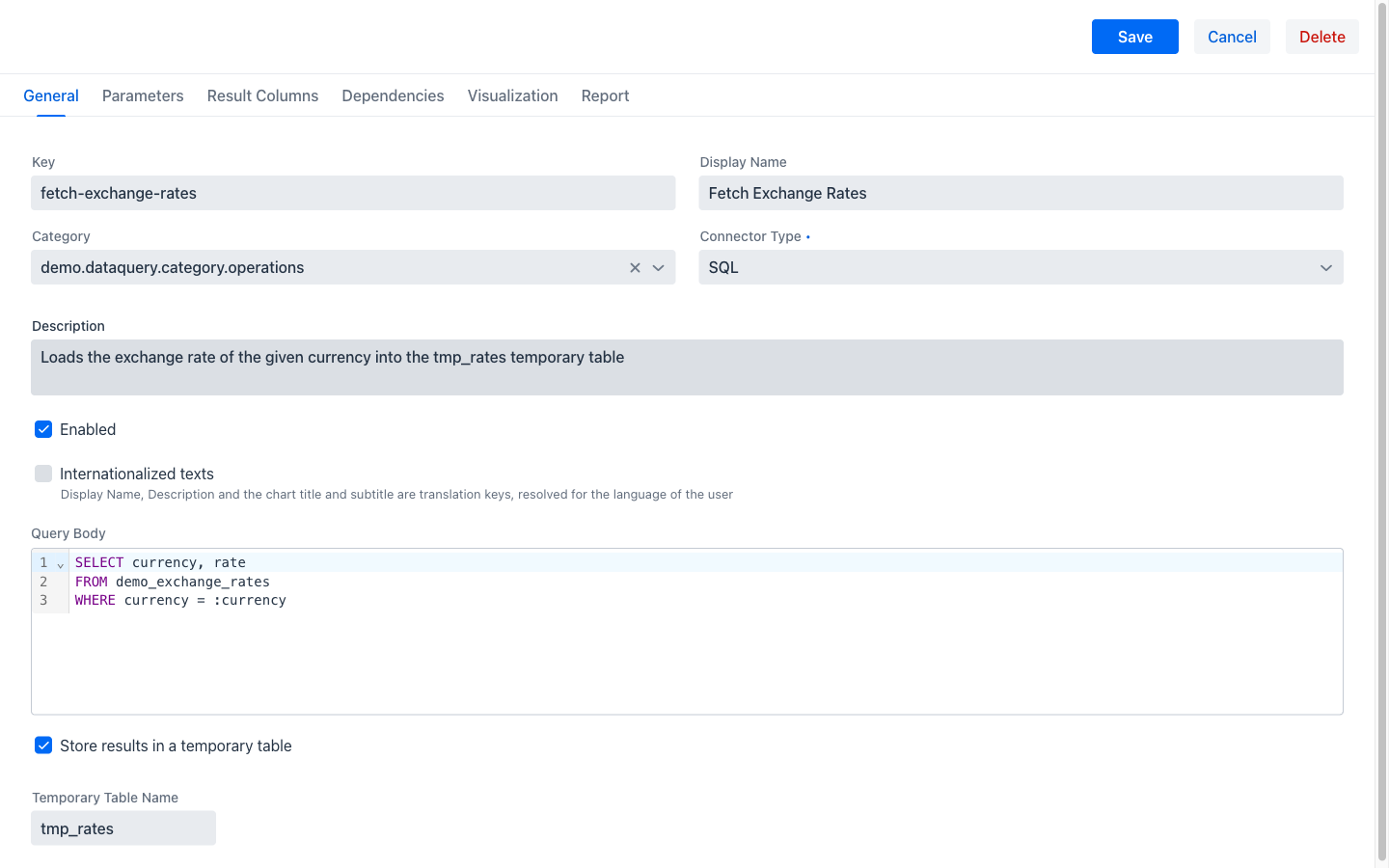
Such a query is not something a user opens; it exists so that another query can use its output. All three connectors can write a temporary table, which is what allows an external service or the domain model to be joined against database tables. Only an SQL query can read one.
Parameters Tab
The Parameters tab declares the values the query needs. They become the fields of the parameter form the user fills in, in the order given here.
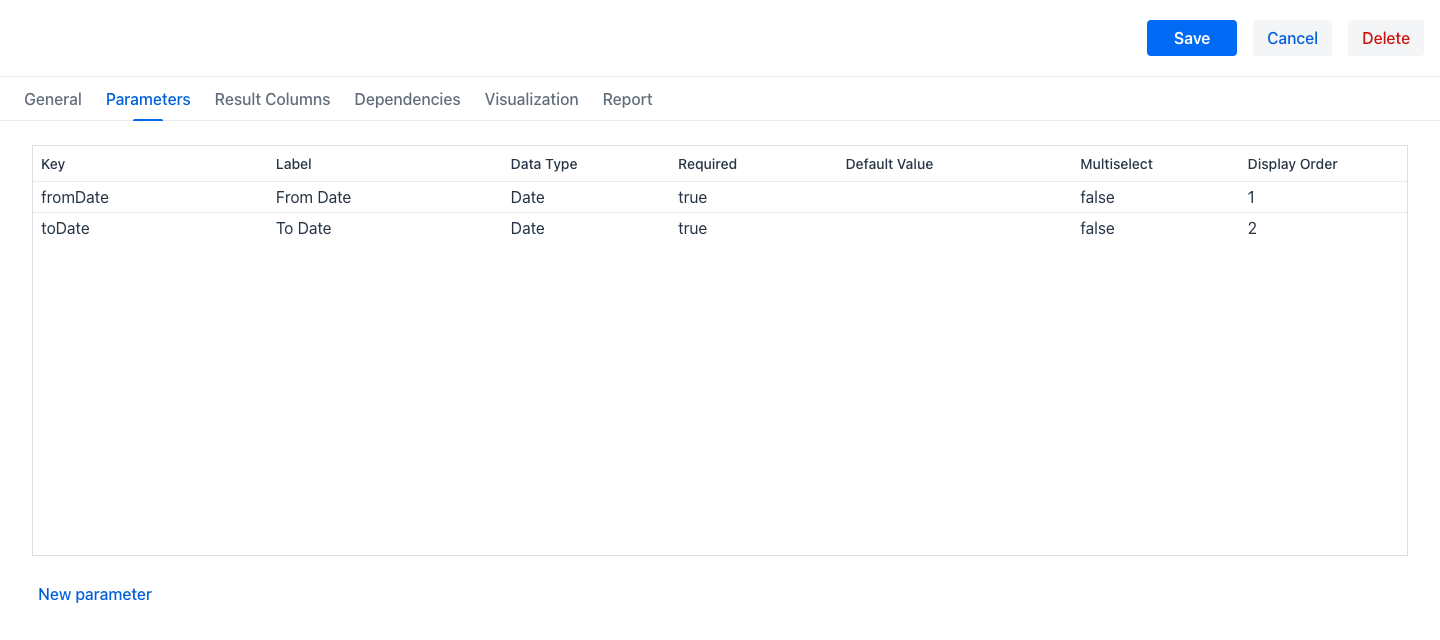
The grid shows the Key, Label, Data Type, Required, Default Value, Multiselect and Display Order of each parameter. New parameter adds one, and clicking a row opens it for edition.
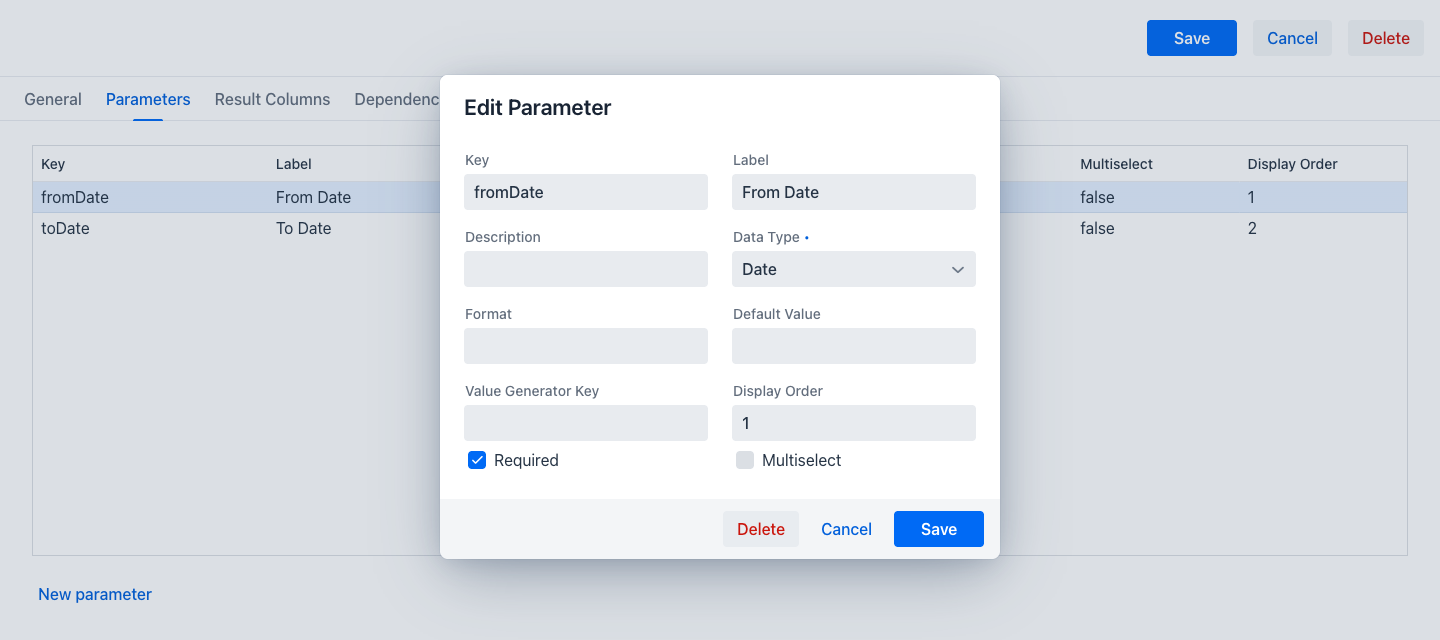
- Key: The name used to reference the parameter from the query body — as
:keyin SQL and HQL, and as{key}in a REST request. Required. - Label: The caption of the field in the parameter form.
- Description: Optional help text for the field.
- Data Type: Text, Integer, Long, Decimal, Boolean, Date, Date and Time or Enumeration. Required. It determines which field the parameter form renders. Choosing Enumeration reveals a field for the allowed values.
- Format: An optional pattern used to parse and display the value, for example
yyyy-MM-dd. - Default Value: A fixed value the field starts with.
- Value Generator Key: The name of a generator that works out the default instead. The built-in generators are
currentDate,currentDateTime,currentUser, andquery:<queryKey>:<columnKey>, which offers the values of a column of another query as the options of a dropdown. An application can contribute generators of its own; see Custom Value Generators. - Display Order: The position of the field in the parameter form.
- Required: Whether the user must supply a value before the query will run.
- Multiselect: Whether the field accepts several values at once, for a parameter used in an
INclause.
The Delete button in the dialog removes the parameter.
Result Columns Tab
The Result Columns tab declares the output of the query. It is a declaration rather than a derivation: the appjar does not inspect the query to find out what it returns, so a column that is not declared here does not appear anywhere.
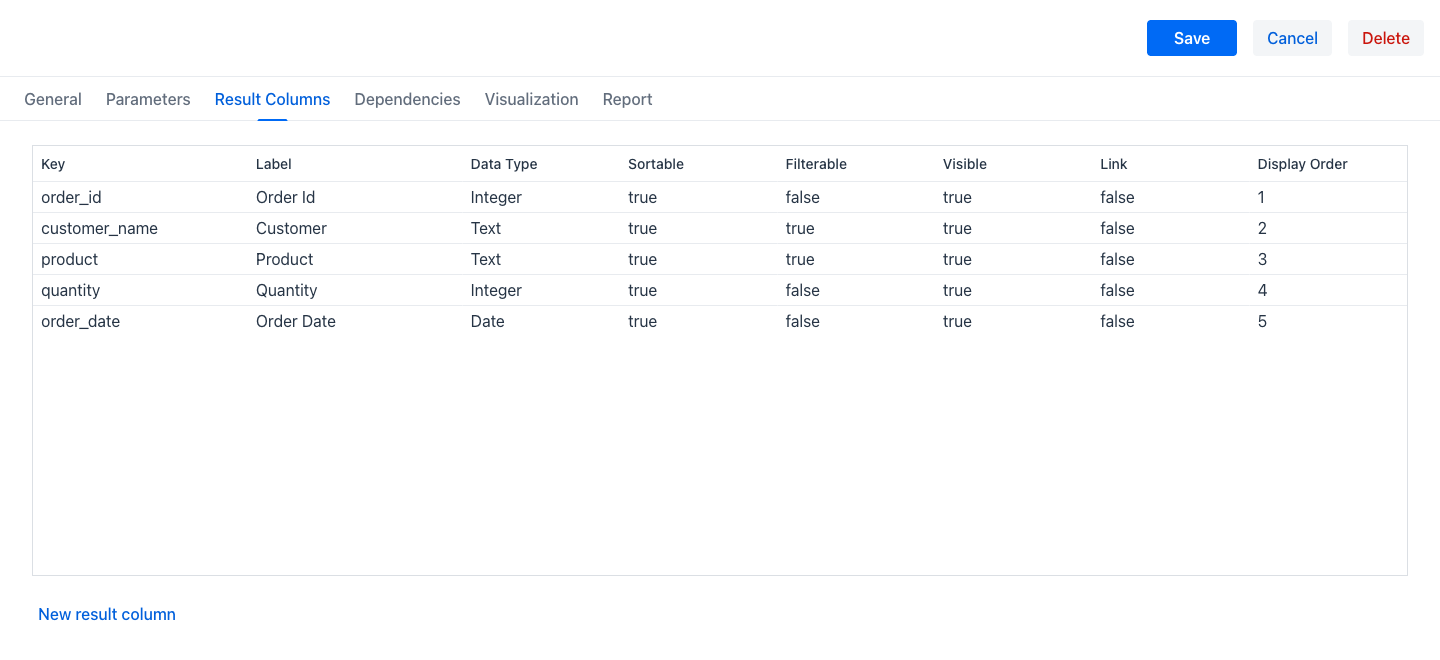
The grid shows the Key, Label, Data Type, Sortable, Filterable, Visible, Link and Display Order of each column. New result column adds one, and clicking a row opens it for edition.
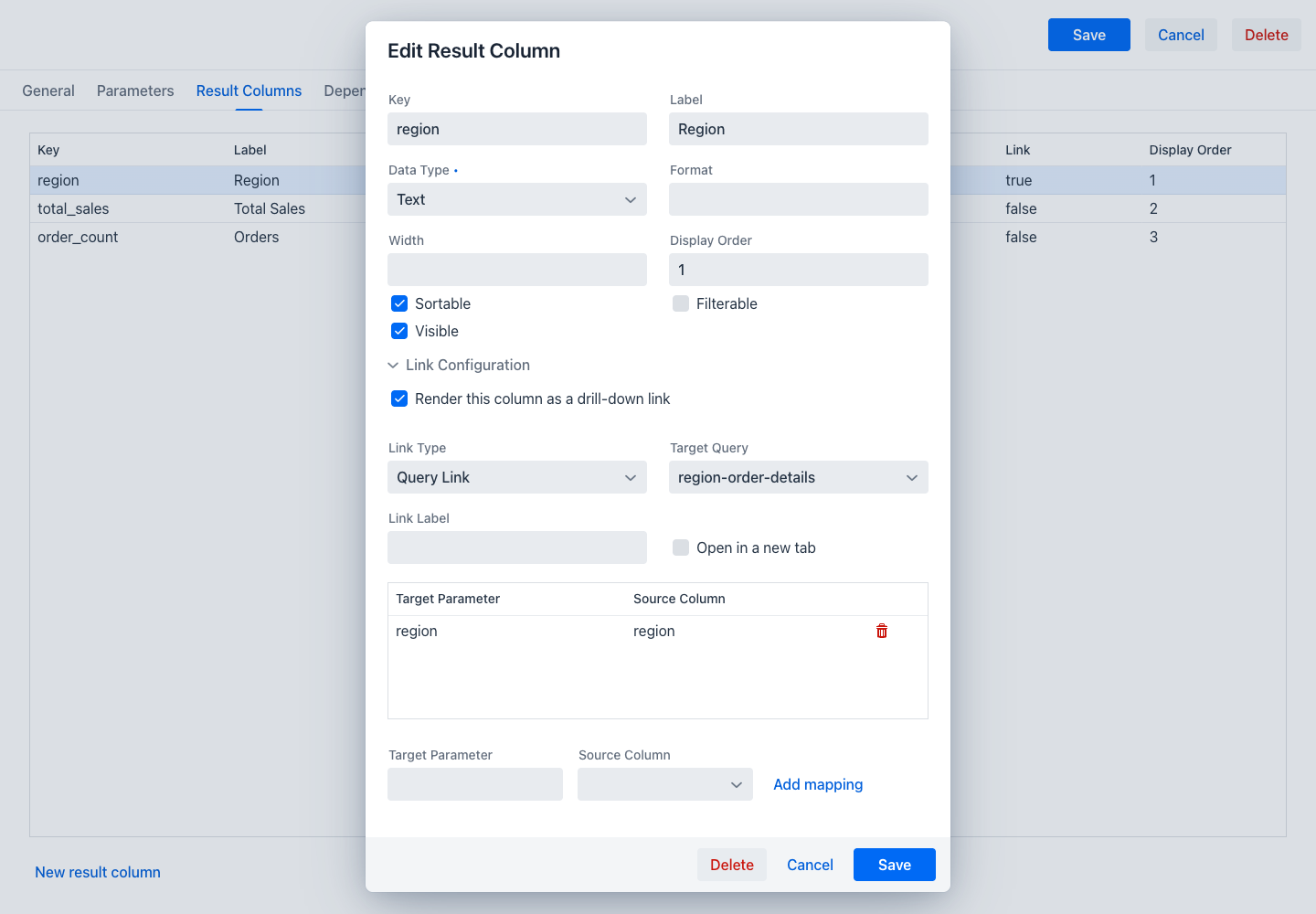
- Key: The alias of the column in the query result — the SQL or HQL alias, or the JSON key of a REST response. Required, and it must match what the query actually returns.
- Label: The header shown in the grid.
- Data Type: Text, Integer, Long, Decimal, Boolean, Date or Date and Time. Required. It governs how the value is rendered, sorted and formatted.
- Format: An optional pattern, for example
yyyy-MM-ddfor a date or$#,##0.00for an amount. - Width: An optional width hint for the grid column, such as
200px. - Display Order: The position of the column in the grid.
- Sortable: Whether the user can sort by this column.
- Filterable: Whether a filter field appears for this column in the grid header.
- Visible: Whether the column is shown. A hidden column is still fetched, so it can supply values to a link on another column.
Link Configuration
The collapsible Link Configuration section turns the column into a drill-down link. Ticking Render this column as a drill-down link reveals its settings.
- Link Type: Query Link navigates to the report view of another query definition; URL Link navigates to an address given as a pattern.
- Target Query: For a query link, a dropdown of the existing definitions.
- URL Pattern: For a URL link, the address to navigate to.
{columnKey}tokens in it are replaced with the values of the current row. - Link Label: An optional fixed text for the link, instead of the value of the column.
- Open in a new tab: Whether the target opens in a new browser tab.
Below these, a grid maps the values of the current row onto the parameters of the target. Each mapping names a Target Parameter and the Source Column whose value is passed to it, and Add mapping appends one. This is what carries context across the navigation: a column of regions can pass its region to the region parameter of a detail query, so clicking a row opens exactly the detail for that row.
Dependencies Tab
The Dependencies tab declares which queries must run before this one, which is how query chaining is expressed.
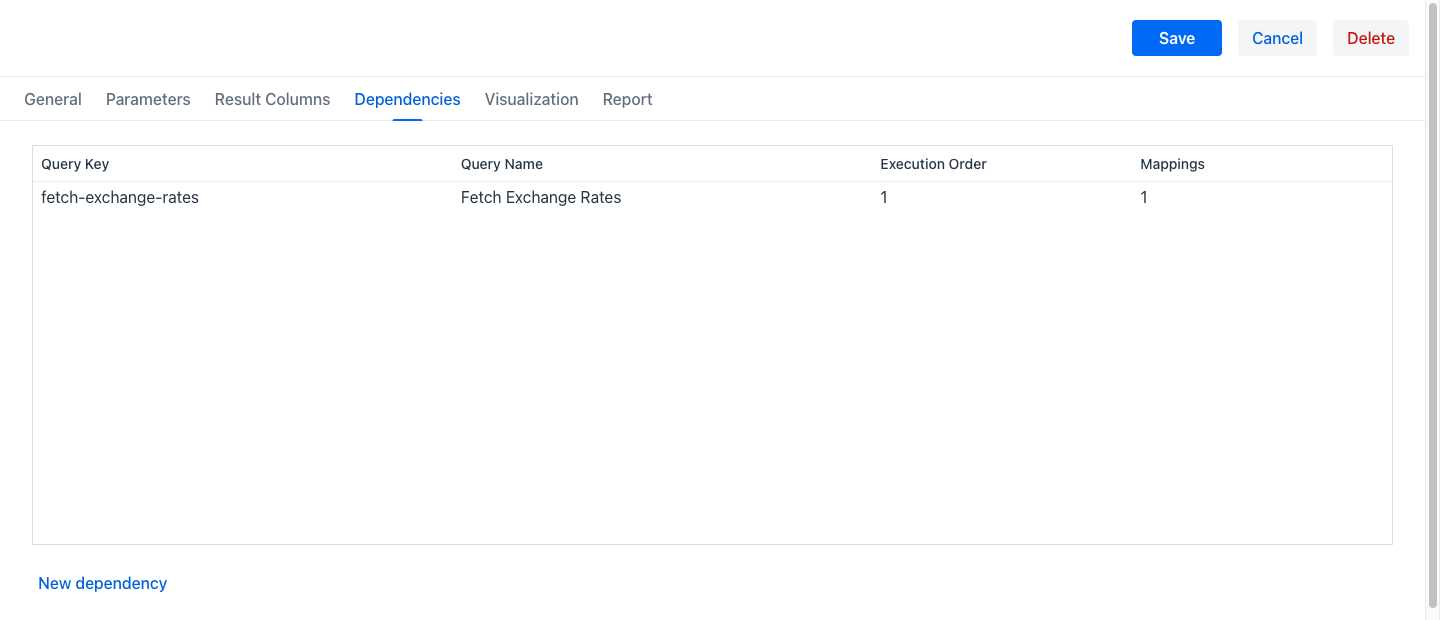
The grid shows the Query Key, Query Name, Execution Order and number of parameter Mappings of each dependency. New dependency adds one, and clicking a row opens it for edition.
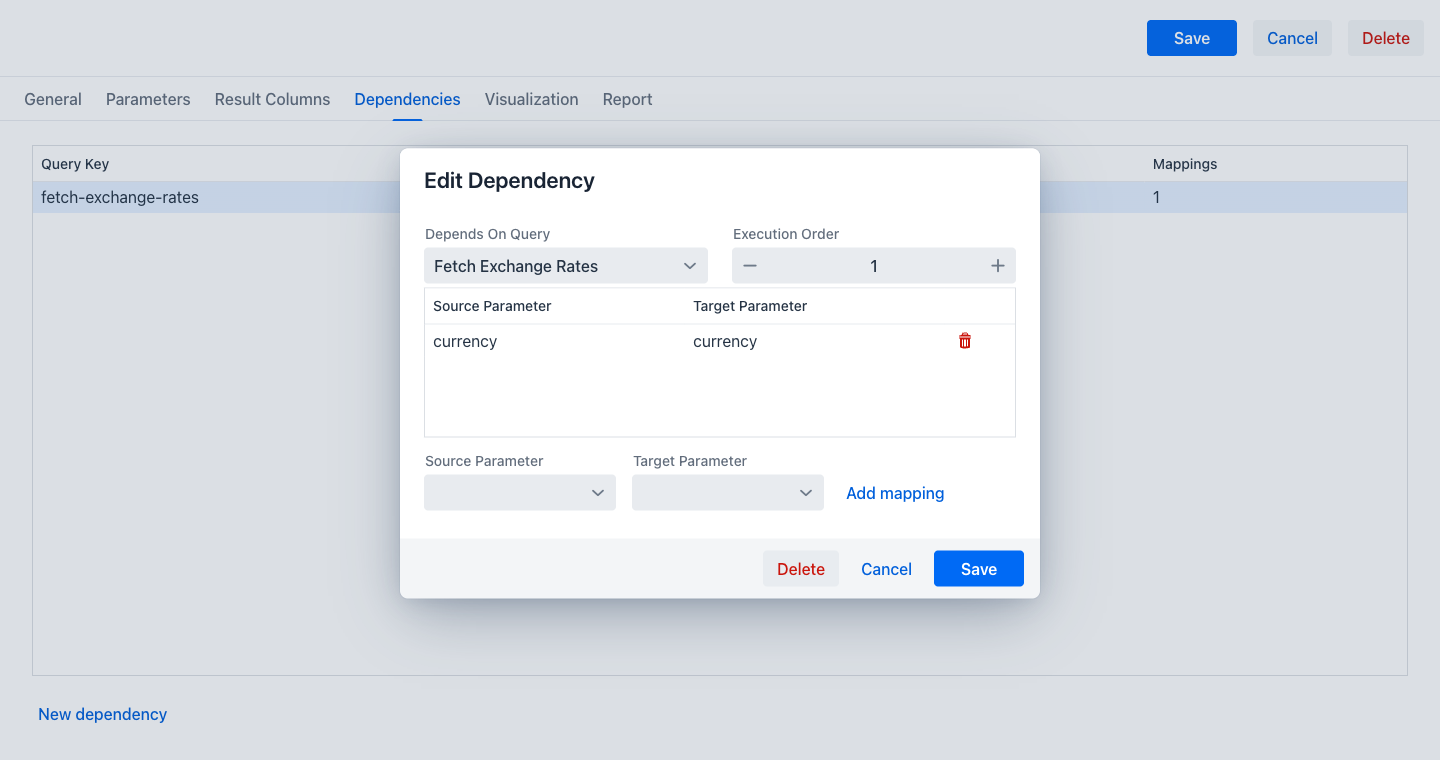
- Depends On Query: A dropdown of the queries that must run first. Queries whose selection would create a circular chain are not offered, and a cycle is rejected when the definition is saved.
- Execution Order: The position of this dependency among the others. Dependencies run in ascending order.
The mapping grid forwards parameter values down the chain. Each mapping names a Source Parameter of this query and the Target Parameter of the dependency that receives its value, and Add mapping appends one. Because of this forwarding, a whole chain is driven by the single parameter form the user fills in: the user is unaware that more than one query is involved.
A dependency that has Store results in a temporary table set makes its rows available to this query under the configured table name. A dependency without it still runs, and is useful when what matters is the parameter values that flow onward rather than its rows.
Note
An HQL query cannot read a temporary table, because such a table has no mapping. Declaring a dependency that stores its results for an HQL query is therefore rejected when the definition is saved; forwarding parameters is the way to chain into an HQL query.
Visualization Tab
The Visualization tab decides whether the results are drawn as a grid or as a chart, and configures the chart.
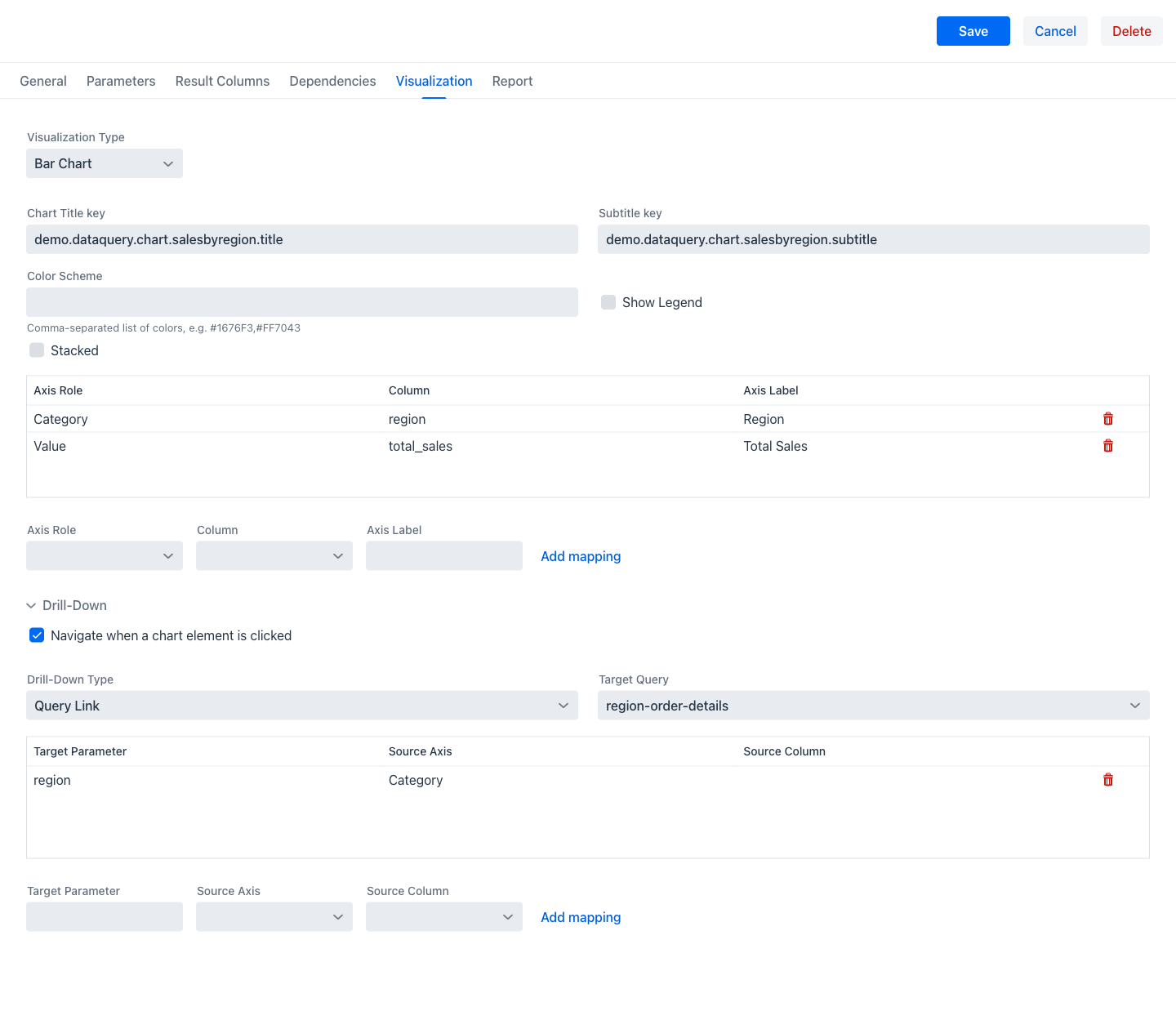
- Visualization Type: Table shows the results as a grid, which is also the behaviour when nothing is configured. The chart types are Bar Chart, Horizontal Bar Chart, Line Chart, Area Chart, Pie Chart, Donut Chart and Scatter Chart. Selecting a chart type reveals the settings below.
- Chart Title and Subtitle: The headings shown above the chart. When the query is marked as internationalised, these hold translation keys and their labels end in "key".
- Color Scheme: A comma-separated list of colours, for example
#1676F3,#FF7043. Leaving it empty uses the default palette. - Show Legend: Whether the chart shows a legend.
- Stacked: Whether bars or areas are stacked rather than placed side by side.
Axis mappings
A chart is produced by mapping result columns onto chart roles. The grid of mappings names an Axis Role, the Column that supplies its values, and an optional Axis Label that overrides the column's own. The fields below the grid, with Add mapping, append a mapping; the bin icon on a row removes it.
The roles are Category, Value, Series and Size, and each chart type expects a particular combination:
- Bar Chart and Horizontal Bar Chart: a Category for the labels and a Value for the lengths. An optional Series groups or stacks the bars.
- Line Chart and Area Chart: a Category for the horizontal axis and a Value for the vertical one. An optional Series produces several lines or areas.
- Pie Chart and Donut Chart: a Category for the slice labels and a Value for their sizes.
- Scatter Chart: two Value mappings for the two axes, an optional Size for the size of each point, and an optional Series for grouping.
Drill-Down
The collapsible Drill-Down section makes the chart clickable. Ticking Navigate when a chart element is clicked reveals its settings.
- Drill-Down Type: Query Link or URL Link, as for a link column.
- Target Query or URL Pattern: The destination.
The mapping grid below carries the clicked element into the target. Each mapping names a Target Parameter and where its value comes from — a Source Axis, which is the role of the clicked element such as its category or its value, or a specific Source Column. Clicking a bar therefore opens the detail of that bar.
Report Tab
The Report tab manages the printed layout attached to the query. When a layout exists and is enabled, the report view exports a PDF rendered from it instead of the standard grid export.
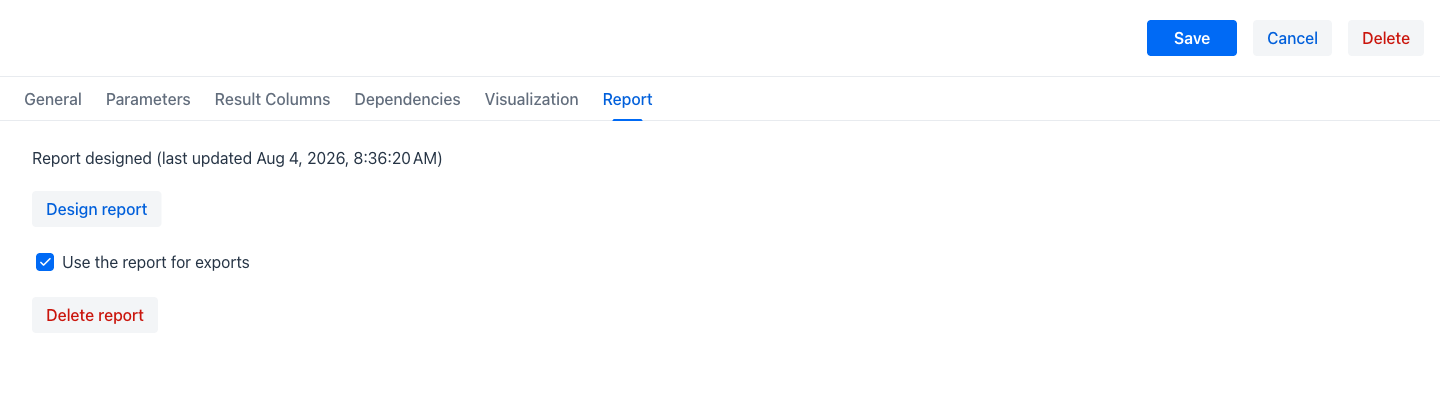
The tab opens with a status line: either that no report has been designed, or that one has, with the date it was last updated.
- Design report: Opens the Report Designer for this query. It becomes available once the definition has been saved, because the designer works from the query's saved columns and parameters.
- Use the report for exports: Shown when a layout exists. When ticked, the report view's export produces the designed PDF; unticking it keeps the layout but returns the export to the standard grid behaviour.
- Delete report: Shown when a layout exists. It asks for confirmation, then discards the layout. Exports revert to the standard grid export.
Without a Licence
Without a licence the appjar allows five queries a user can open, and one dashboard. A bar above the grid then shows a Queries and a Dashboards counter against those limits, alongside a note naming the limited version.
A query that stores its results in a temporary table does not count, so a chain of intermediate steps can be as long as the reporting needs.
Reaching the query limit disables the New query button, which explains the limit in its tooltip. Exceeding either limit restricts the view further: Execute, Design report, Edit and Disable are disabled in every row menu, and Delete is the only action left, until enough queries or dashboards have been removed for the counts to fit again. Opening a report is blocked in the same state, so an application that ran with a licence and then lost it shows no reports until its data fits the limits. See Licensing.