Log Viewers
A Log Viewer is a dynamically registered page that exposes a curated subset of the activity log to users. Each Log Viewer has its own URL, pre-configured filters, and column visibility settings. Administrators create these views to give specific audiences access to relevant log data without exposing the full raw log or management controls.
Log Viewer List
The Log Viewer management view is accessible at /al/logviewer under Activity Log → Log Viewers in the navigation menu.
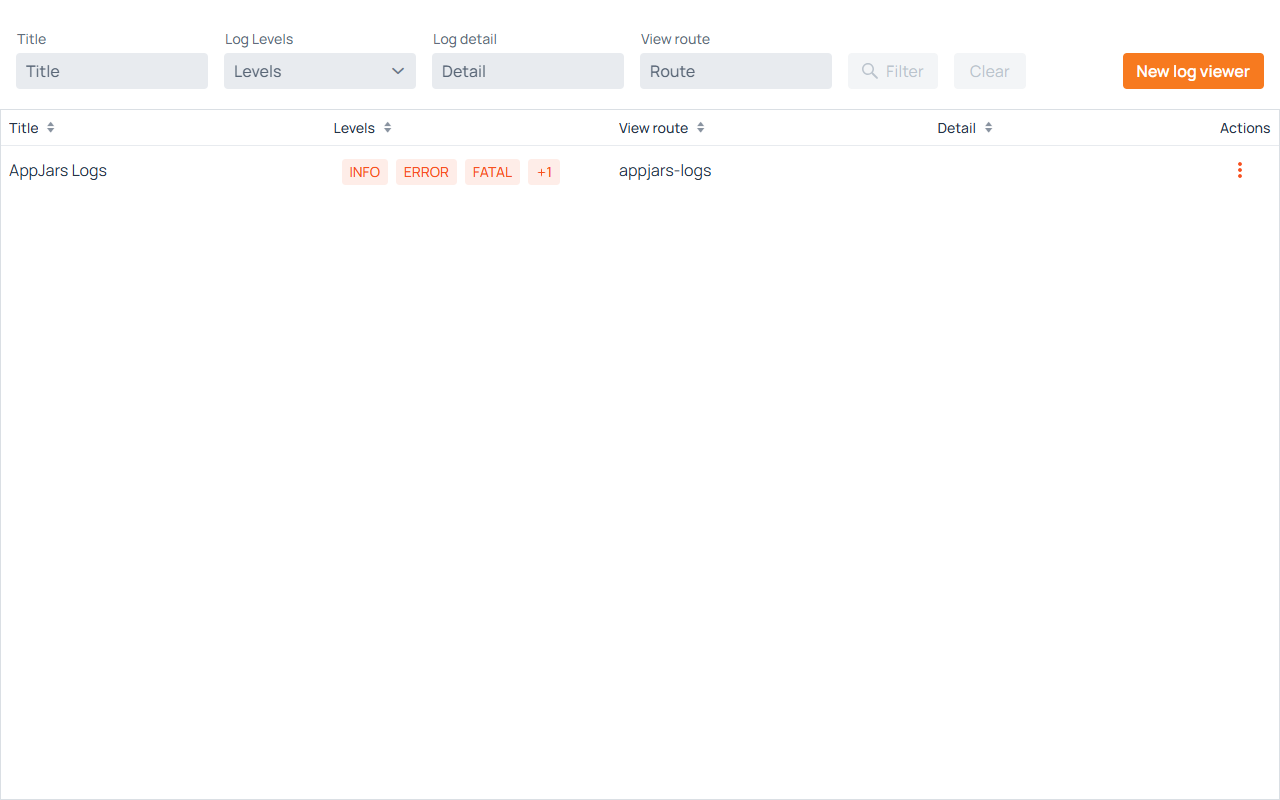
Filters
- Title — Filters by the viewer's display title (partial match).
- Log Levels — Filters viewers that include a specific severity level.
- Log detail — Filters by pre-configured detail filter value.
- View route — Filters by the URL path.
Click Filter to apply, Clear to reset.
Grid Columns
- Title — The display name of the Log Viewer.
- Levels — The log severity levels this viewer is configured to show.
- View route — The URL path at which the viewer is registered (e.g.,
appjars-logs). - Detail — The pre-configured log detail filter, if any.
- Actions — A menu with available operations.
Row Actions
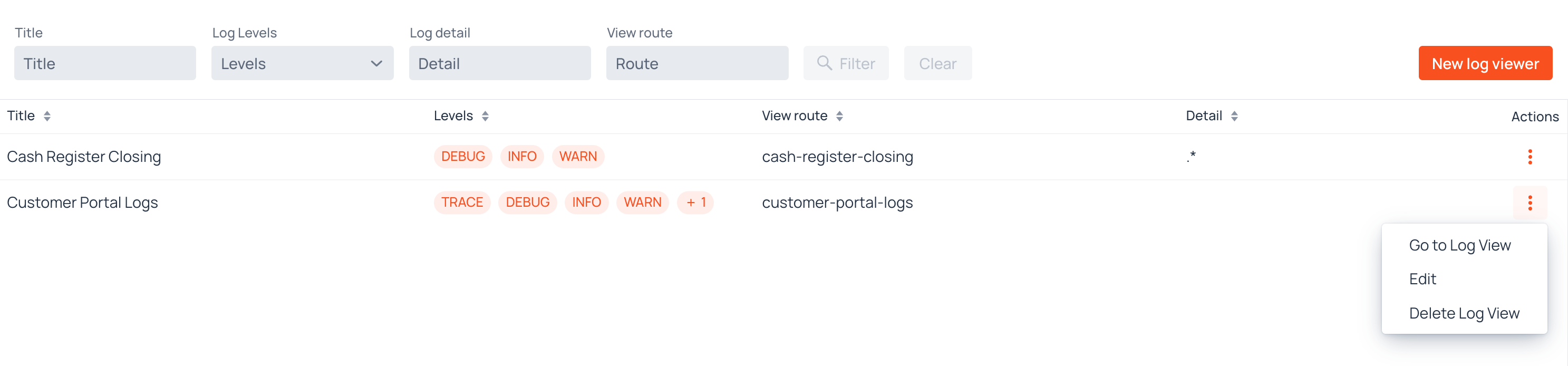
Clicking the ··· icon opens a menu with:
- Go to Log View — Navigates directly to the user-facing Log Viewer page.
- Edit — Opens the Log Viewer configuration form for editing.
- Delete Log View — Opens a confirmation dialog before permanently deleting the viewer.
Creating and Editing a Log Viewer
Click New log viewer to open the creation form. Clicking Edit from a row's action menu opens the same form pre-filled with the existing configuration.
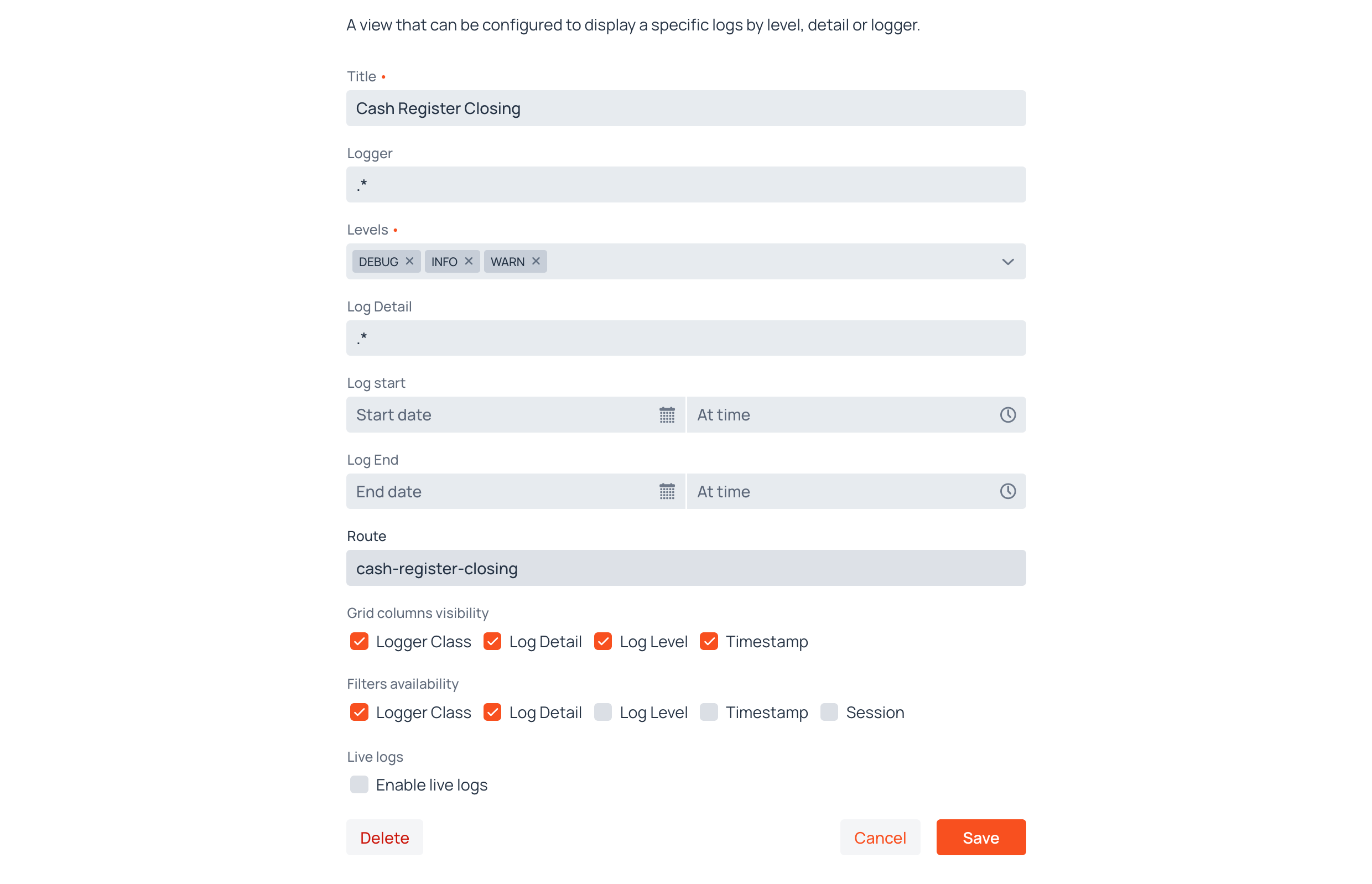
Title
A required display name for this Log Viewer (e.g., "AppJars Logs"). The view is published under this name: it is what appears in the browser tab and in the application's view title when a user opens the viewer.
Logger
An optional pre-configured filter on the logger name. If set, the viewer will only display entries from loggers matching this value. The filter type follows the same pattern-matching logic as Extractor logger filters.
Levels
A required multi-select field specifying which severity levels this viewer displays. At least one level must be selected. These levels also define what the user can filter by when Level filter enabled is checked.
Log Detail
An optional pre-configured filter on the log message content.
Log Start / Log End
Optional date and time boundaries that restrict the viewer to entries within a specific time range. When set, these become the default date range applied when the viewer loads.
Route
The URL path at which this viewer will be registered. Must be unique across all routes in the application. Users will access the viewer at this path (e.g., a route of appjars-logs becomes accessible at /appjars-logs). The route cannot match an existing route.
Grid Columns Visibility
This group of checkboxes controls which columns appear in the log grid when users access this Log Viewer. Clearing a checkbox removes that column entirely from the grid — users will not see the column or its data.

- Logger Class — The fully qualified class name of the component that generated the entry.
- Log Detail — The log message content.
- Log Level — The severity level.
- Timestamp — The date and time the entry was recorded.
The Actions column, which holds the Inspect button, is always present and is not configurable.
Note
There is no session column. The session identifier is available as a filter, and as a field in the Inspect dialog, but it is never displayed as a column of the grid.
Filters Availability
This group of checkboxes controls which filters users can change when viewing the page. A filter left unchecked still applies its pre-configured value, silently — the user simply cannot alter it.
- Logger Class — When checked, users can type in the Logger filter field.
- Log Detail — Same behavior for the Log Detail filter.
- Log Level — When checked, users can select from the levels configured above.
- Timestamp — When checked, users can set a custom date range.
- Session — When checked, users can filter entries by session identifier.
Live Logs

The Enable live logs checkbox, under the Live logs heading, controls whether the viewer offers a real-time mode. When enabled, users see a Live toggle on the viewer page that streams new matching entries into the grid as they are captured. When disabled, the viewer only displays entries that match the filters at load time.
Live streaming relies on server push; if push is not enabled in the application, the toggle is unavailable to users.
Live mode requires a full license
Live mode is a licensed feature. Without a full license the Live toggle is not displayed to users, no matter how this checkbox is set. See Features That Require a License.
Saving
Click Save to persist the Log Viewer. The viewer is immediately registered as a live route in the application and becomes accessible to users. Click Cancel to discard changes.
When editing an existing viewer, a Delete button is available. Deleting a Log Viewer removes the configuration and unregisters the route.