Categories
The Categories view allows administrators to create and manage logical groupings for documents and assistants. Categories are the mechanism that controls which documents an assistant can access during Retrieval-Augmented Generation (RAG). By organizing documents into categories and then assigning those categories to assistants, administrators can precisely control the knowledge scope available to each assistant.
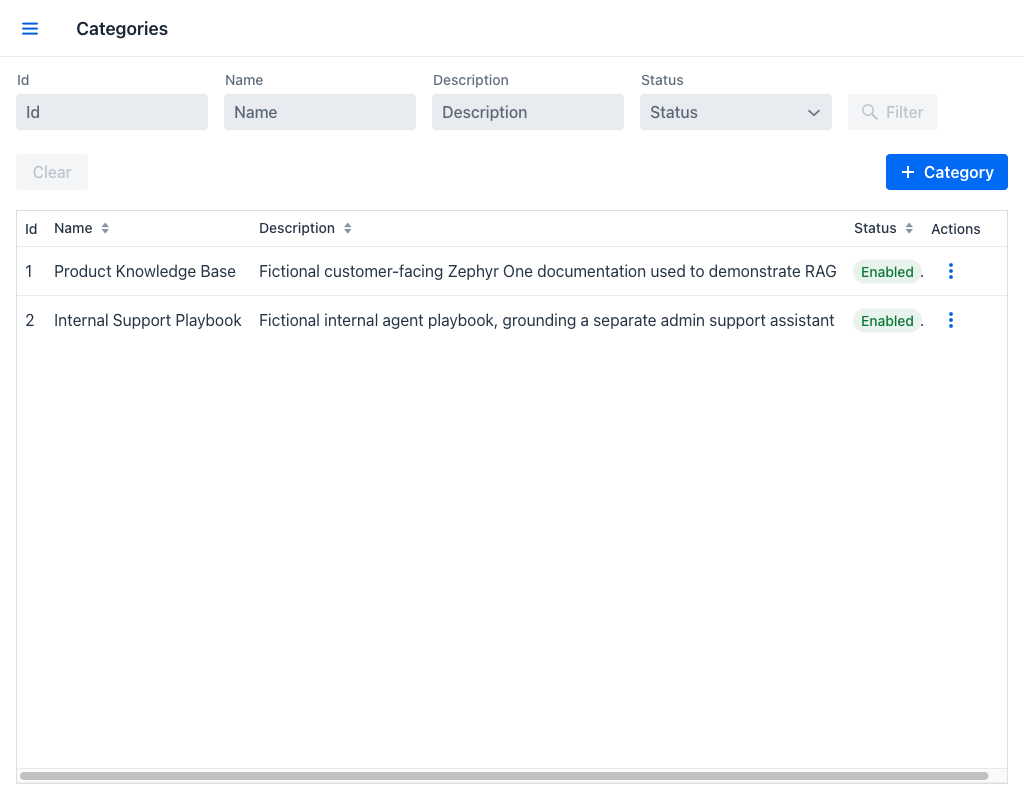
Categories Grid
The grid displays the following columns:
- Id: Unique numeric identifier of the category.
- Name: The display name of the category.
- Description: A brief description of the category's purpose or the type of documents it contains.
- Status: A badge indicating whether the category is enabled or disabled.
- Actions: A per-row actions menu.
Filters
The view provides the following filter fields:
- Id: Filters by the category's numeric identifier.
- Name: Filters categories whose name contains the entered text.
- Description: Filters categories whose description contains the entered text.
- Status: A dropdown to filter by enabled or disabled status.
Once any filter field has a value, the Filter and Clear buttons become active.
At the top right of the filter area, the + Category button opens the dialog for creating a new category.
Row Actions
Click the actions menu on any row to access the following options:
- Edit: Opens the category creation/edition dialog with the current data pre-filled.
- Enable / Disable: Toggles the category's enabled status.
- Delete: Removes the category, described in Deleting a Category.
Deleting a Category
A category that is not used by any assistant or document is removed after a plain confirmation.
When it is in use, the Delete category dialog opens instead. It names the category, states how many assistants and documents are associated with it, and offers two ways forward:
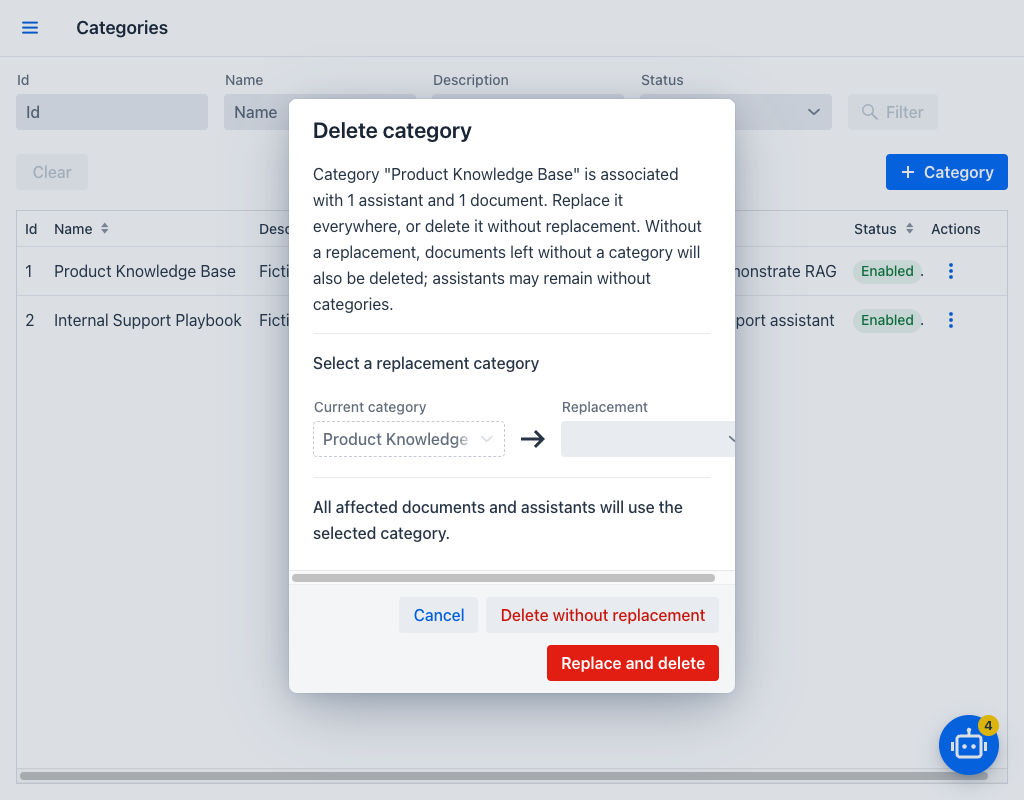
- Replace and delete: Select a replacement in the Replacement dropdown. Every affected document and assistant is moved to the replacement category, and the original is then deleted. Nothing is lost.
- Delete without replacement: Deletes the category as it stands, after a second confirmation. Documents that belonged to no other category are deleted along with their embedding chunks; assistants simply lose the category and may be left with none.
Warning
Deleting a category without a replacement is permanent. Documents left without any category are deleted with their chunks, and an assistant left without categories retrieves no documents at all until one is assigned.
Two situations block the deletion outright, and the dialog does not open:
- The default-external-data category is managed by AI Support and cannot be deleted.
- A category cannot be deleted while one of its documents is still being processed. Wait for the processing to finish and try again.
Creating and Editing a Category
Clicking the + Category button or the Edit action opens a dialog with the following fields:
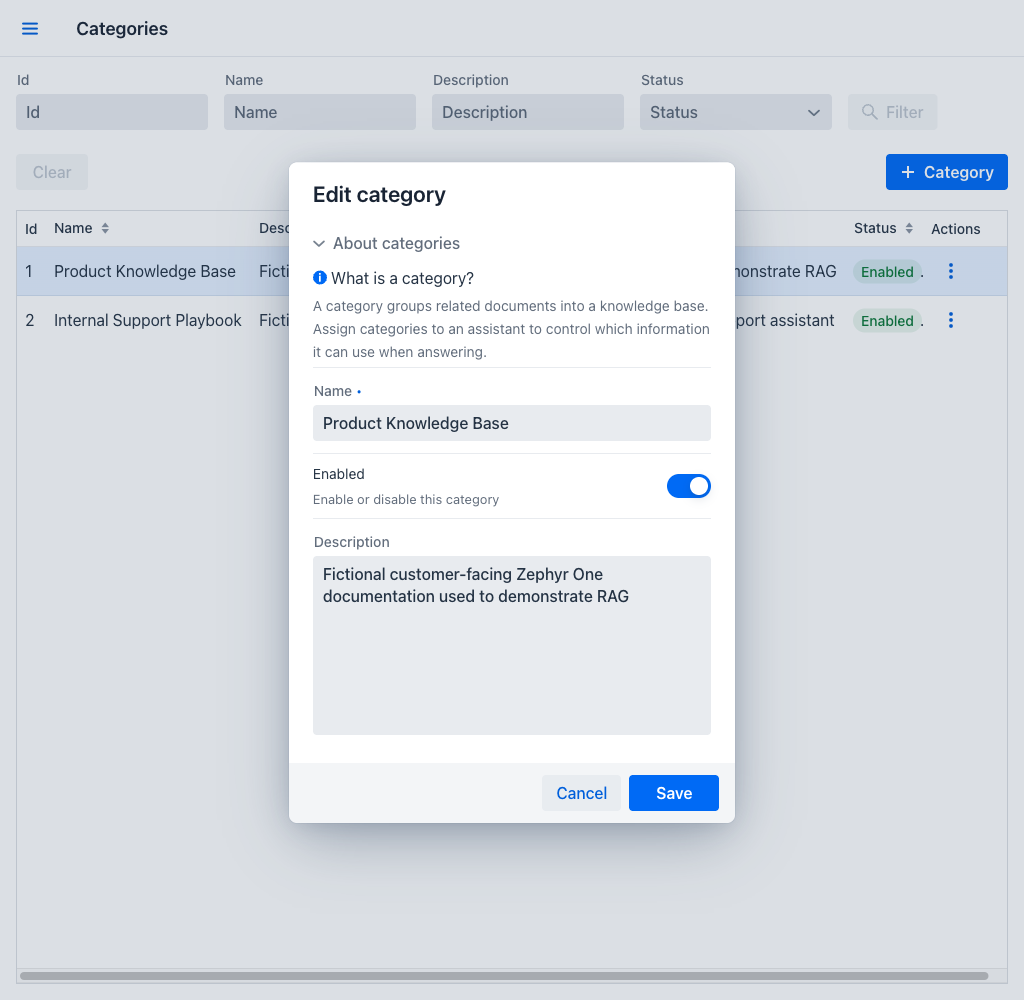
- Name (required): The display name for this category. Must be unique across all categories.
- Enabled: A toggle that determines whether the category is active. Enabled by default.
- Description: A text area for describing the purpose of this category. While optional, providing a clear description helps other administrators understand the intended scope of the category.
The dialog opens with an About categories section explaining what a category is. Closing it with unsaved changes asks whether to discard them.
Using Categories Effectively
Categories serve as the bridge between documents and assistants. A well-designed category structure allows administrators to create assistants with focused knowledge domains. For example:
An organization might create categories such as "Product Documentation", "API Reference", and "Internal Policies". A public-facing assistant could be configured with only the "Product Documentation" and "API Reference" categories, while an internal assistant could have access to all three.
When a user asks a question, the assistant's RAG process searches only the documents that belong to the assistant's assigned categories. This means that documents outside those categories are never included in the context, even if they contain relevant information. This design ensures both relevance and information access control.