Groups
The Groups view allows administrators to organize users into named groups for simplified permission management. Instead of assigning roles to individual users across multiple projects, administrators can assign a role to a group and then add users to that group, automatically granting them the associated permissions.
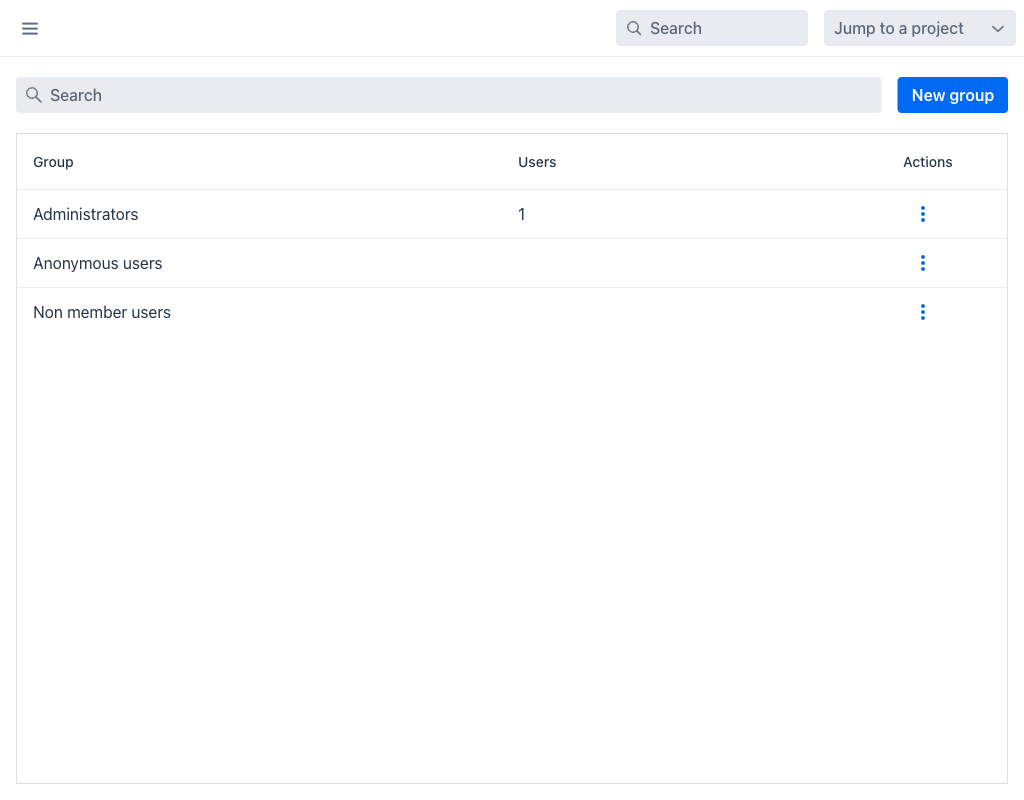
Groups Grid
The grid displays the following columns:
- Group: The display name of the group.
- Users: The number of users currently in the group.
- Actions: A per-row actions menu (⋮) with Edit and Delete.
The top of the view provides a Search field, which filters the list by group name, and a New group button for creating new groups.
Two entries are always present and cannot be deleted: Anonymous users and Non member users. They are not ordinary groups but the principals behind the built-in Anonymous and Non member roles, and they have no membership of their own.
Creating a Group
When creating a new group, the following field is required:
- Name (required): The display name of the group.
After creation, users can be added to the group and the group can be assigned roles within projects.
Managing Group Membership
Each group can contain any number of users, and each user can belong to multiple groups. Group membership is managed through the group edit view, where administrators can add or remove users.
Groups and Project Roles
Groups are most useful when combined with project membership. When a group is added as a member of a project with a specific role, all users in that group inherit the permissions of that role within the project. This simplifies permission management for organizations with many users and projects.
Warning
Deleting a group removes the group and its role assignments. Users who were in the group will lose any permissions that were granted exclusively through the group's project memberships.