Settings
The Settings view provides global configuration options for the Issue Tracker. Settings are organised into five tabs, each covering a different aspect of the application's behaviour. Every tab has its own Save button, so changes must be saved before switching to another tab.
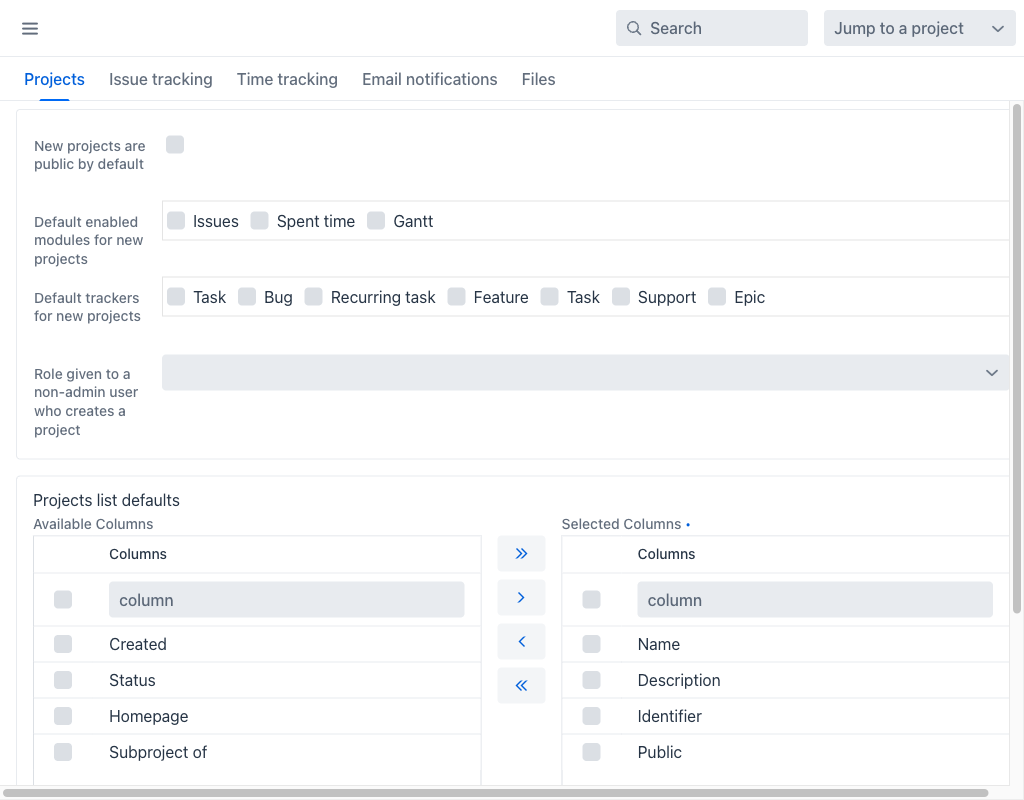
Projects
The Projects tab defines the defaults applied to newly created projects:
- New projects are public by default: When enabled, a project created without an explicit visibility setting is visible to every user.
- Default enabled modules for new projects: The project modules activated on creation. The available modules are Issues, Spent time and Gantt.
- Default trackers for new projects: The trackers enabled on a new project. Issues can only be created with a tracker that is enabled for their project.
- Role given to a non-admin user who creates a project: The role automatically assigned to a non-administrator who creates a project, so that the creator retains access to it.
The Projects list defaults section controls which columns appear in the Projects grid. Columns are moved between the Available Columns and Selected Columns lists with the arrow buttons between them.
Issue tracking
The Issue tracking tab controls how issue lists are presented:
- Issues list defaults: The columns shown in the issues grid, selected from the Available Columns list into the Selected Columns list. Available columns include Updated, Project, Parent task, Category, Target version, Start date, Due date, Estimated time, Total estimated time, Spent time, Total spent time, % Done, Created and Closed.
- Totals: The numeric fields for which a total is displayed above the issues grid. Spent time and Estimated time are always available; custom fields defined as totalable appear alongside them.
Time tracking
The Time tracking tab configures time logging:
- Maximum hours that can be logged per day and user: An upper bound on the hours a single user may log for one day. Attempting to exceed it is rejected when the time entry is saved.
- Timelog list defaults: The columns shown in the Spent time grid, configured with the same twin-list control used on the other tabs.
- Totals: The numeric fields totalled above the time entry grid. Hours is always available.
Email notifications
The Email notifications tab configures the notification emails the Issue Tracker sends:
- Emission email address: The sender address used for outbound notifications.
- Plain text mail (no html): When enabled, notifications are sent as plain text instead of HTML.
- Show status changes in issue mail notifications subject: Adds the status transition to the subject line of issue notification emails.
- Email header and Email footer: Markdown editors whose content is prepended and appended to every notification.
The tab also lists the events that trigger a notification. The Check all and Uncheck all buttons select and clear the whole list at once.
Files
The Files tab controls attachment uploads:
- Maximum attachment size: The largest file that may be attached, expressed in KB.
- Allowed extensions: A comma-separated list of permitted file extensions, for example
txt, png. Leaving it empty allows any extension.
Note
The Maximum attachment size setting applies on top of the Spring multipart limits described in the Developer Guide. An upload is rejected if it exceeds either limit, so the multipart limits must be at least as large as the value configured here.