Administrator Features
Administrators have access to a comprehensive set of management views provided by User Manager. Together, these views cover the full lifecycle of user management: creating and managing users, defining roles, organizing users into groups, and configuring runtime access rules.
-
Users management — Create, edit, enable, disable, and delete user accounts. Manage role and group assignments for each user, generate registration links for new users, and create password reset links for existing users.
-
Roles management — Define and manage the roles (authorities) used throughout the application. Roles determine what actions and views a user can access. Administrators can create, rename, and delete roles, and generate registration links tied to specific roles.
-
Groups management — Organize users and roles into reusable groups. A group bundles a set of roles that are automatically inherited by all its members, simplifying permission management when the number of users and roles grows.
-
Access Rules — Define runtime access rules that control which roles may reach which views. Rules can target views individually or by URL pattern and regular expression, and are evaluated in priority order until one matches and decides.
-
Views — Browse all registered application views and inspect which access rules and role requirements apply to each one. This read-only view provides a consolidated overview of the application's security configuration.
-
Authentication Providers — Configure how users authenticate against the application. Manage the regular username and password mechanism alongside external OAuth2 or OpenID Connect providers such as Google and GitHub, control which providers are enabled, and decide whether new users may sign up automatically through each provider.
Free mode
In Free mode, User Manager allows a maximum of 5 users. A restrictions bar appears at the top of the Users, Roles, Groups, Access Rules, and Views management pages to show current consumption at a glance.
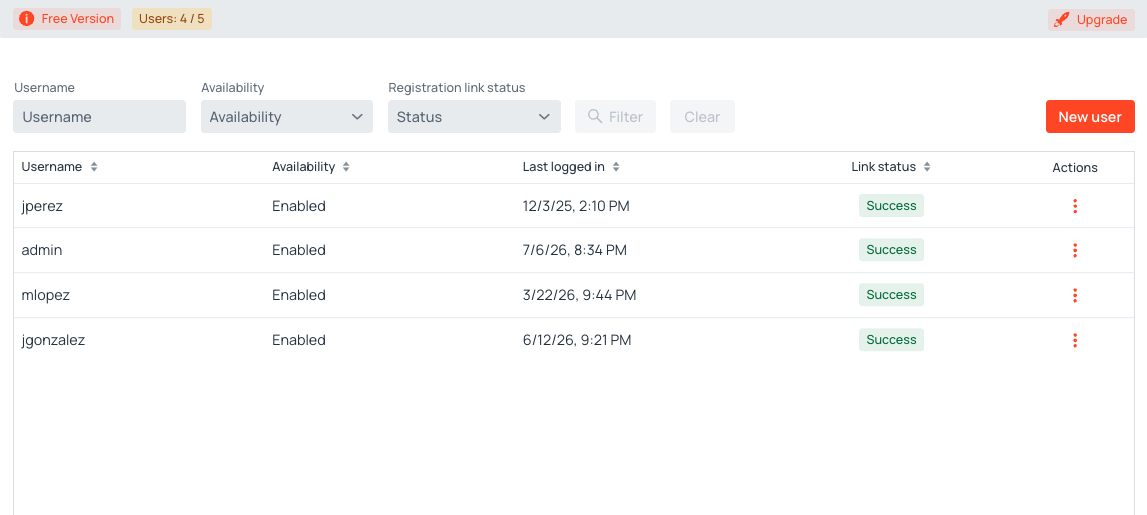
The badge in the bar displays Users X/5, where X is the current user count. As usage approaches and reaches the limit, the following restrictions take effect:
| User count | Effect |
|---|---|
| Below 5 | All create and edit actions available |
| Exactly 5 (limit reached) | New user button disabled; everything else remains available |
| More than 5 (restricted mode) | Every create and edit action across the appjar is disabled |
An installation ends up above the limit when users were created under a paid license that has since lapsed. In that state — restricted mode — the following are all unavailable:
- Creating a user, and editing, linking, enabling, or disabling an existing one
- Creating, editing, deleting, and generating registration links for roles and groups
- Creating, editing, duplicating, and deleting access rules, along with the Enabled toggle and reordering rules by dragging
- Opening a rule for editing from the Views page
Disabled controls explain the reason in a tooltip. The restrictions are enforced when the action is carried out as well as in the interface, so they hold for a session that was already open when the limit was crossed.
Reading remains unrestricted throughout: every management view can still be browsed and filtered, and access rules continue to be evaluated normally.
Upgrading to a paid license
To remove the 5-user limit, upgrade to a paid AppJars license. Contact AppJars support for details.